

Your tax profile
1
Choose your country
Pick Canada (CA), Germany (DE) or Other.
2
Enter your tax registration number
Tax registration number (shown on invoices) — your GST/HST number in
Canada (for example
123456789 RT0001), your USt-IdNr in Germany. It is
printed on your invoices.3
Tick the box if you charge no tax
In Canada, Not registered for GST/HST — invoices carry no tax is for a
business below the registration threshold. Elsewhere the box reads Tax
exempt — invoices carry no tax. While it is ticked, your invoices carry
no tax.
4
Save
Press Save tax profile. To remove a value — a wrong registration
number, for example — clear the field and save.
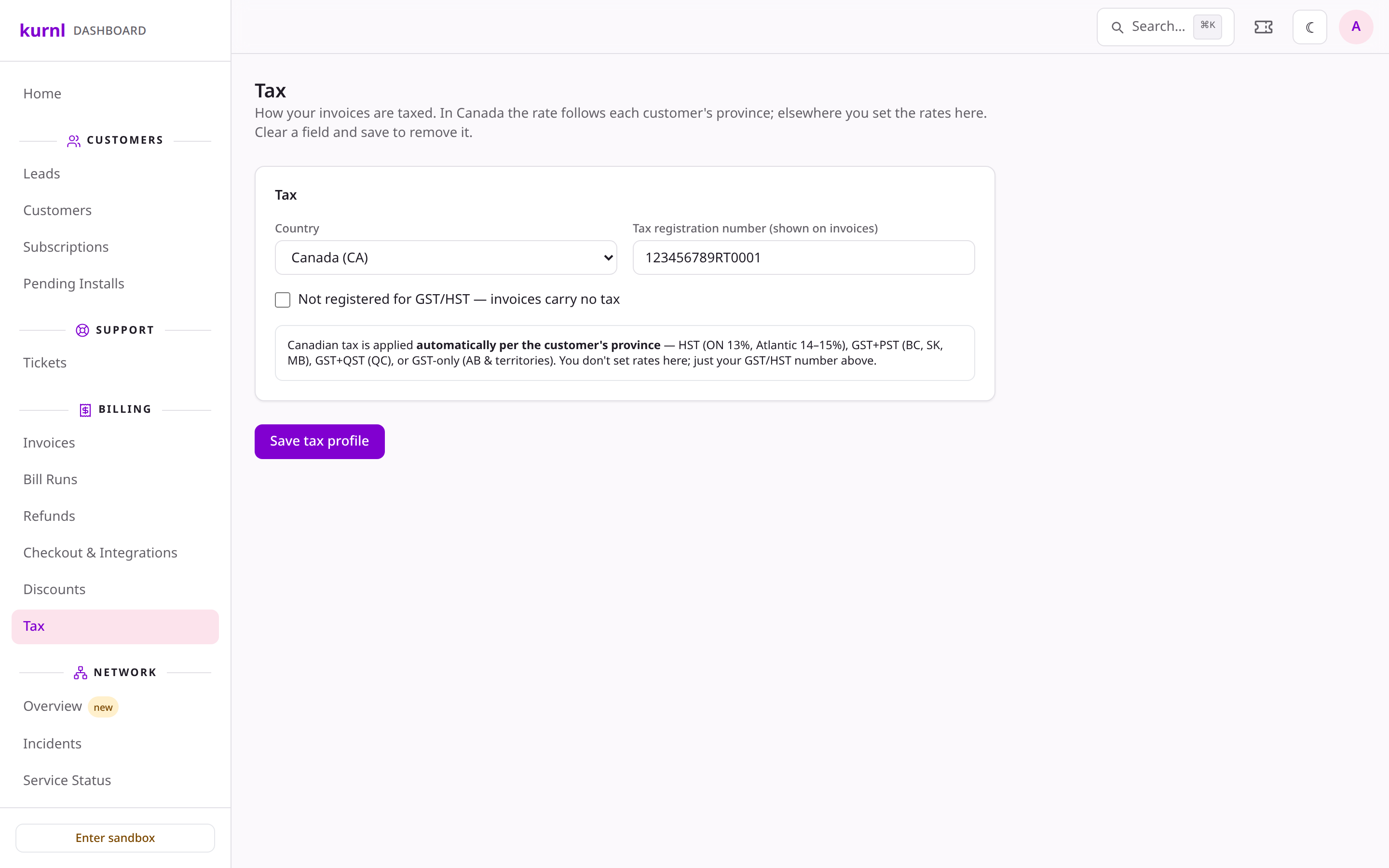
A Canadian tax profile
Canada
You set no rates. kurnl applies the tax of the customer’s province automatically:Germany and other countries
Set the tax yourself: Tax label 1 and Rate 1 (%) — for Germany the defaults are USt. and 19 — and, if a second tax applies, Tax label 2 and Rate 2 (%). Every invoice line is taxed at these rates.DATEV export (Germany only)
With Germany (DE) selected, the page adds the DATEV sections for your bookkeeping.- DATEV export accounts — Revenue account (Erlöskonto), Counter account (Gegenkonto), Berater-Nr. and Mandanten-Nr. The account numbers depend on your chart of accounts: confirm them with your tax advisor. They are saved with Save tax profile.
- DATEV export — choose From and To and press Export DATEV (CSV). You get a DATEV booking batch (Buchungsstapel) with one booking per invoice in that period. The export is for your admin account and bookkeeping staff.
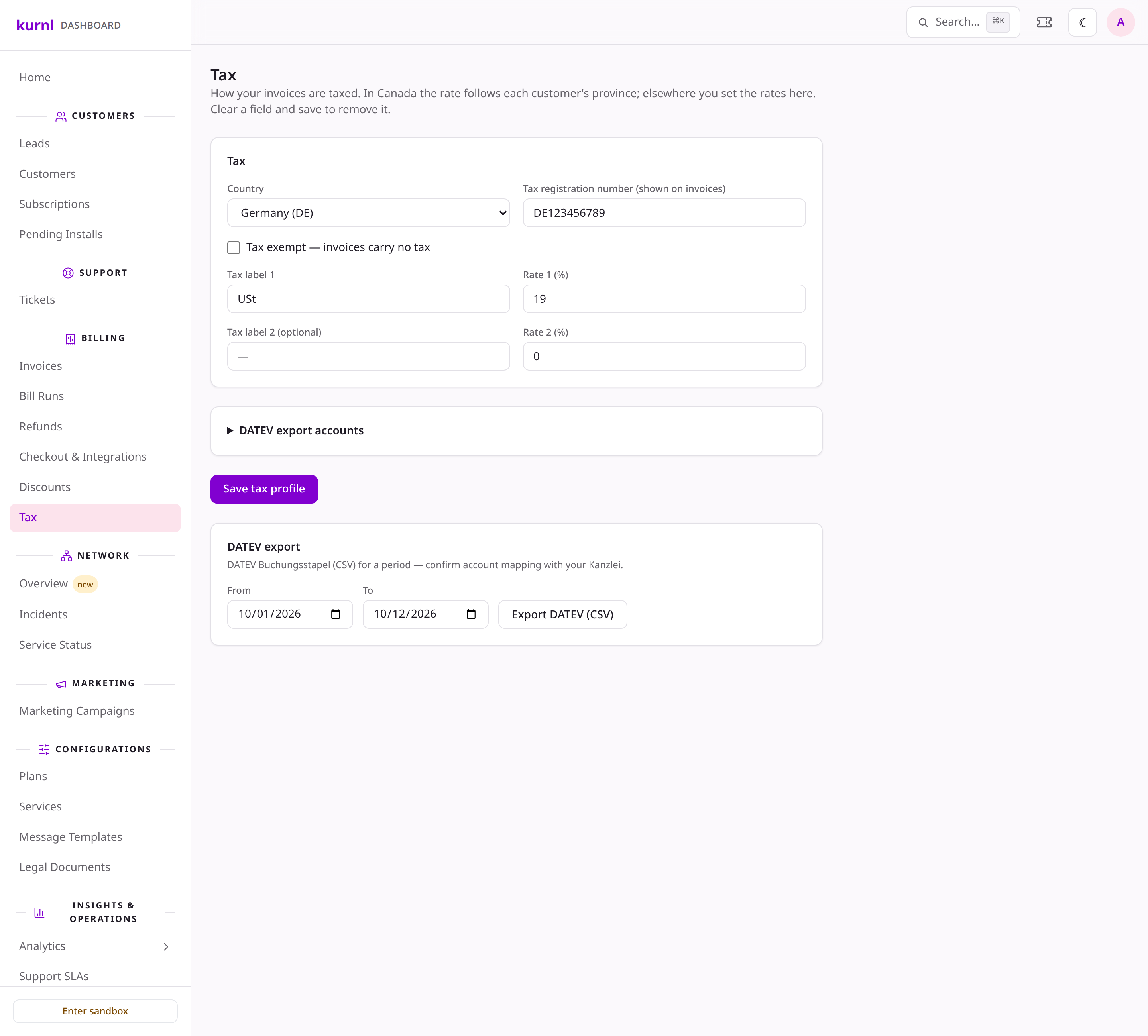
The DATEV sections for a German provider