Take a new subscription from “needs hardware” to “online” — the pending-install queue, scheduling field visits, per-unit install guides, and the technician mobile app.
After signup, a subscription that needs hardware flows through installation. This
guide covers scheduling, truck-roll rules and what technicians use in the field.
What providers see — Pending Installs, the booking link, router delivery and the customer’s
Equipment tab — is in Installs & equipment.
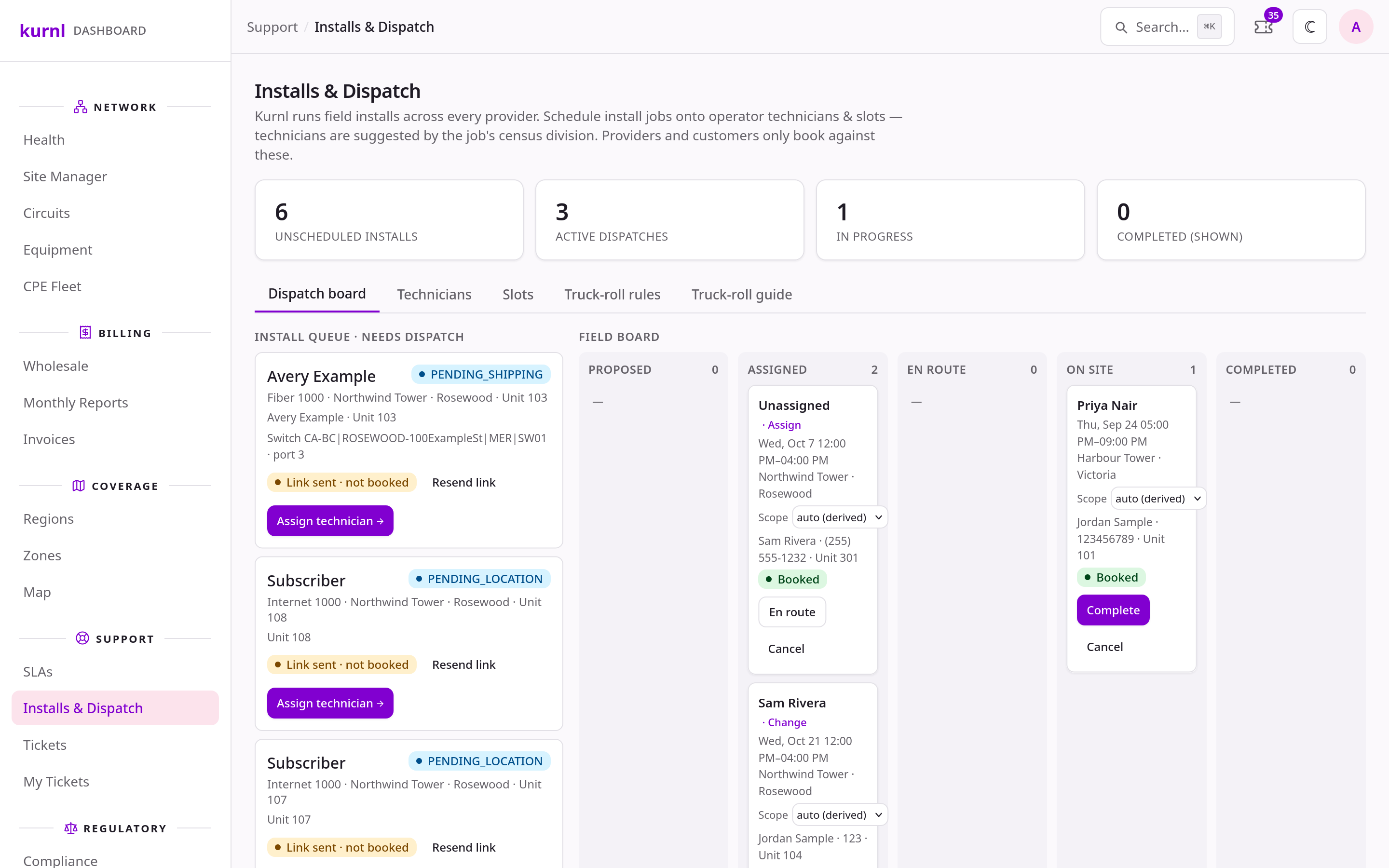
Go to Installs & Dispatch (under Support in the operator sidebar) to
see open jobs and pending installs, assign a technician, and schedule a
window. Jobs are ordered so a tech’s day makes a sensible route.
An install in a third-line building needs a Kurnl technician on site. For
those installs the customer books the visit themselves: right after the order
the platform e-mails a booking link to the on-site contact (the subscriber’s
e-mail, or the contact_email an anonymous partner checkout supplied), and the
link opens a public booking page in the provider’s customer portal. Second-line
installs ship a CPE and first-line buildings provision directly — neither gets
a booking link.An install job for a suite whose router is already online needs no device:
Confirm install switches the port on directly and pins it to the MAC of the
router on it (if kurnl knows no MAC for that router, the port learns the router
already on it). Operator-created lines on such a suite get their job with no
booking invitation and no shipment. The install-jobs page shows a Router
online badge, with Confirm install in place of Assign device, on any
install job that still waits for a device when three things hold: the suite has
a single connection, its router is online on the port the job is mapped to, and
no technician visit is invited or booked for it. This covers every building
line type and partner orders too. If a visit is invited or booked, cancel it
first. Until then, Confirm install refuses with “A technician visit is invited
or booked”. kurnl checks all three again at the click. A shared suite, a job
mapped to another port than the suite’s, or a router that is not online keeps
Assign device.The windows the customer can pick from are generated from the Truck-roll
rules tab in Installs & Dispatch:
Two windows per weekday — 08:00–12:00 and 12:00–16:00 in the region’s
time zone. No weekends, no statutory holidays of the region’s province
(Canada: the province’s public holidays; optionally the government list,
which adds Boxing Day), and no blocked dates you enter for company closures.
Notice hours (default 24) — a window is bookable only if it starts at
least that far ahead. On a Thursday at 09:00 the Friday morning window is
already closed, Friday afternoon is open. Cancelling and moving a visit obey
the same rule.
Capacity per window (default 1) — visits the operator can run in one
window.
Inheritance — rules are set on any node of the region tree (country,
province or division). A division without rules of its own uses the nearest
ancestor’s; without any, the built-in defaults apply. The tab shows each
node as Own rules, Inherits from … or Defaults, and flags a node the
generator cannot place (Province unresolved).
Generation — slots are created nightly for the next eight weeks, per
division that has buildings. Saving a rule regenerates the future slots
beneath that node right away; booked slots are never touched. Generated
slots show up on the Slots tab grouped by region with a generated
marker. Manual slots stay possible for exceptions and are never regenerated.
On the dispatch board and in the install queue every job card carries the
on-site contact (name, phone, unit) and the customer’s special instructions.
Third-line jobs also show their booking state:
Badge
Meaning
Action
Booked
The customer picked a window
—
Link sent · not booked
The invitation went out, nothing booked yet
Resend link
No contact e-mail · ask the provider
An anonymous order arrived without an e-mail
Add e-mail & send link — enter the address the provider gives you; the link goes out immediately
Link not sent
Third-line job, invitation not sent yet
Send link
The booking page and its link stop working once the install job is completed.
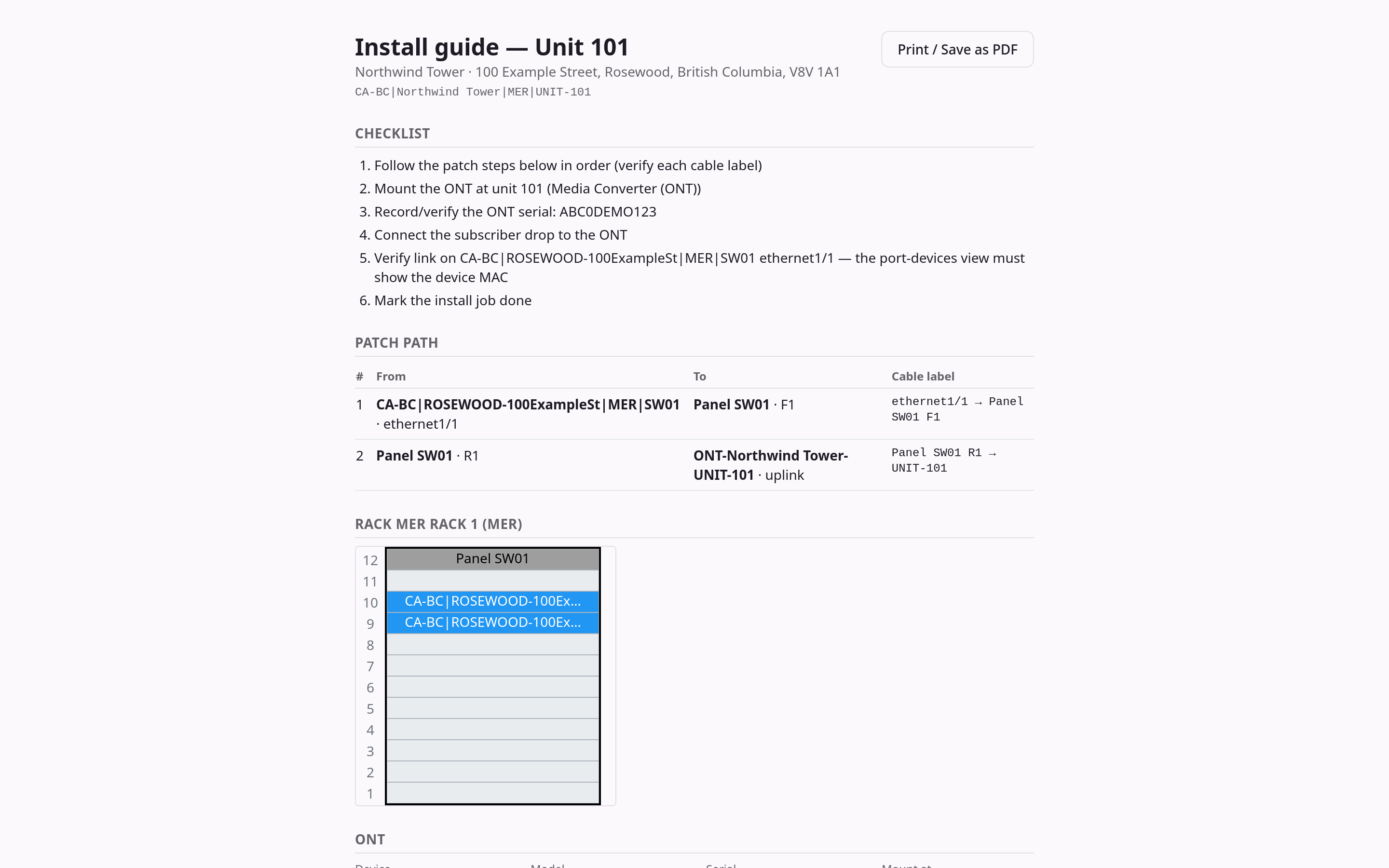
Each unit has a print-ready install guide that gets richer as NetBox fills in.
1
Open a unit's install guide
From the unit register of a site in the Site Manager (Units tab), open Install guide: a
printable page with the unit’s location, the cable path (region → site →
room → unit), and any rack/photo/serial data NetBox holds. It’s also attached
to the install ticket. (The Pending Installs list itself doesn’t carry the
link.)
A unit install guide
Install guides get more detailed automatically as NetBox gains racks, photos
and serials — no doc edits needed.
Field techs sign in with the technician role and work from My jobs on
their phone — their assigned visits with a five-step job sheet (on site, patch
plan, device, photos, work done). The sheet adapts to the kind of visit (MER +
unit, unit only, MER only); printing is the fallback for a MER without
reception. The technician’s own walkthrough, with phone screenshots for each
kind of visit, is the Field technician guide;
the full bench-to-activation flow is in the
CPE provisioning procedure.A technician who benches CPEs gets Bench on the Technicians tab of
Installs & Dispatch: their portal then also shows the live bench and its guide
(Kurnl’s own technicians only, off by default).When the line goes live — on every path, including mark-installed and an already-live line — kurnl marks the
order’s install ticket resolved with an internal note; it closes on its own three days later unless someone reopens
it.
A completed install can kick off follow-ups — wire a install.completed
trigger in Automations.