
You need the admin account: only the admin opens Automations. Templates
are under Configurations → Message Templates.
How a message is sent
Every customer message starts with an event: an order is received, the service goes live, an invoice is created, a payment fails, an installation is completed. When it happens, kurnl looks at your rules for that event: Four things decide what the customer receives:- Every lifecycle e-mail comes from a rule. Your account starts with one System default rule per event — Order received email on Subscription created, Welcome email on Subscription activated, and so on. Each sends the event’s active template.
- A rule picks its template in one of two ways. In Send Email, the Email template field is either The active template for this event (what the System default rules use) or one template you choose. A chosen template is sent even while it is inactive in the template list; the list then marks it Sent by rule. Only “the active template” needs an active one.
- One e-mail per event. However many rules match, a customer gets at most one e-mail and one text for each event. Rules with conditions are tried first — the more conditions, the earlier — and then older rules before newer ones. A rule without conditions is therefore the fallback: it sends only when no rule with conditions did.
- Other actions all run. The one-message limit is for e-mails and texts. Tags, tickets, notes, fields, notices and webhooks run for every rule that matches.
Which condition to use
Installation and Building line type are not the same. A building has
one line type, but each order in it takes its own path: a suite whose router is
already online orders without a visit, even in a third-line building, while its
neighbours get a technician. To match the message to what happens with this
order, use Installation.
The base recipe: one e-mail, several versions
Every recipe below follows the same five steps.1
Write one template per version
In Configurations → Message Templates, press + New template, pick
E-mail and the event — for example Subscription created — and start
from Copy of “Order received”. Name it so you can find it again, such
as Order received — technician visit, and change the words. Save. New
templates start inactive; leave them that way.
2
Add one rule per version
In Automations, press + New Automation. When: the same event.
If: the condition for this version. Then: Send Email with
Email template set to the template from step 1.
3
Keep the System default rule on
The System default rule (here Order received email) has no conditions, so
it sends the active template to every customer none of your rules matched.
That is your fallback. Turn it off only if every customer is covered by one
of your rules.
4
Expect the overlap note
Under the conditions the editor says that another rule on this event can
match the same customer, and names the System default rule. That is the
fallback from step 3 and is what you want. If it names one of your
version rules, two versions overlap — make their conditions exclusive.
5
Check it
Send test in the rule sends the chosen template to an address you
enter, never to a customer. After a real order, Run history shows each
rule that was checked: your matching rule with E-mail sent, the System
default rule with Skipped — this e-mail was already sent for the event.
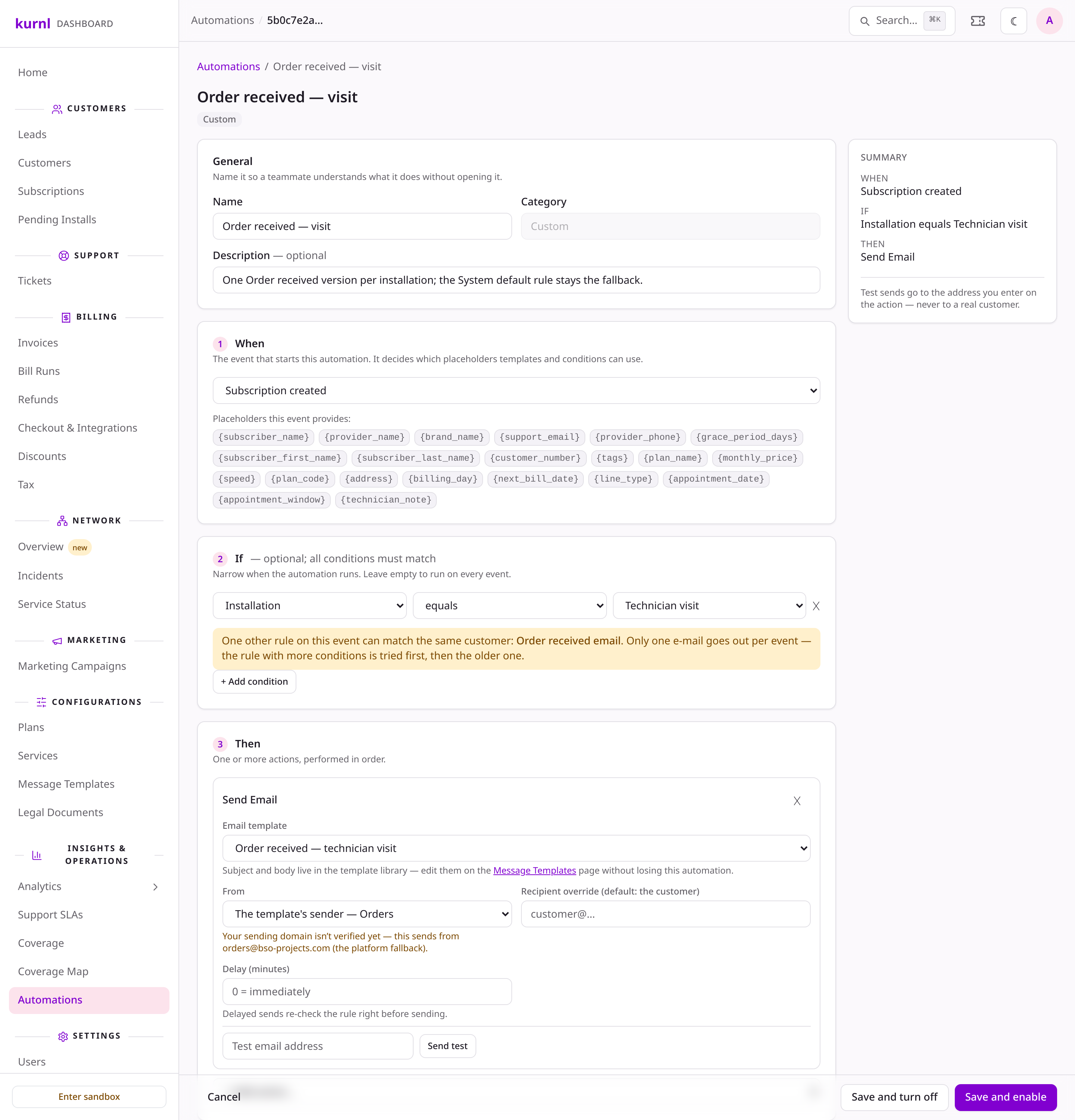
A version rule: Installation equals Technician visit sends its own template; the note names the System default rule, the fallback
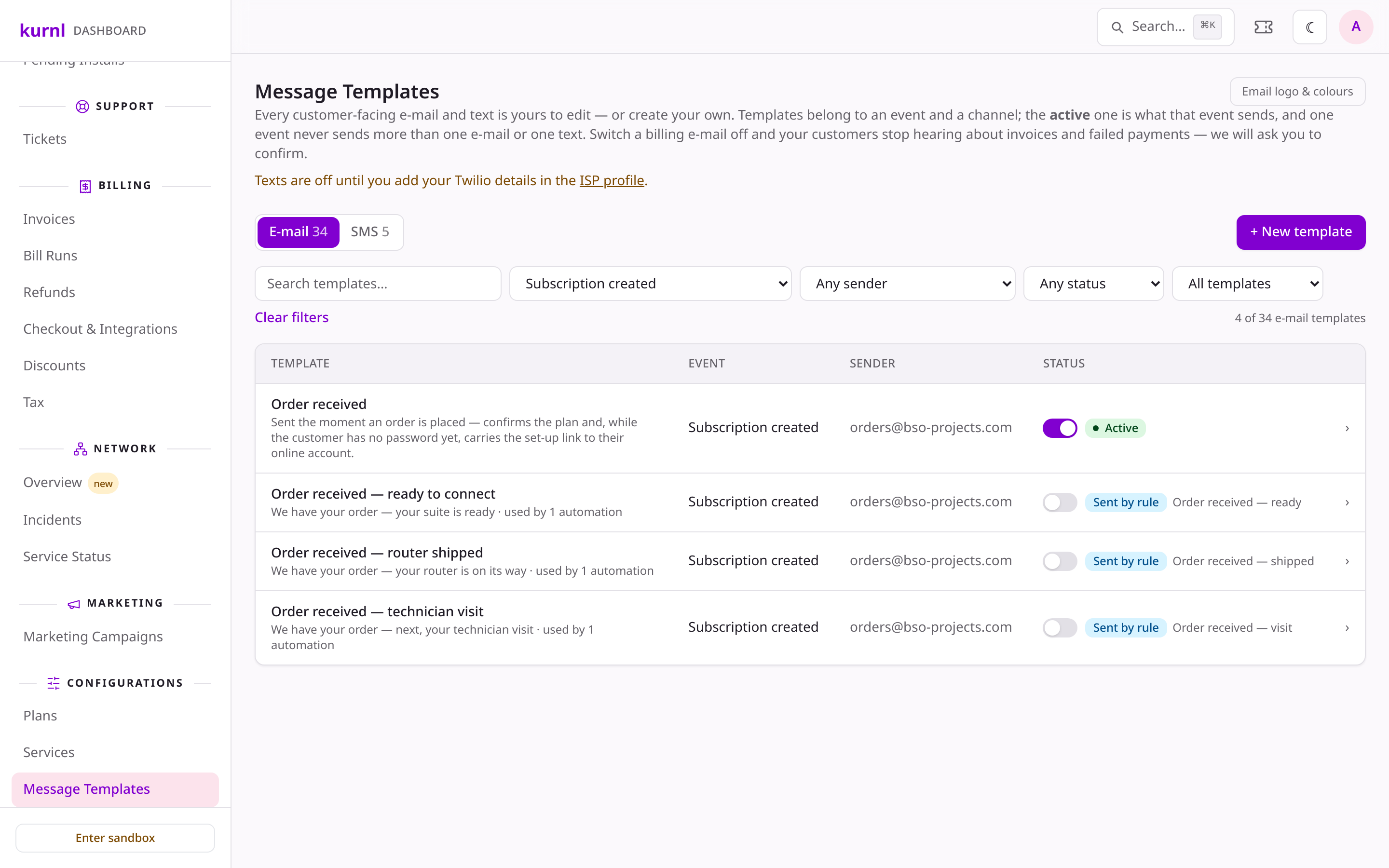
Message Templates filtered to Subscription created: the active Order received and three inactive versions, each Sent by rule
Recipe: Order received by installation
Goal: a customer who gets a technician reads about booking the visit; a customer whose router is shipped reads about the parcel; a customer whose suite already has a working router reads that they can get online on activation.-
Create three templates on Subscription created, each from a copy of
Order received:
- Order received — technician visit: what happens next, that a booking link follows;
- Order received — router shipped: that the router arrives by post and how to plug it in;
- Order received — ready to connect: that the equipment is already in the suite and the service starts on the start date.
-
Create three rules on Subscription created:
- Keep Order received email on as the fallback.
Recipe: Welcome by line type or plan
Goal: a different Welcome e-mail per building type, plus a special one for business customers.- Create the templates on Subscription activated from Copy of “Welcome / service activated”: Welcome — first line, Welcome — third line, Welcome — business.
-
Create the rules on Subscription activated:
- Keep Welcome email on as the fallback for second-line and unclassified buildings.
Recipe: tags for VIP and business customers
Tags let you mark customers once and treat them differently on every later event.- Set the tag. A rule on Subscription created, If Plan equals your business plan, Then Add Tag Business. Add Tag creates the tag the first time it runs. You can also tag a customer by hand on the customer page.
- Use the tag. Rules on later events test Tags contains Business,
for example:
- Payment failed, If Tags contains VIP, Then Create Ticket (title VIP payment failed — call ) and Send Email with a softer Payment failed — VIP template;
- Invoice generated, If Tags contains Business, Then Send Email with an invoice template that names the account manager.
Recipe: a follow-up a few days later
Goal: three days after the installation, ask how the service is going.- Create a template on Installation completed, for example How is your service?, with a link to your support page or a survey.
- Create a rule on Installation completed: Then Send Email with that template and Delay (minutes) 4320 (three days). Add Send SMS with a short text if you also want a text — it needs your SMS settings and the customer’s consent to texts.
- Add a condition if the follow-up is only for some customers, for example Installation equals Technician visit.
The delayed e-mail still counts as the event’s one e-mail. If another rule on
the same event already sent an e-mail for that installation, the follow-up is
skipped. Installation completed sends no e-mail by default, so a single
follow-up rule is safe.
When something does not send
Open Automations → Run history and click the run. Each action shows what it did:
A run whose conditions did not match shows that too; compare them with the
customer’s plan, tags and order. The list of automations marks a rule Needs
review when, for example, its template is missing — hover the status for the
reason.
See also
- Automations — every field of the rule editor.
- Branding & messages — writing templates, placeholders, buttons and attachments.