

The rules kurnl set up for you
Your account starts with a set of System default rules: one e-mail rule per customer event (order received, welcome, invoice, payment failed, …) and a few tagging rules. An e-mail rule sends the event’s active template from Message Templates. The banner Review your default automations counts how many you have reviewed. Press Review defaults, check each rule — timing, recipients, template — and save it: saving marks it reviewed.The list
Tabs Automations and Run history. The list shows each rule’s Category, When, Then, Status and Last run. The status is Active, Off or Needs review — hover it for the reason, such as a rule not reviewed yet or a missing template. Filter by status, type (System default / Custom), trigger and action.- The switch turns a rule on or off.
- Duplicate makes an inactive copy you can change.
- Restore puts a default rule back to kurnl’s version; Delete removes a rule of your own (its past runs stay in the history).
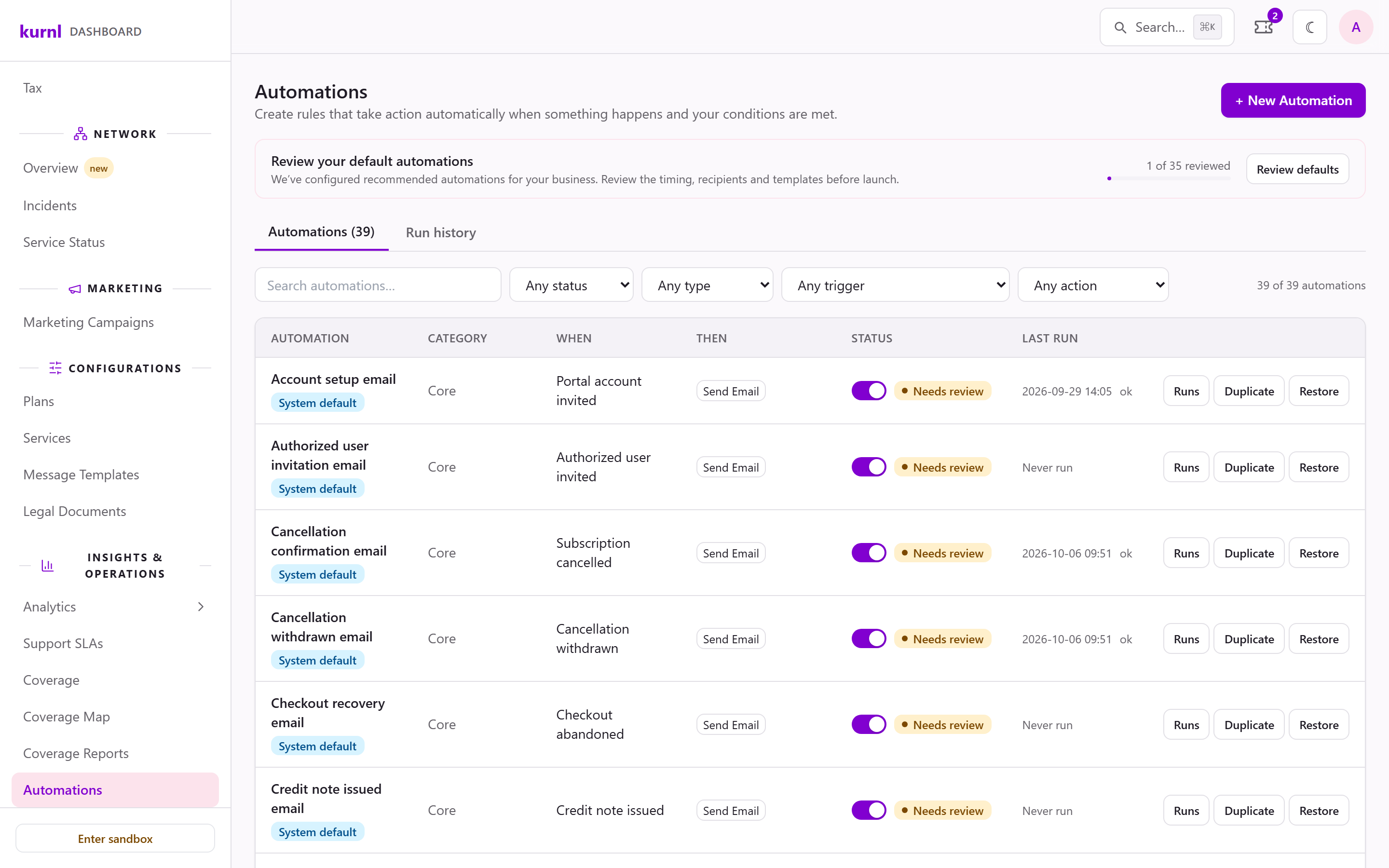
Automations
Build a rule
Press + New Automation, or open a rule.1
General
Give the rule a Name and, if you like, a Description.
2
1 When
Choose the event that starts the rule — a subscription is activated, a
payment fails, an installation is completed, a ticket nears its SLA, and
more; the list in the editor is complete. The editor shows the placeholders
the event provides.
3
2 If — optional
Add conditions; all of them must match. Depending on the event you can test
the plan, the customer’s tags, their marketing opt-in, the building’s line
type, the order’s installation (a technician visit, a shipped router, or
none), a ticket’s priority, or a payment’s amount. The line type describes
the building; Installation describes this order — a suite whose router is
already online orders without a visit, even in a third-line building.
4
3 Then
Add one or more actions, performed in order: Send Email, Send SMS,
Add Tag, Remove Tag, Create Ticket, Add Internal Note,
Update Field, Post Notice or Call Webhook. Update Field
sets one of your account’s custom fields on the customer; kurnl sets the
fields up for you.
5
Save
Save and enable, or Save as draft to keep the rule off. On a rule
that is on, that button reads Save and turn off; on a default not
reviewed yet, Save, keep off.
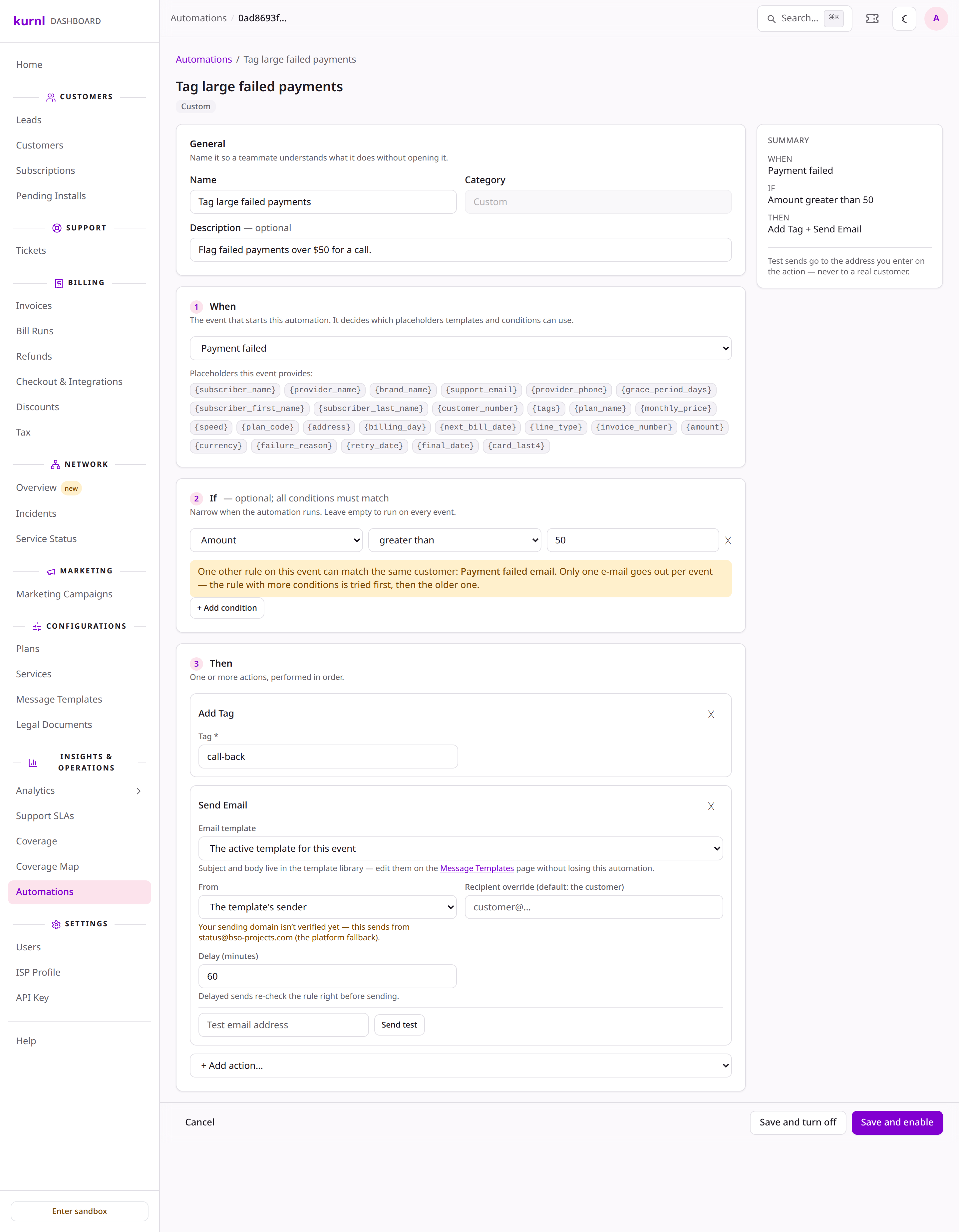
A rule with a condition and two actions
Send Email and Send SMS
- Email template — leave it on The active template for this event, or pick a template of that event.
- Recipient override — the customer, unless you enter another address.
- Delay (minutes) — up to 30 days. A delayed message checks the rule again right before it is sent.
- Send test — enter a Test email address and press Send test: the message goes to that address, never to a customer.
Call Webhook needs an
https:// address. It posts the event name, a
timestamp and the event’s placeholders — the same values a template can
use — plus subscription_id, subscriber_id and the customer’s email, name and phone. Network details
such as the switch or port are never included.