

You need the admin account (or the sales role for plans and campaigns).
Prefer to try it without touching real customers? Use the
dashboard sandbox.
Before you start
- Where you sell is set: Choose where you sell.
- A wholesale product exists for your lines — kurnl sets it up for you.
- Payments are connected, if customers pay in the kurnl marketplace: Payments (Stripe). Until then the plan card tells customers you are not taking online orders yet.
1. Add a service
On Configurations → Services, press + Add Service and create the extras you offer, each with a name and a Retail Price / mo — for example Fixed IP Address at 8.2. Create a discount and a campaign
On Billing → Discounts:- On the Discounts tab, New Discount — for example Spring 20%, type Percentage, value 20, duration 3 months.
- On the Campaigns tab, New Campaign — for example Spring Fibre Special, with a start and end date and the discount Spring 20%.
3. Create the plan and its version
On Configurations → Plans, press + New Plan, name it (e.g. Fiber 1000) and press Create Plan. The version opens right away:- Pick the Wholesale Product — speeds, technology and the wholesale price fill in.
- Enter the Retail Price/mo and an optional Setup Fee.
- Set Effective From to the day you want to start selling — a date in the future, so you can check the offer first.
- Add Fixed IP Address and Managed Wi-Fi under Add-on services.
- Under Campaign override, choose Spring Fibre Special.
- Leave Audience on Both.
- Press Add Version. The version shows as Planned, and kurnl asks whether to offer the plan in all your covered regions — choose Offer everywhere, or pick regions later under Coverage.
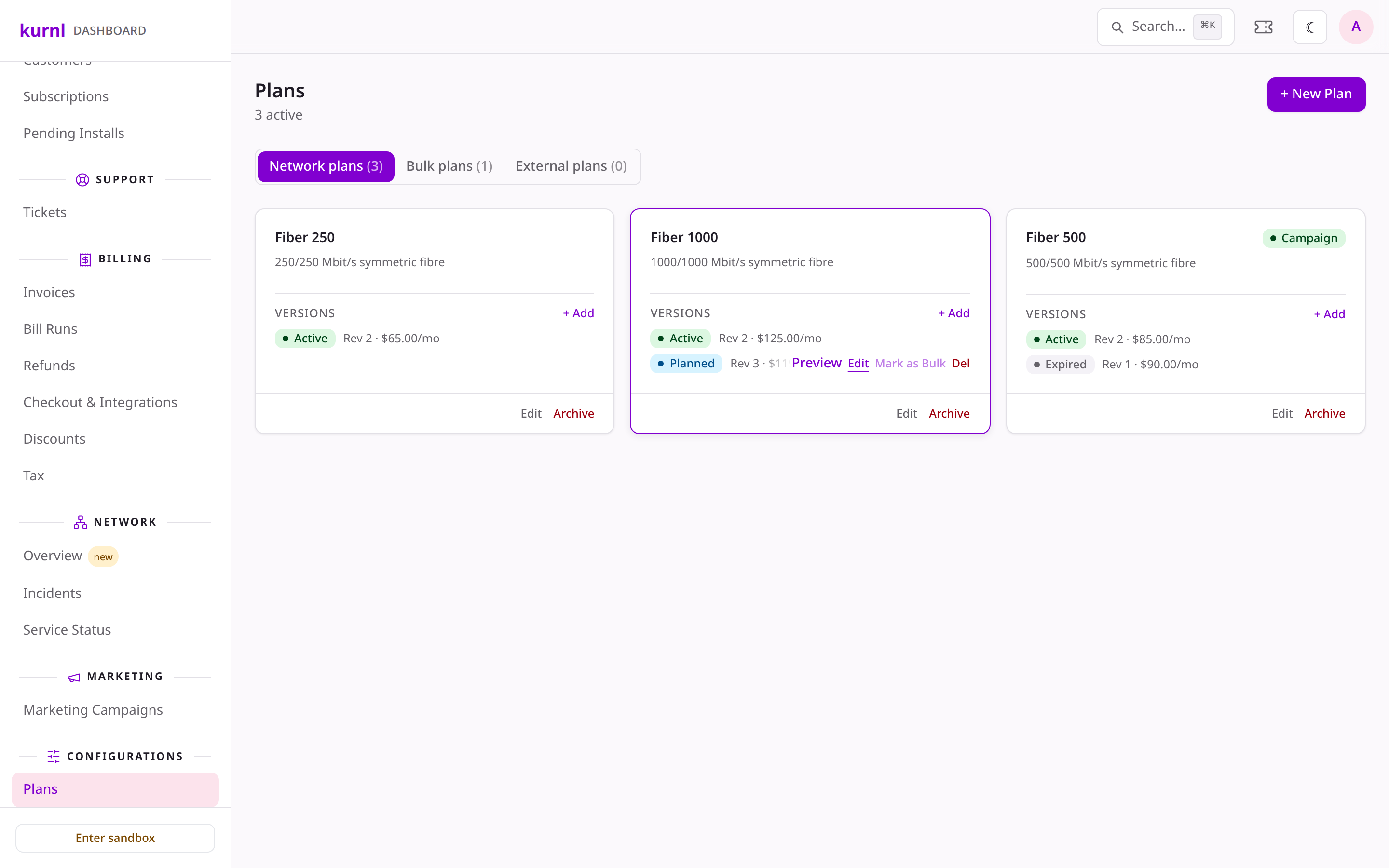
The plan with its planned version
4. Preview what customers see
Hover the version and press Preview. A new tab shows the plan card as customers browse it and the full checkout — prices, add-ons, the promotional price, which is the price the customer is billed — under a banner saying it is a preview. No order can be placed.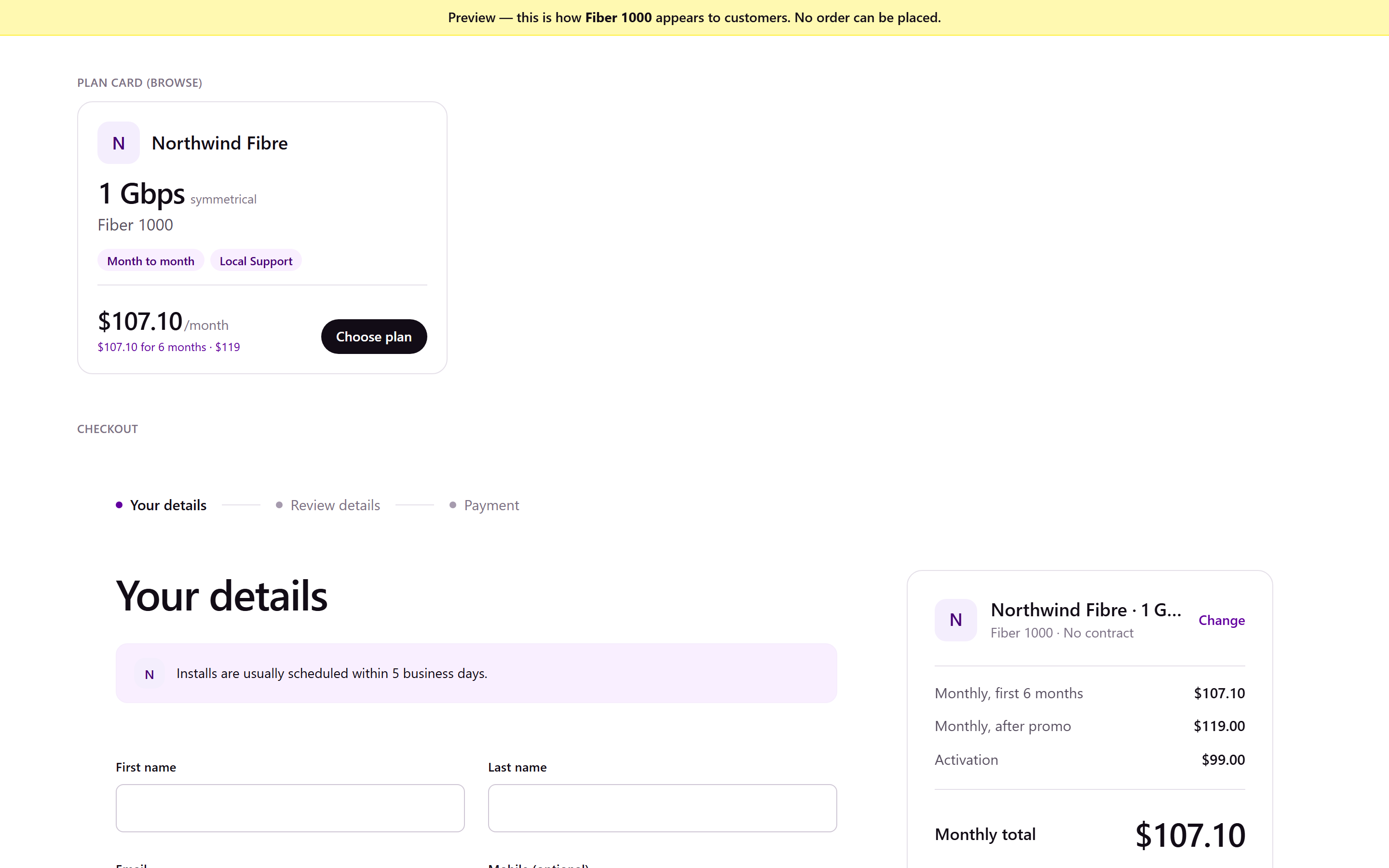
The preview: plan card and checkout