

Invoices is open to your admin, support (view only) and
bookkeeping staff, Refunds to your admin and bookkeeping staff. Staff
who do not see invoices see no billing figures on a customer. The Billing
pages appear when billing is switched on for your account.
How an amount is worked out
- The period is the calendar month. Each subscription has a billing day between the 1st and your Latest billing day (the 1st unless changed; see Latest billing day). It moves only when the card is charged — never the amount.
- The first month is charged when the line goes live, from that day to the end of the month. After that, one invoice a month on the billing day.
- Plan changes — a change to a cheaper plan credits the difference at once; a change to a dearer one adds a labelled line to the next invoice (see Change a plan).
- Credits come first. Any charge is paid from the customer’s open credits; only the rest goes to the card.
- Cancellations — cancelled after the billing day, the unused days are credited and open credits become a refund; cancelled before it, a final invoice covers the days used.
- Tax follows your tax profile.
Latest billing day
ISP profile → Billing sets the Latest billing day: the last day of the month your customers can choose as their billing day. The default is the 10th; you can allow any day from the 1st to the 31st.- Every customer is still billed for the calendar month. A later day only moves when the payment is taken.
- Days after the 28th are charged on the last day of shorter months.
- Lowering it keeps the day of customers who already chose a later one. New choices follow the new limit.
- Only your admin can change it.
Invoices
Billing → Invoices lists every invoice: Invoice ID, Customer, Status, Date and Amount. Search by ID or customer, filter by status or date, and download the list with Export CSV.
On a row, on the invoice itself, or on the customer’s Billing tab:
- PDF opens the invoice as your customer sees it.
- Resend sends your own invoice e-mail (the Invoice generated template, with the PDF when the template attaches it) to the customer again, for any issued invoice, paid ones too (not a draft or a cancelled one). The confirmation names the address it goes to. Support and bookkeeping may resend too. Without an active Invoice generated template nothing is sent, and kurnl tells you to switch one on.
- Retry payment (on a bounced invoice) charges the customer’s saved card again — never twice. The customer gets your Payment received e-mail with the amount charged. If their account credit already covers the invoice, nothing is charged, you see Paid from credit, and no e-mail goes out.
- Mark paid records a payment you received another way, such as a bank transfer. The customer gets your Payment received e-mail when billing records a new payment; an invoice that billing already shows as paid sends nothing.
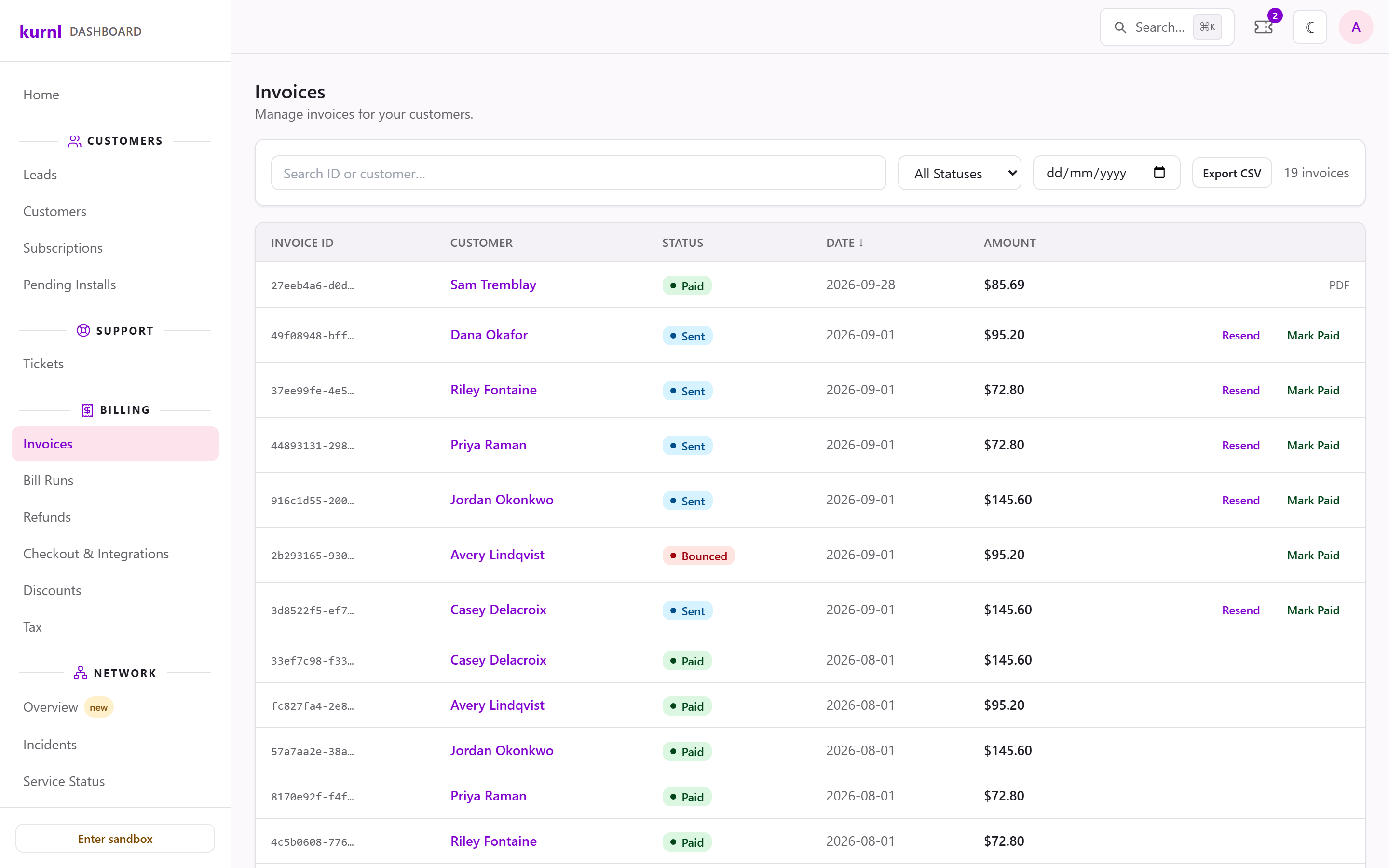
Invoices
When a payment fails
- The invoice turns Bounced and the customer’s line Payment failed. The customer gets your payment failed e-mail (see Branding & messages).
- kurnl retries the card on a fixed schedule. A successful retry sets the line back to Active once no other invoice is open.
- After the last failed retry a grace period starts — at least 14 days, with a reminder to the customer on day 7.
- When the grace period ends, the line is Suspended.
Refunds
When a customer cancels inside a month that is already invoiced, the unused days become a refund or a credit. Billing → Refunds lists them and opens on the ones that need you (Open — action needed).
The customer receives a credit note with each refund and finds it in their
portal. When you Mark as paid out or Retry via Stripe succeeds, the
customer also gets your Refund sent e-mail: the money is on its way, to their
card or by the means you used. Undo payout, Void and Apply to open
invoice send nothing. Each dialog says whether the customer is e-mailed.
On the customer page
The customer’s Billing tab shows the balance due, open and paid invoices and open refunds, and lets you send a payment link.- Send payment link sends the customer a link to pay everything still open on their account with you — every open invoice, at its current balance. It goes out by the customer’s billing channel (e-mail, text or both) with your Payment link (balance due) template, and the dialog shows the link so you can also paste it into a chat. When the customer pays, each invoice is marked paid, a line in Payment failed returns to Active, and the customer gets your Payment received e-mail per invoice. Support and bookkeeping can send it; it moves no money itself. Sending a new link replaces the earlier one. The button is off while nothing is owed, and Send link is off when the customer has no billing e-mail address or nothing is owed right now.
- Apply Credit gives the customer a credit — an amount and a reason. It is used against their next invoice. The customer receives the Credit note issued e-mail when that automation is on. The customer sees the reason, not who applied the credit.
- Each invoice row offers its PDF and Resend (see above).
- Billing day — on the Services tab, each subscription’s billing day can be set between the 1st and your Latest billing day. The message after saving names the next charge date. If the chosen day has already passed in a month that is not invoiced yet, kurnl asks first: Invoice this month now? Confirming issues that month’s invoice at once, charged to the saved card (or due for payment when AutoPay is off), and the new day applies from the next month.
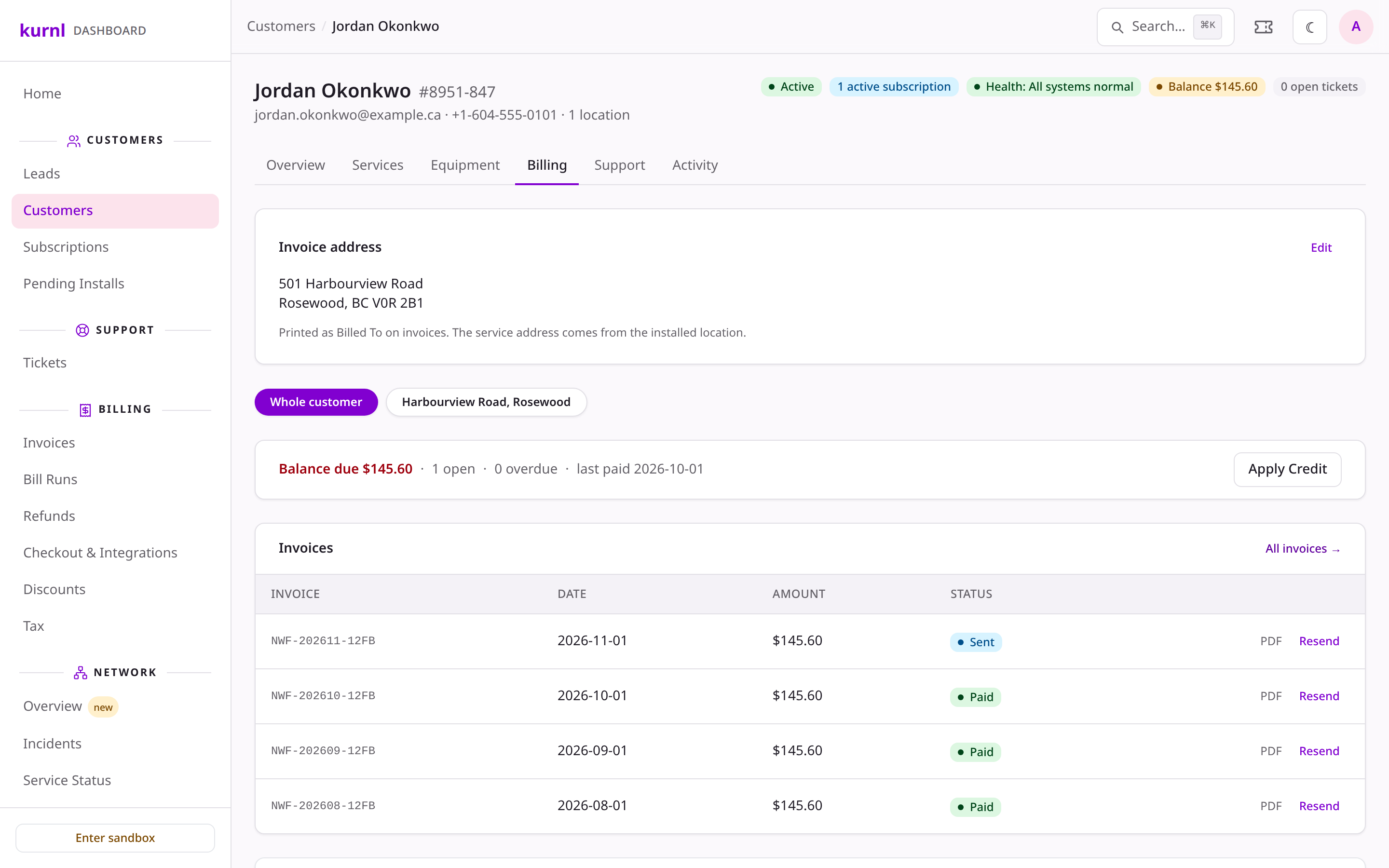
A customer's Billing tab
Your own bill from kurnl
kurnl bills you for the lines you sell (wholesale). Insights & Operations → Analytics → Reports, card Wholesale Billing CSV, downloads one month’s detail: every active subscription with its days in the month and wholesale cost.Operator discounts
When a customer of yours uses a kurnl operator discount, kurnl pays for it: the customer’s price and your wholesale price drop by the same amount for the promo months, so your margin is unchanged. The wholesale invoice shows one negative line per subscription and month, named<name> (<code>). The Wholesale Billing
CSV carries a row for it with Fee Type Operator discount, the discount’s
label in Wholesale Product Name, and a negative Total Cost and
Wholesale price monthly. Add the rows to the subscription’s normal row to get
the net amount. Turn the discounts off for your plans with Participate in
operator discounts, see Discounts and campaigns.
Bulk internet margin
Under Wholesale Billing CSV, the card Bulk internet margin shows what kurnl owes you for internet included in rent. It is visible to sp_admin and bookkeeping logins. Pick a year and month: one tile shows the month’s margin and the number of units, and the table lists the buildings by census division, one row per building and product with units, margin per unit and total, plus a subtotal per division and a month total. A unit counts for a month when a bulk line served it on any day of that month; two lines in one unit count once. The margin per unit is the building’s bulk rate minus its wholesale rate as configured today, so changing a rate changes past months too. A unit whose building has no rate for its product shows rate missing with a margin of 0. Bulk lines are not on the Wholesale Billing CSV. Download CSV gives the same rows asbulk-margin-YYYY-MM.csv, with the
columns Region, Building, Address, Product, Units, Margin per unit and Margin.