
Network overview
Network → Overview refreshes every minute. The tiles count your customers online and offline, open incidents and installs pending. During an outage a banner names the building and how many of your customers are affected. Your buildings lists every kurnl building where you have an active or pending line, the ones that need attention first: status, your customers there, lines up and down, an open incident, pending installs. Open a building to see your customers in it and their line and router state; a customer opens on their Equipment tab.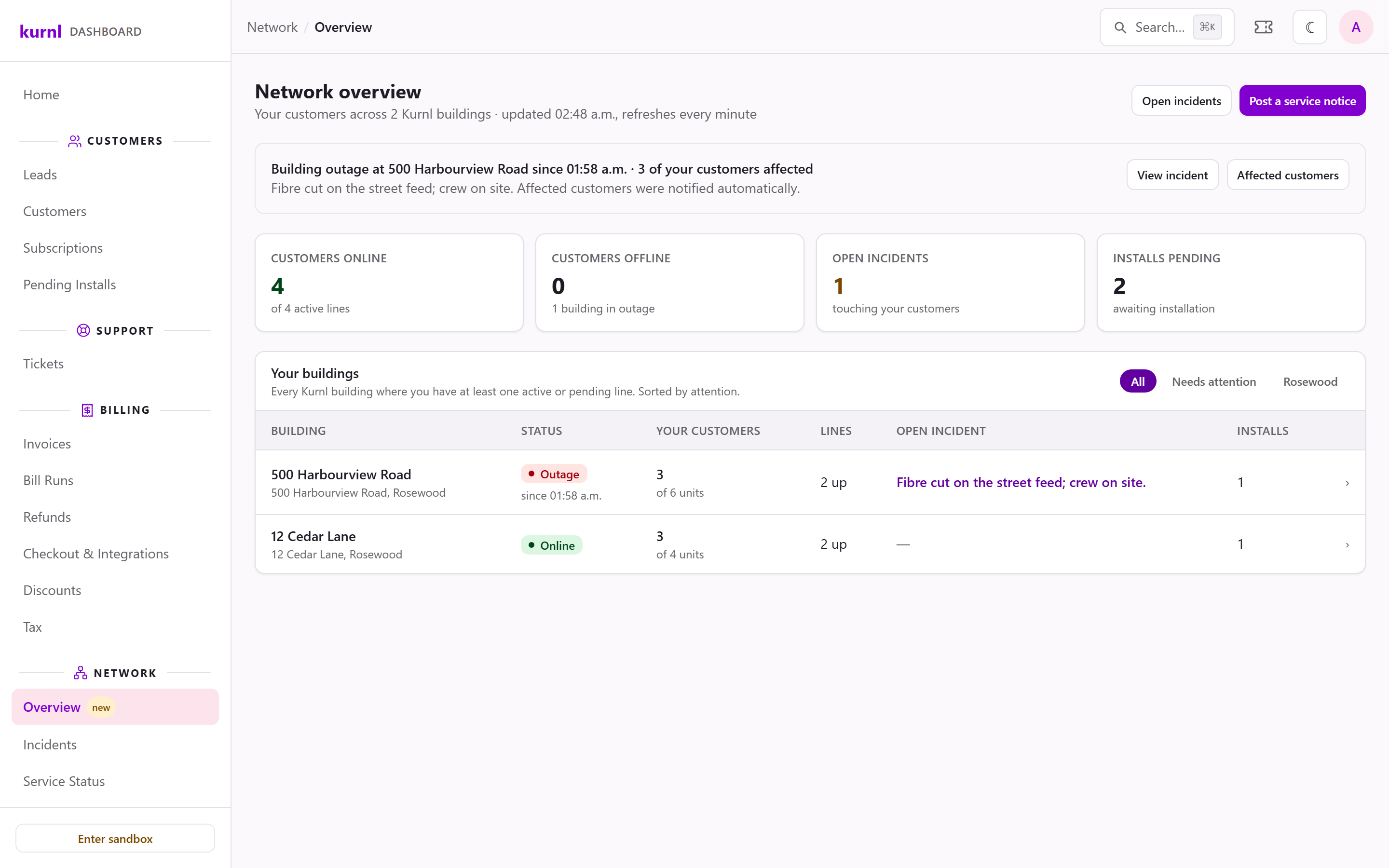
Network overview
Incidents
Network → Incidents lists the incidents that touched at least one of your customers — ongoing ones and those resolved in the last 7, 30 or 90 days. kurnl opens, updates and closes incidents; you follow them here. Each incident shows what is affected (a building, the core network or a single line), how many of your customers are in it, the cause and kurnl’s estimate while it is ongoing, and when it started and ended. Show n customers lists your affected customers and whether they were told.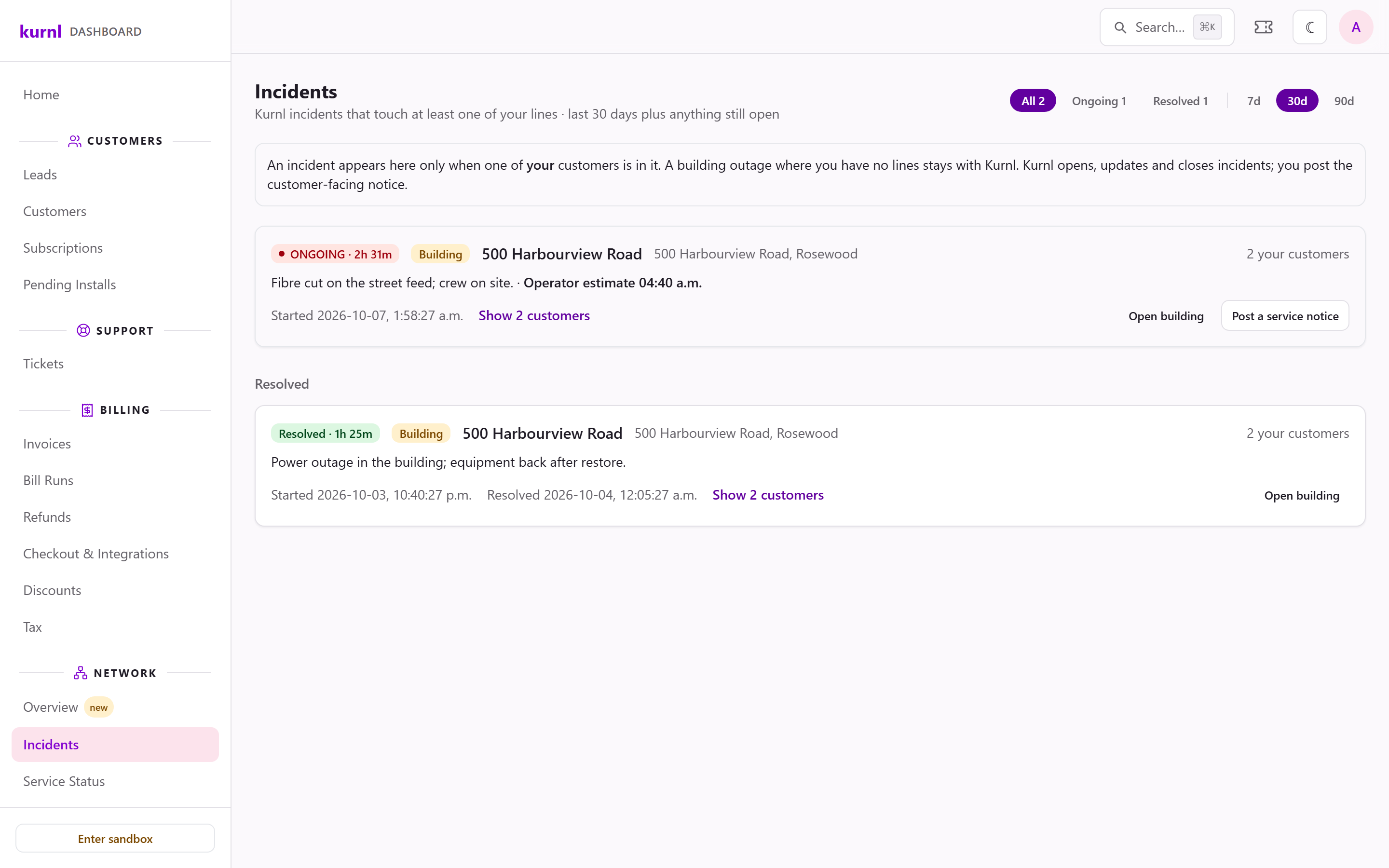
An ongoing and a resolved incident
What your customers are told
Affected customers receive an e-mail when their service is interrupted and another when it is back — in your name and from your message templates (Service interruption detected and Service restored under Configurations → Message Templates). Outages of a whole building are announced at once. When a single line drops, the e-mail waits 30 minutes and checks again: a line that is back by then sends nothing. Any further outage message is your own template and automation — kurnl does not write to your customers.Service notices
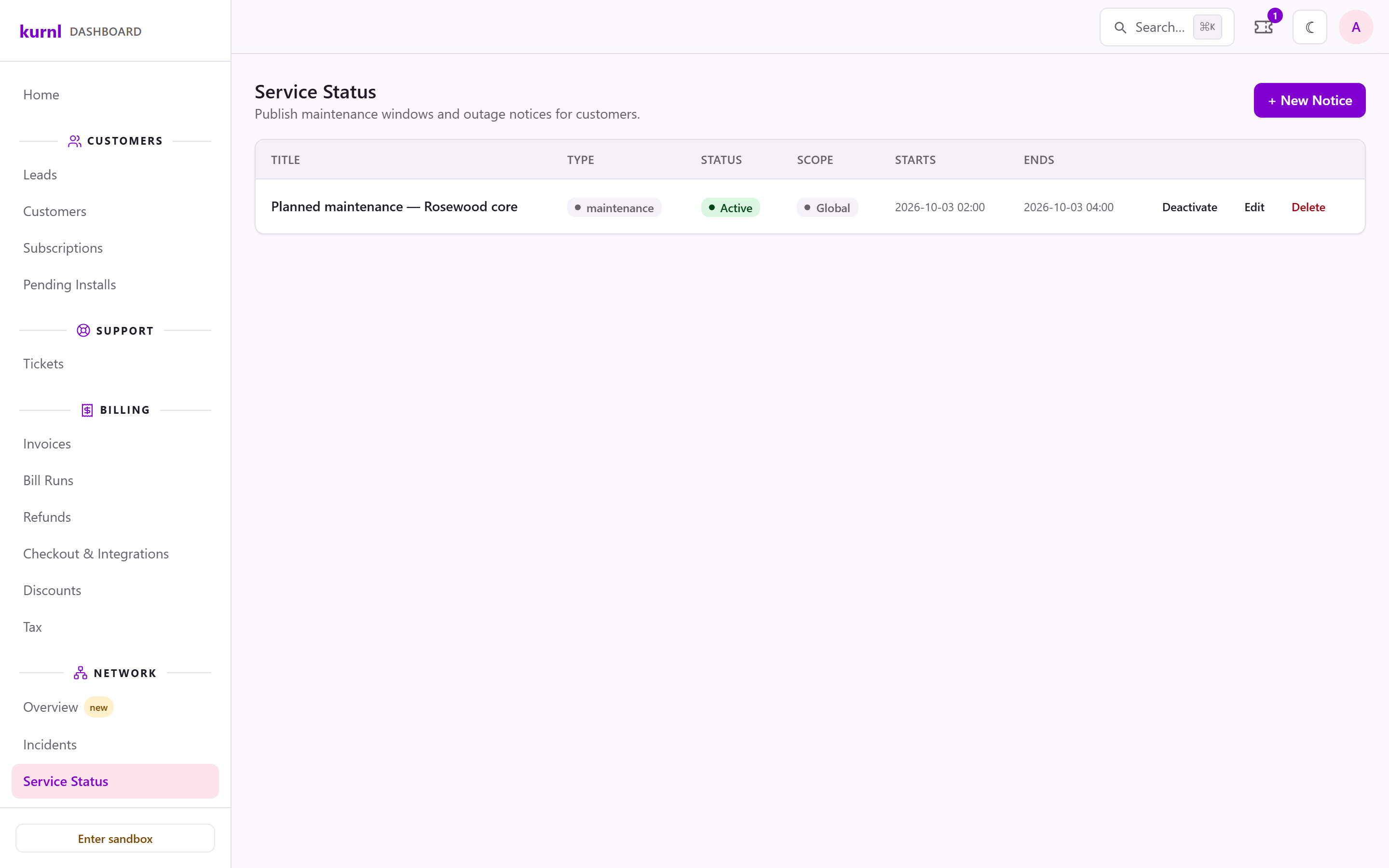
Network → Service Status publishes notices — planned maintenance, a known outage, a degraded service — that your customers see on the Status page of their portal. Your admin and support team post and change notices; other roles see the list.1
Create a notice
Press + New Notice. Give it a Title and Message, choose the
Type (Info, Maintenance, Degraded or Outage), and set when it Starts
and, optionally, Ends.
2
Choose who sees it
Under Who sees this?, pick buildings to show it only to the customers
there. Leave everything unticked to show it to all your customers.
3
From an incident
During an ongoing incident, Post a service notice on the incident (or
on the network overview) starts a notice with the incident’s details filled
in.
Service notices
Posting a notice does not send an e-mail; customers see it on the Status
page. For an outage of a whole building, kurnl posts a notice there as well.
It shows in your list as Posted by kurnl; only kurnl changes or ends it.
kurnl ends it when service returns or when the incident is closed.