

Admin and support staff can change customers; sales staff can view them.
Bookkeeping staff work from Invoices and Refunds and do not open customer
pages. Buttons your role cannot use are hidden. The Customers pages need the Customer management module — if your account
shows Not enabled for your provider, ask kurnl.
The customer list
Customers → Customers lists your customers with their customer number, contact details, status and service address. Search by name, e-mail or number, filter by one or more statuses, by tag or by date, and choose more columns under Columns. Saved filters and views are shared with your team; Export CSV downloads the list.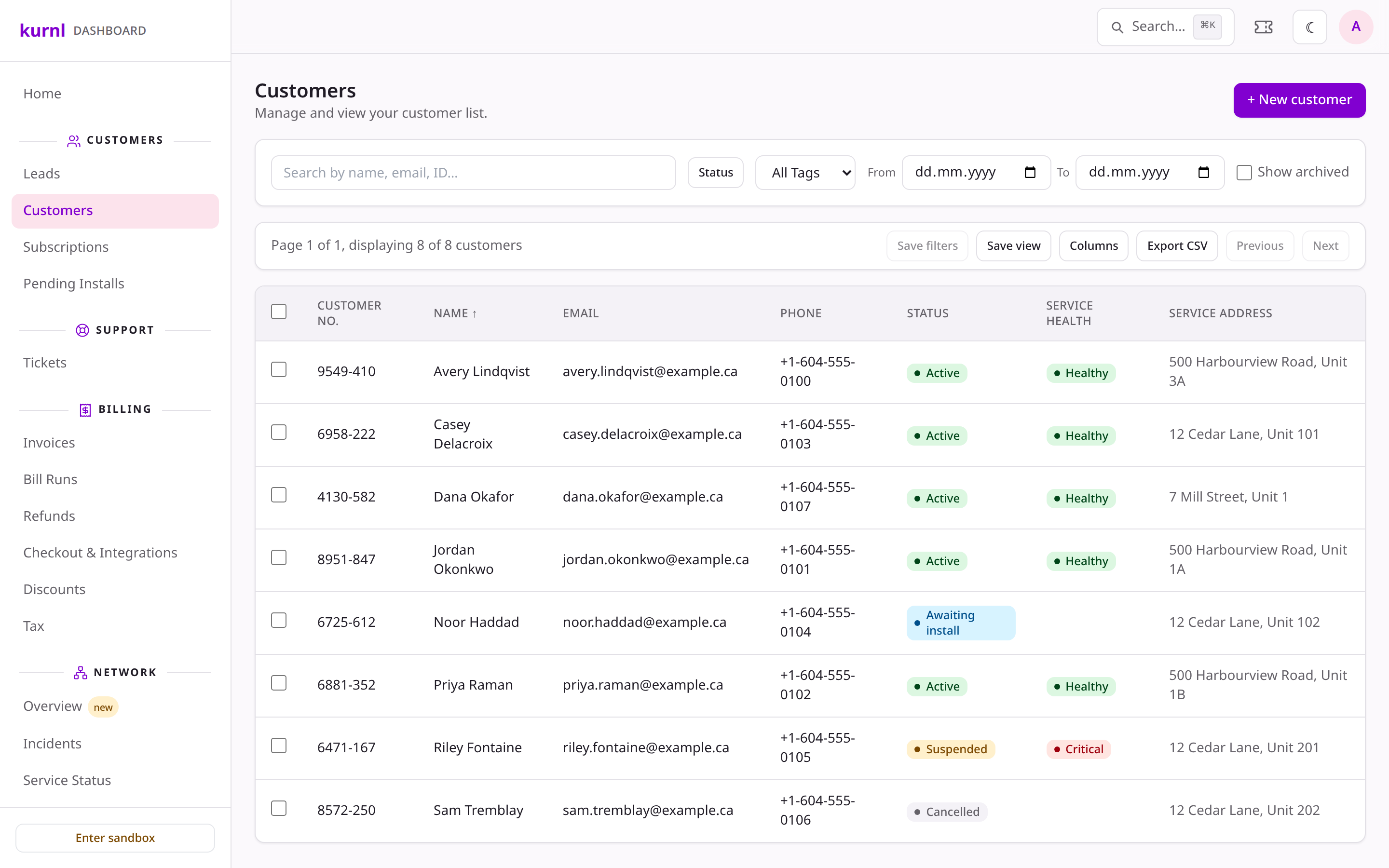
The customer list
The customer page
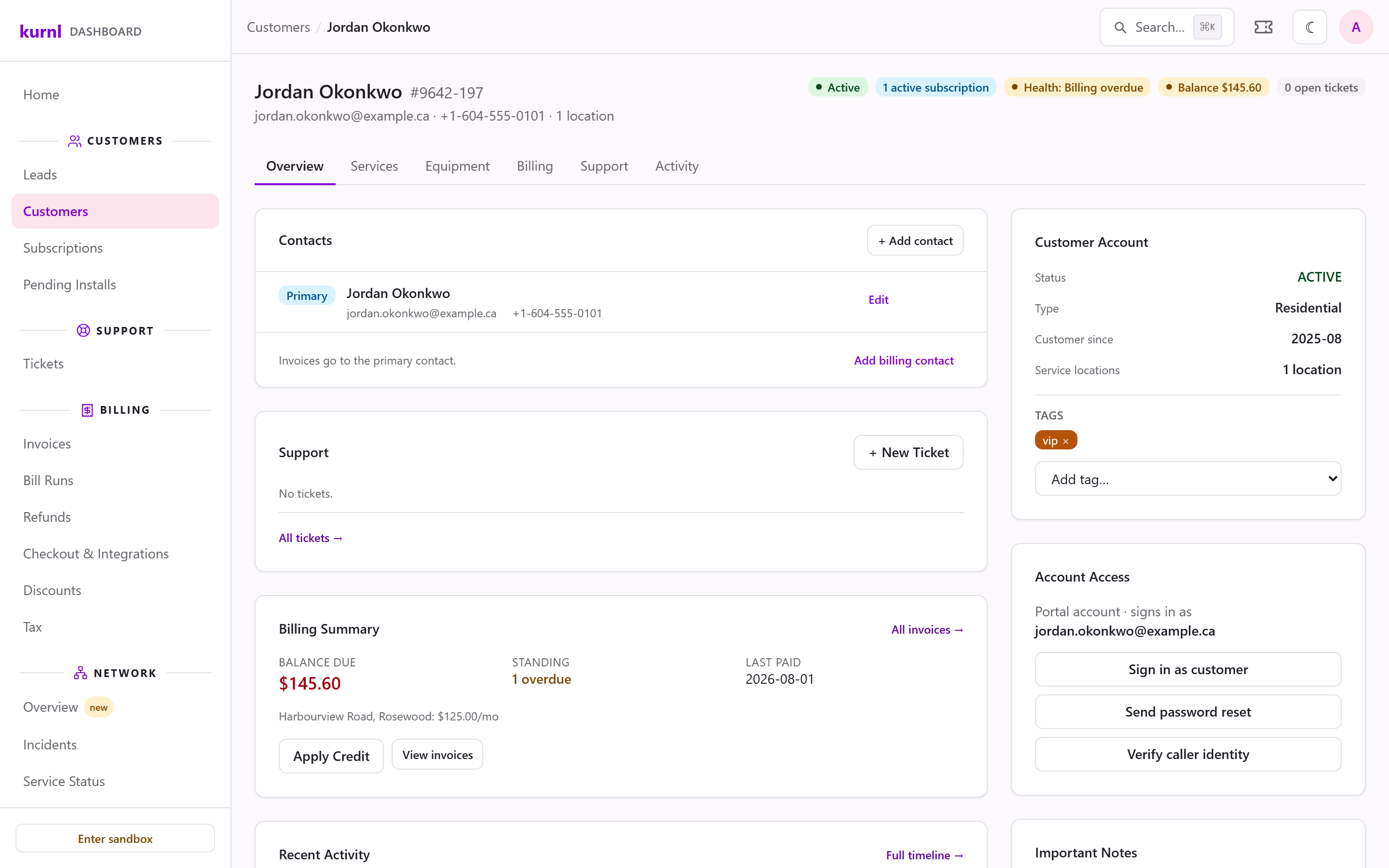
The header shows the name, the customer number and badges for status, active subscriptions, billing standing (for staff who see invoices) and open tickets. Below it are six tabs:
When another provider also serves the customer, or the customer switched to you
from another provider, each of you sees only your own: service locations and
subscriptions, tickets and internal notes. The header’s status and counts are
yours too.
What you do for such a customer is done in your name. A credit goes to the
customer in your billing system. A new invoice address or billing contact is the
customer’s own, so the other provider’s invoices pick it up as well. A password
reset, a set-up link or a sign-in notice you send carries your branding and opens
your customer portal.
Each service location carries a badge for what it needs to get or stay
connected: Technician visit or Router ships while the order waits for
its install, CPE in suite when a router is online behind the suite’s port
(· offline when it is there but not answering), and otherwise Technician
needed or Pre-configured building. Next to the plan, the building’s line
type reads 1st, 2nd or 3rd line. The badge decides per suite, not per
building: a suite in a 3rd-line building whose router is already online needs
no visit.
A customer's Overview tab
A customer's Support tab with a booked visit
E-mails in a customer's Activity tab
Change a plan
1
Open Change Plan
On the Services tab, pick the location and press Change Plan. The
dialog lists the plans the line can move to — your plans whose
Audience is Both or Existing customers only, at the same price or
higher, that the building can deliver.
2
Choose when
Now takes effect immediately and prorates the current period. On a
later day keeps the current plan until that day (tomorrow up to three
months ahead) and charges nothing today. The dialog shows the price
difference before you confirm.
3
Confirm
Press Confirm change or Book change. A booked change appears under
Upcoming changes, where you can cancel it before it applies. The
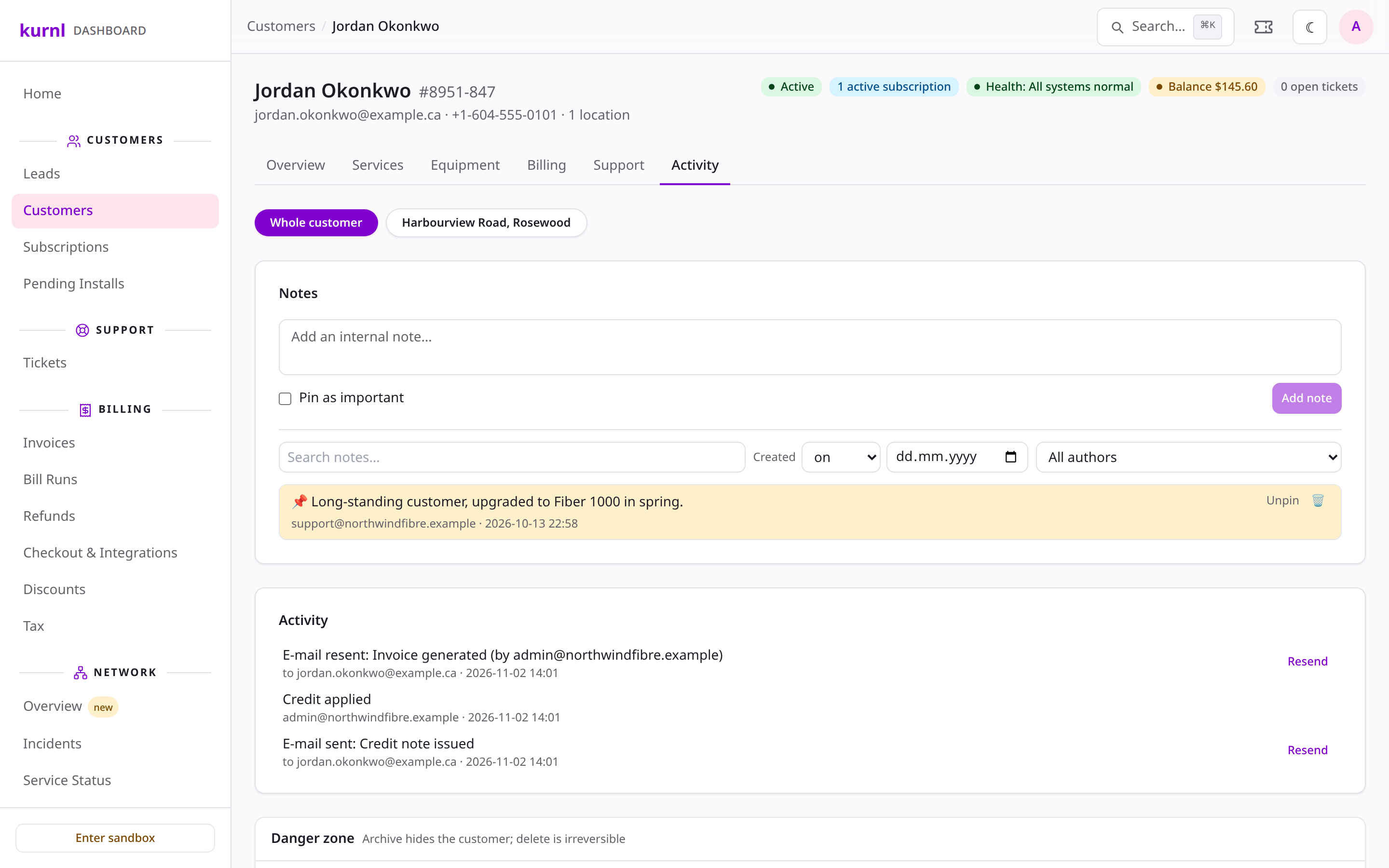
customer receives an e-mail about the change.
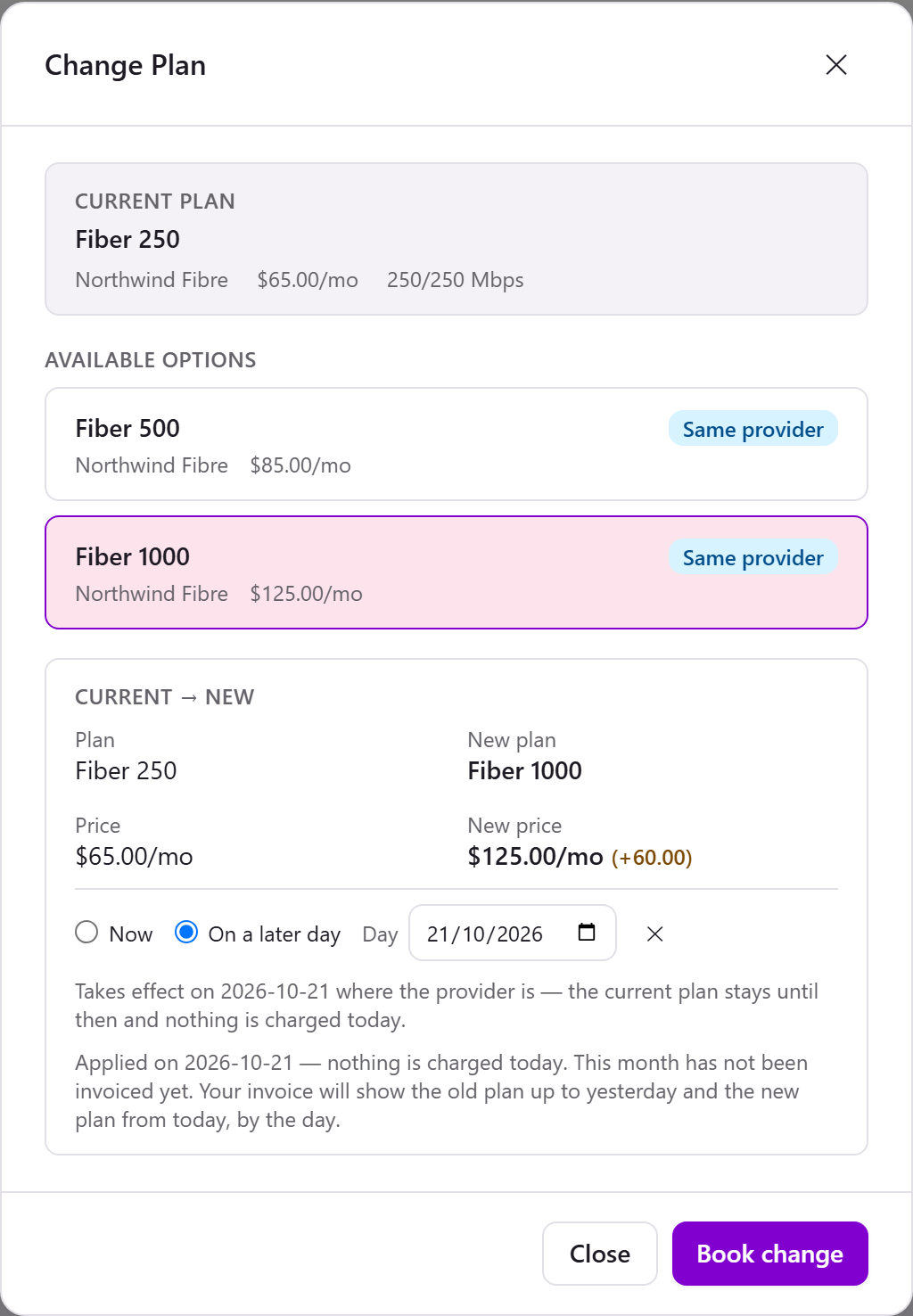
Booking a plan change for a later day
A line can change its plan once per day, and only while it is active. Lines
without a kurnl connection (off-net) cannot change their plan. Changing a
plan needs an admin or support account.
Suspend and reactivate
- Suspend (Services tab) asks for a reason and whether to charge a suspension fee.
- The suspension fee is charged once for each suspension, so a line that is suspended again is charged again. Reactivating a suspended line charges your reactivation fee, if your account has one, once for each reactivation.
- To bring a suspended line back, open Customers → Subscriptions and press Reactivate on its row. All open invoices must be paid first.
- Suspending and reactivating need an admin or support account.
Cancel
1
Open Cancel
On the Services tab, press Cancel.
2
Pick the date and reason
The Cancellation date defaults to the end of the current month; Today
ends the service now and switches the line off at once. Choose a reason; the dialog summarises what
happens next.
3
Confirm
Confirm cancellation. Every cancellation gets a number such as
CXL-4K7M2P — it is on the line, in the customer’s confirmation e-mail and
findable with ⌘K.
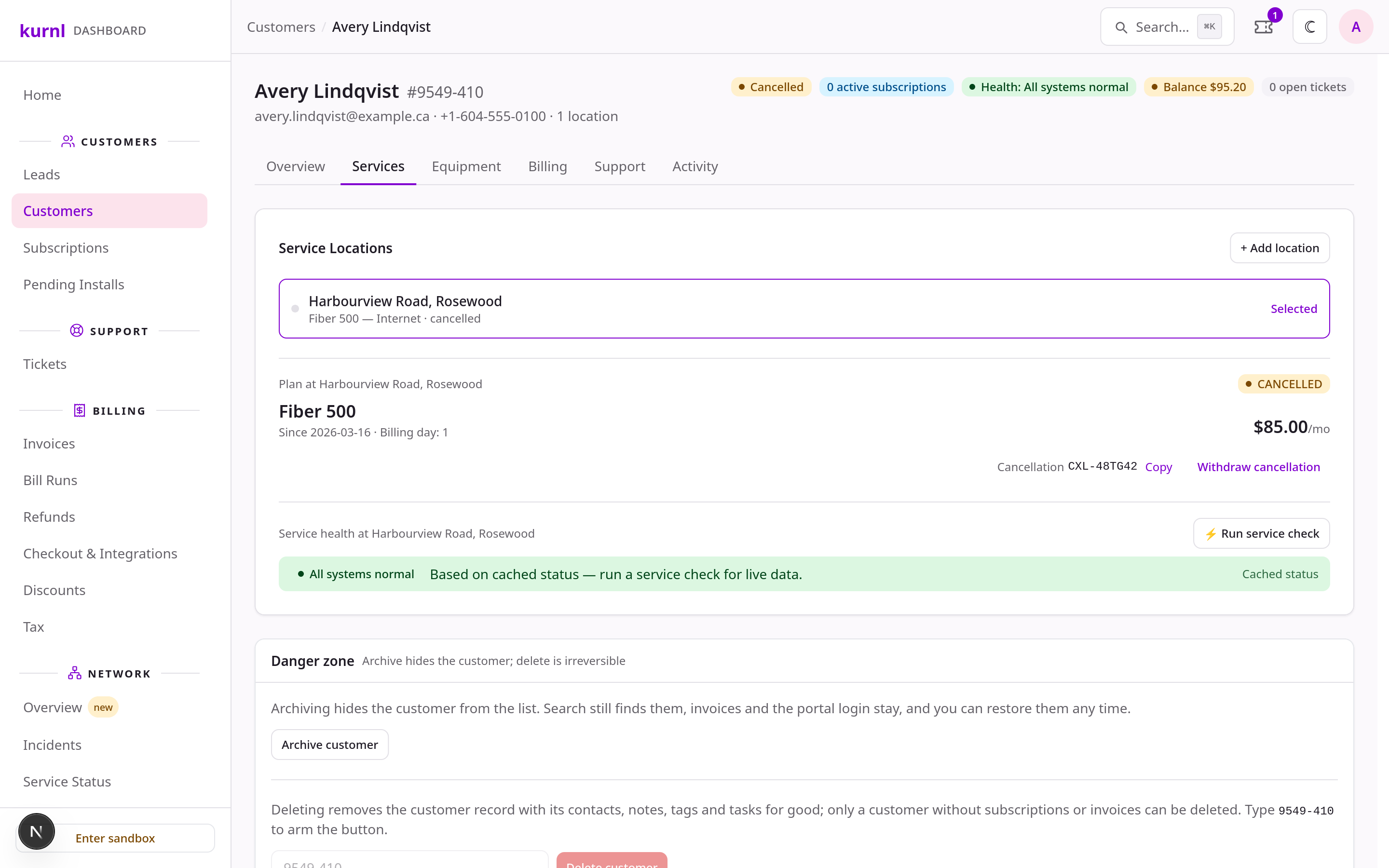
A cancelled line with its cancellation number
See the portal as your customer does
On the Overview tab, the Account Access card shows whether the customer has a portal login. Your admin account can press Sign in as customer: the customer portal opens in a new tab, read-only, with a banner showing whose account you are viewing and an Exit button. Every such session is logged. If the customer also has lines with another provider, Sign in as customer is not available, so neither provider sees the other’s account. A customer without a login gets one with Invite to portal; Send password reset helps one who forgot it.Contacts and billing contact
The Contacts card on the Overview tab holds the people on the account: technical contacts, authorized users (they get their own portal login and can act for the customer) and others — account-wide or for one location. Invoices go to the primary contact unless you Add billing contact.Archive or delete a customer
The Danger zone at the bottom of the customer page:- Archive customer hides a customer you no longer serve; Restore brings them back. Admin and support can archive.
- Delete customer removes a customer for good — only your admin account, only for customers without subscriptions and invoices, and you type the customer number to confirm.
Tickets
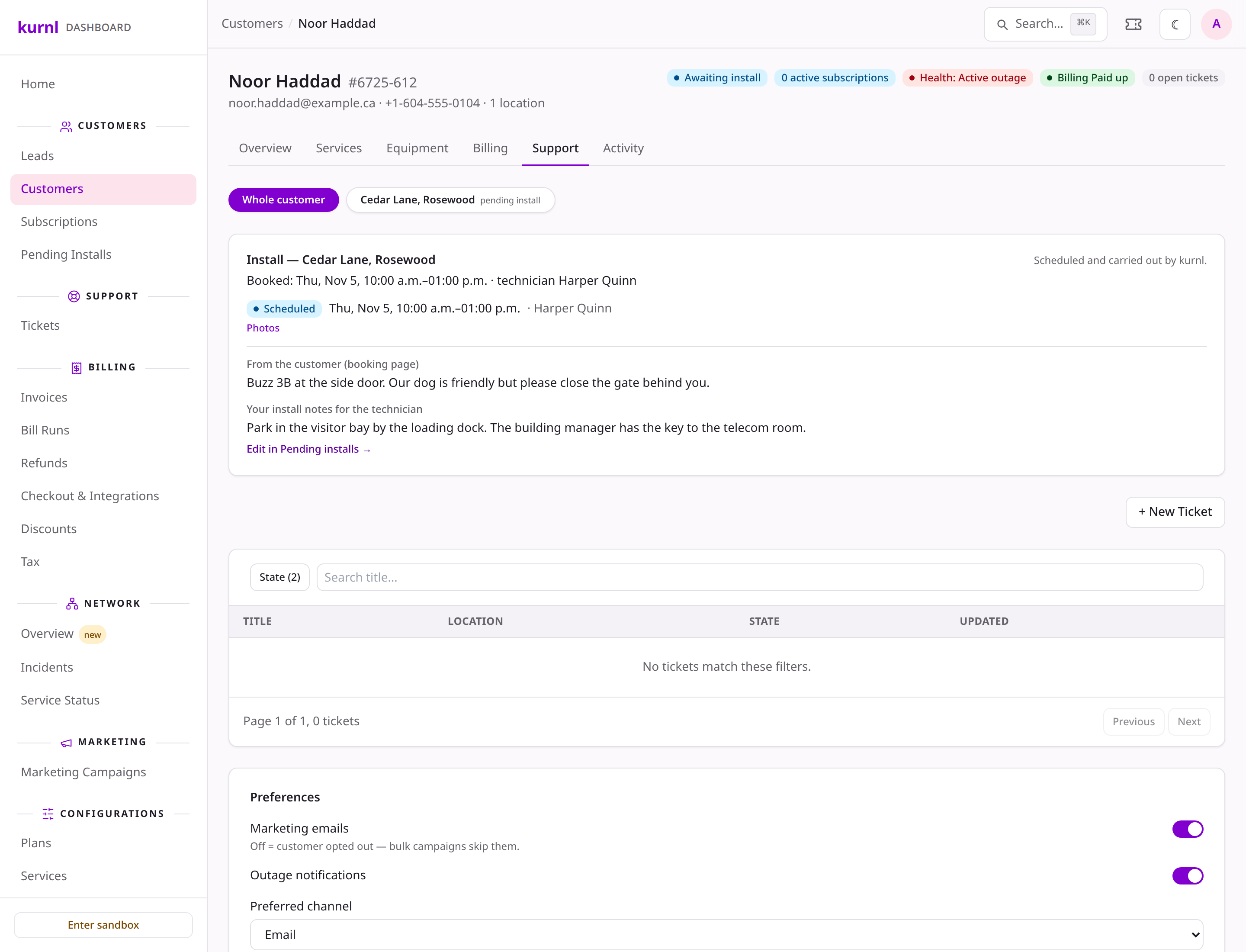
Support → Tickets is your team’s ticket workspace: views such as My Work, Unassigned or At Risk / Breached, filters by group, type, priority and channel, and New ticket. Open a ticket to reply to the customer or add an internal note. A customer’s own tickets are also on their Support tab. Tickets are for your admin account and support staff. The tickets of an erased customer are in the Privacy archive, not here. Escalate to kurnl on a ticket hands it to kurnl’s support. Use it for what only kurnl can do: moving or cancelling a technician visit at short notice, a fault that needs a technician or a second visit, a problem on the network side. kurnl runs every visit; you see it on the customer’s Support tab. Where the customer books the visit themselves, you can book, move or cancel it for them there too, and send the booking link again — see Installs & equipment. The ticket stays in your list, marked Escalated to kurnl. You keep answering the customer and can add notes — kurnl never writes to your customer. Status, priority and assignee are locked until kurnl hands it back with a note and any files it attached (you get an e-mail; the files are on the ticket) or you Withdraw the escalation. Withdraw needs a note on why you take the ticket back; kurnl’s assignee gets it by e-mail.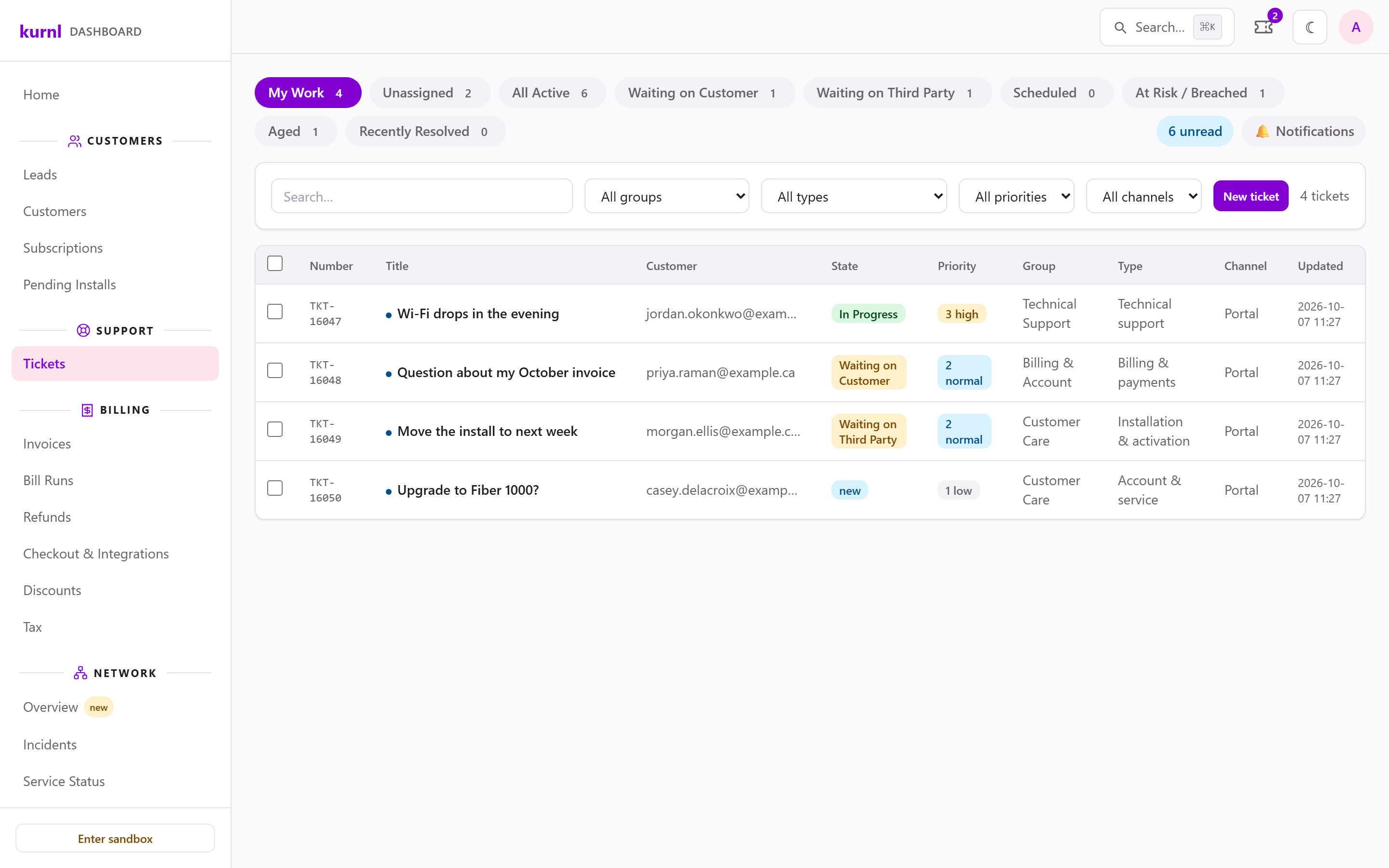
The ticket workspace