

Your brand
The Branding tab has three areas — Brand kit, Customer portal and Emails — and a live preview that follows your changes before you save.Brand kit
The brand kit is shared by the portal and your e-mails unless you give one of them its own logo or colour.- Logo — Upload a PNG, JPEG or WebP file of up to 2 MB (SVG is not accepted).
- Brand colour — links, accents and your listings on the kurnl marketplace. Tick Use my brand colour on my marketplace listings to use it there.
- Button & hero colour — primary buttons and the dark panels on the sign-in page.
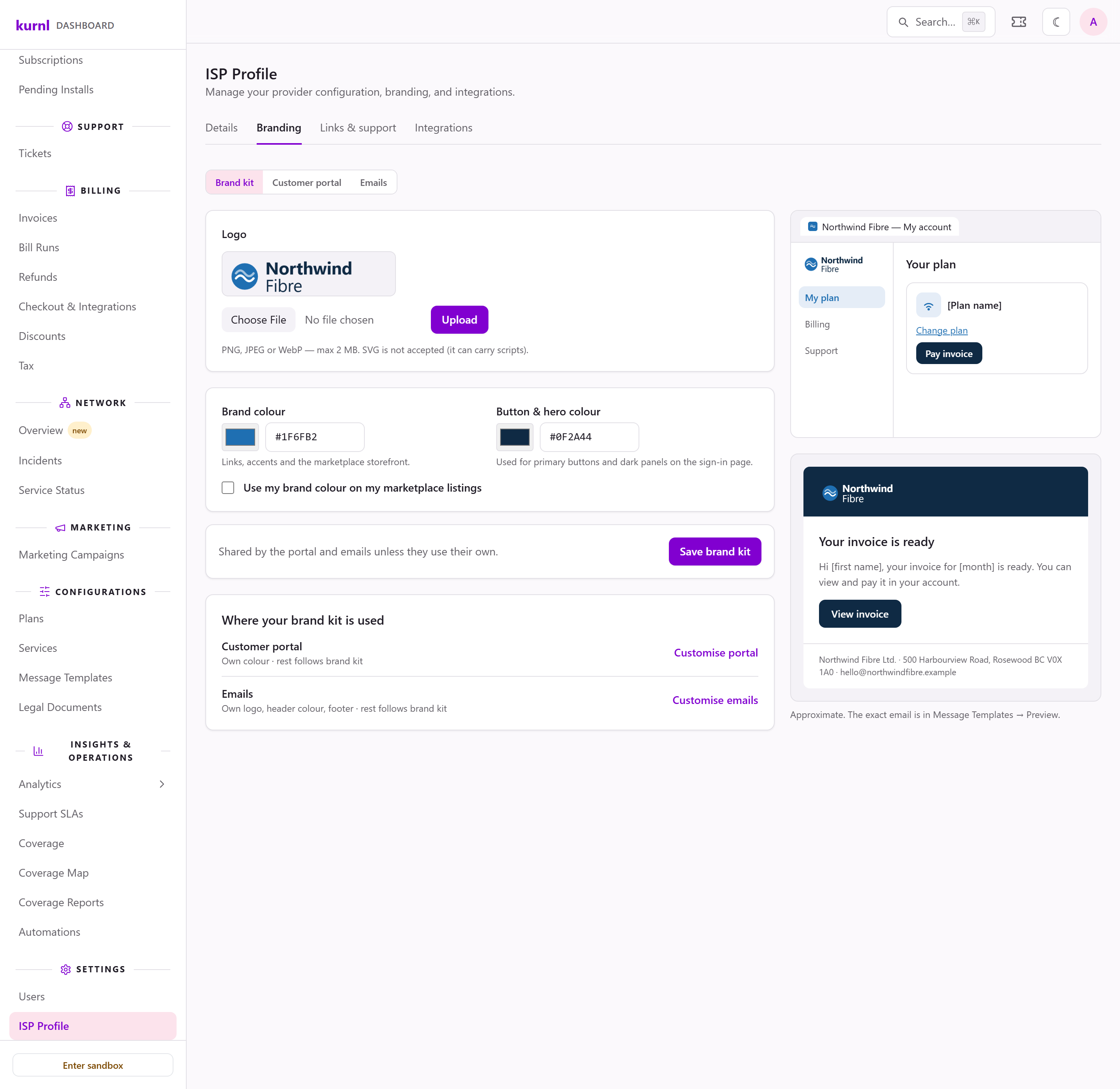
The brand kit with the portal and e-mail previews
Customer portal
- Logo and Colour — keep the brand kit’s, or choose Different logo / Different colour for the portal only. A logo upload takes effect at once.
- Body font and Heading font — Platform default or one of the
listed families. You can also upload your own font as a
.woff2file (up to 1 MB, the regular weight; bold is derived from it); it overrides the family picked above. - Portal domain — the address of your customer portal, if you have your own
(for example
my.yourisp.ca). It is set by kurnl: ask your kurnl contact to add or change it. Preview sign-in ↗ opens its sign-in page.
- Browser tab icon — PNG or ICO, up to 1 MB; 512 × 512 px is recommended.
- Plan icon — shown on every plan in the customer portal; without one, the plan’s initials are shown. PNG, JPEG or WebP, up to 1 MB, square.
- Sign-in hero image — the left half of your sign-in page. PNG, JPEG or WebP, up to 5 MB; upload a finished image.
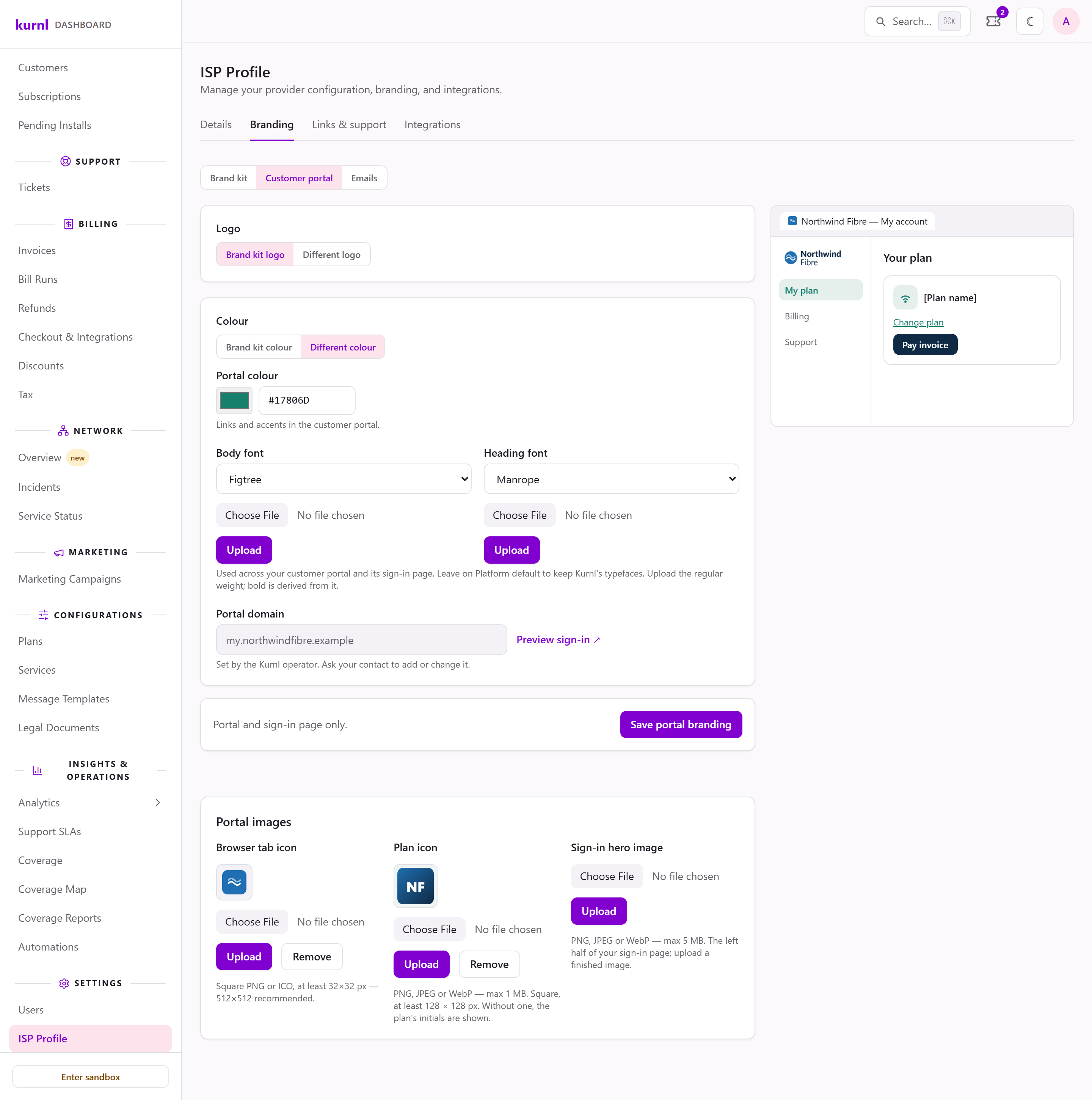
The customer portal's branding
Emails
- Logo — the brand kit’s or a different one. It is shown on your header colour.
- Header colour and Button colour — the button follows the header colour unless you choose Different.
- Font — Standard (Arial) or System fonts, which shows each reader’s own device font: San Francisco on Apple devices, Segoe UI on Windows, Roboto on Android. Desktop Outlook always shows Arial.
- Footer line — your business address or legal line, under every e-mail. Required before you can send a marketing campaign.
{support_email} and {provider_phone} come from the Details tab
(Edit takes you there); {help_link} (your portal’s Support page) and
{grace_period_days} are set by kurnl.
Links & support
The tab Links & support holds the links your customers follow out of the portal, and the support options on its Support page. Press Save links; an empty field always means kurnl’s default.- Terms of Service URL and Privacy Policy URL — linked from the consent text on your marketplace checkout and from the footer of your branded sign-in page. Empty: kurnl’s documents.
- Support URL — your own help centre, linked from the portal’s footer and Help page. Empty: no link.
- Support channels — the Talk to us tiles on the Support page: a Booking link (your scheduling page, opened inside the portal) and the Retell public key and Retell chat agent ID for your chat agent. Call us uses the Contact Phone on the Details tab. Each tile appears only once it is set up.
- Support page — Start here — the three tiles at the top of the Support page: Billing link, Connection help link and Setup guides link. Empty, a tile opens the portal’s own page (Invoices, the connection first-aid steps, the Help page); with a link it opens your page in a new tab.
https:// (or http://).
Plan details
Customers open Learn more on any of your plans — in the marketplace by clicking the plan card, in the customer portal under each plan on Edit plan. The window shows the plan’s own speed, price and setup fee, and the facts you enter on the tab Plan details: the router, the charge for equipment that is not returned, the notice to cancel, the device return policy and your human support hours. Each is short text shown exactly as you type it; leave a field empty to hide its row. The support channels in that window follow the channels you have set up: Phone with a Contact Phone, Email with a Contact Email, Chat with both Retell values.Message templates
Every e-mail and text your customers receive is a template you can edit — or replace with your own. To send different versions of one e-mail to different customers — by installation, building, plan or tag — see Automations and templates — how they work together. The Customer placeholders are{customer_name} (full name),
{customer_first_name} and {customer_last_name}. Every template kurnl ships
greets by first name (Hi {customer_first_name},). A greeting whose name comes
out empty reads “Hello,” (“Guten Tag,” in German), in e-mails and texts alike.
A greeting without name placeholders stays as you wrote it.
- A template belongs to one event (an invoice is issued, a payment fails, a line goes live, …) and one channel, E-mail or SMS.
- The active template of an event is what that event sends. One event never sends more than one e-mail or one text. Activating a template switches the event’s previous one off.
- Security templates — password reset, login and identity codes, changes of the sign-in address or the billing contact e-mail — are always sent and cannot be switched off.
- Anonymous lines are lines a partner sold through its own checkout. They have no customer account and no portal. kurnl mails them at the line’s contact e-mail, in three cases. Service mails — outage, service restored, router shipped, ticket received, and the technician booking mails — are always sent. Billing, payment and account mails, and every security mail, are never sent. Lifecycle mails — order received, welcome, plan changed, cancellation and its withdrawal, reactivation, service deactivated, visit completed — are sent only when you switch on Also send for anonymous lines in that template. Check that the wording makes sense without a portal first. Mails for your own team are not affected. The greeting uses the name from the installation booking.
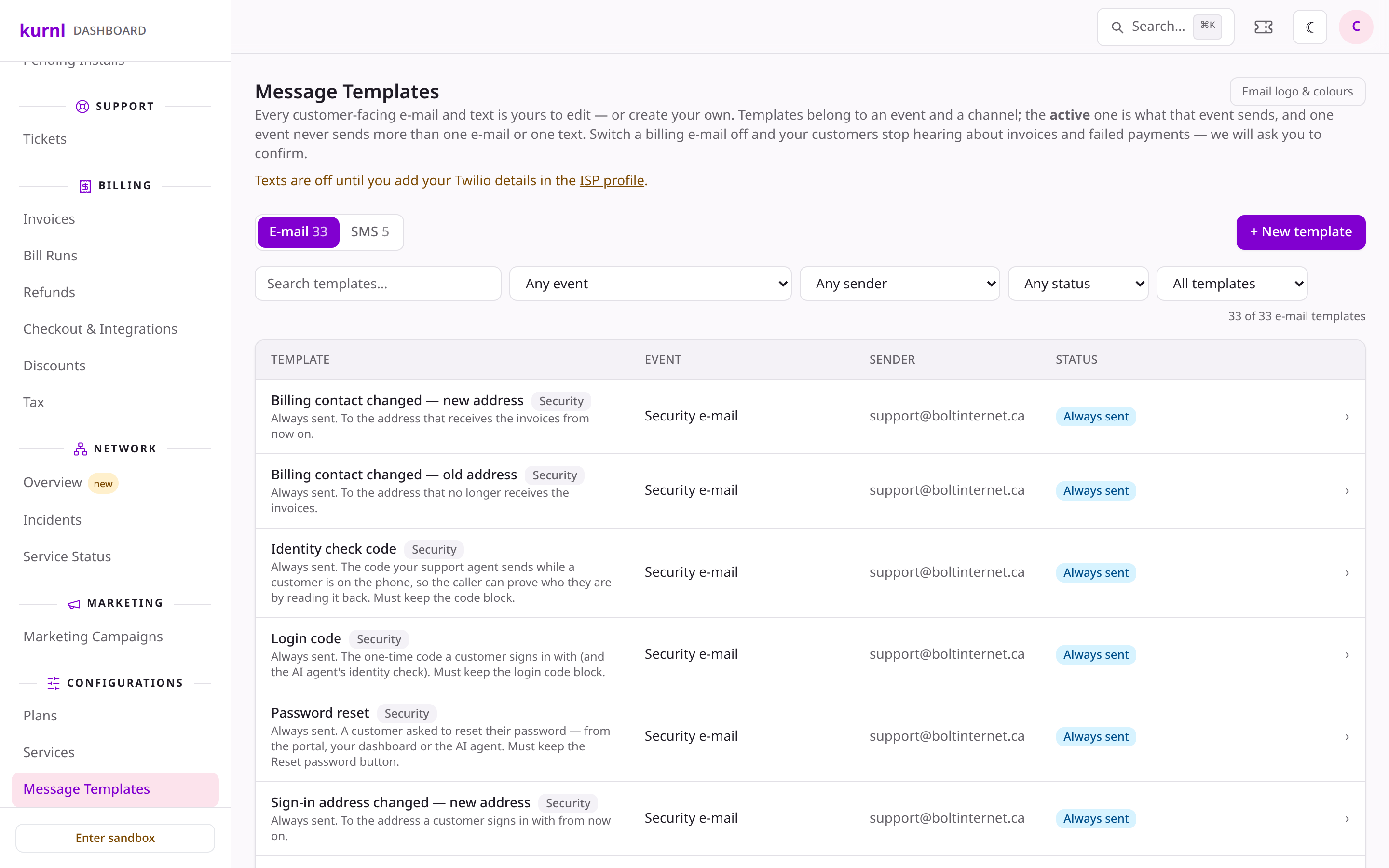
Message Templates
Write a template
Open a template, or press + New template: pick the channel and the event first — the event decides which placeholders exist and cannot change later. You can start blank or from a copy of another template for the same event. For an e-mail you set:- Name — how the template is listed and picked in automations.
- Intended for — any line type, or first, second or third line. It decides which buttons and placeholders the template offers.
- From address — the address the e-mail is sent from. Pick one of the suggestions or type your own: any address on a domain you authenticated in SendGrid works, or one of your verified senders (see Email sending). Make sure replies to that address reach someone. Left as it is, the template follows the role default you set under Email sending.
- Subject line, Greeting, Body and Closing. Greeting and closing are plain text; the body is formatted: headings, emphasis, lists, links, buttons (+ Button) and kurnl’s data blocks (+ Kurnl block…), such as the invoice table or the plan change table.
- Placeholders — click one in Available placeholders to insert it. They are grouped by what they describe (provider, customer, subscription, invoice, …); a group the event cannot fill is greyed out.
- Attachments — your Service Agreement and policies from Configurations → Legal Documents, and the customer’s Invoice, attached to every e-mail the template sends. On the invoice e-mails (invoice created, payment received, payment failed, payment reminder) the Invoice is that e-mail’s own invoice; on any other e-mail it is the customer’s latest invoice. It needs an e-mail that is sent for a subscription. Test e-mails don’t include an invoice.
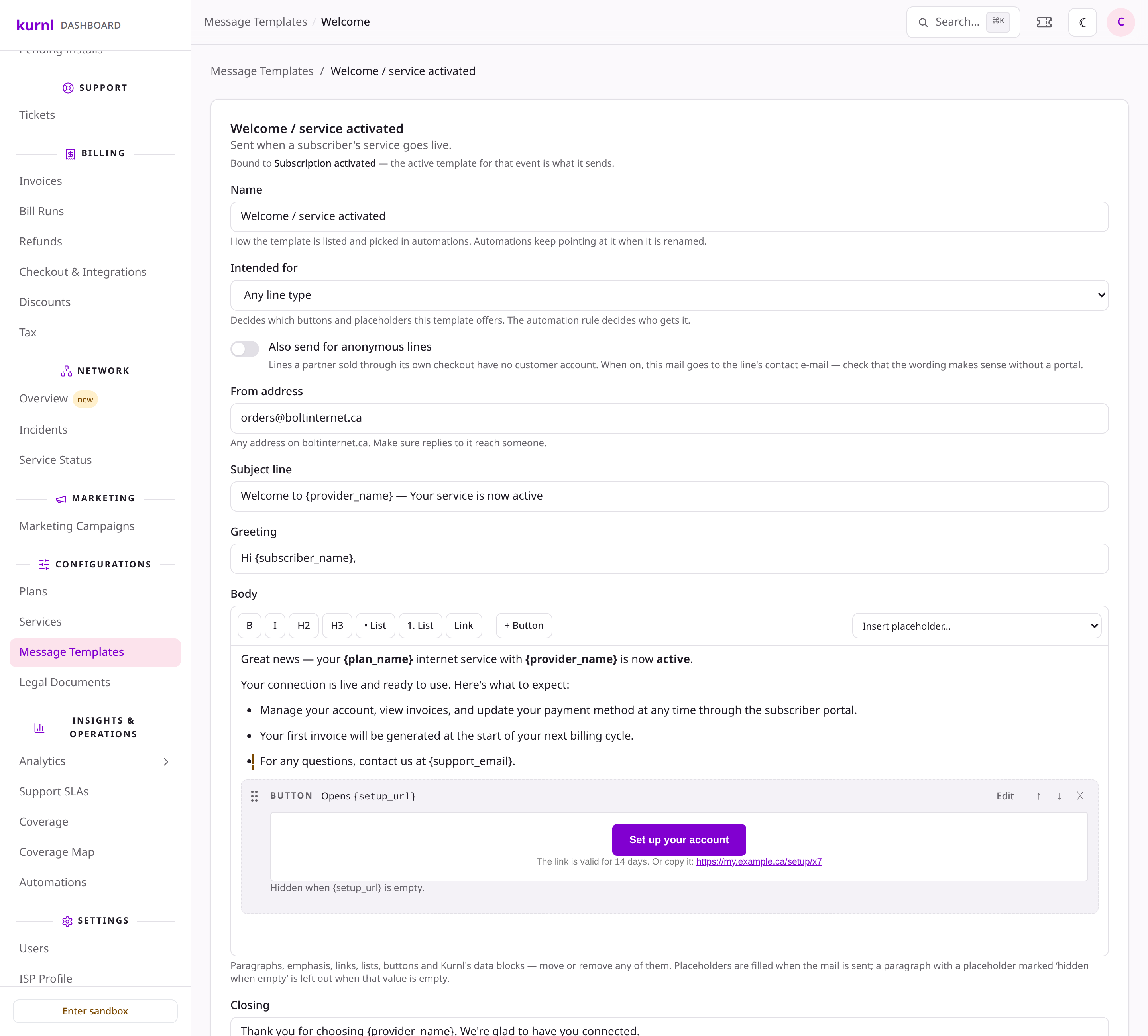
Editing a template