Follow new lines from order to live — pending installs, the booking link, router delivery — and check a customer’s line and router.
kurnl connects your customers’ lines: it runs the install visits and the
technicians and ships routers. Where the customer books the technician visit
themselves, you can also book it for them. You follow each line until it is
live, keep the customer’s details right, and check their line and router
afterwards.
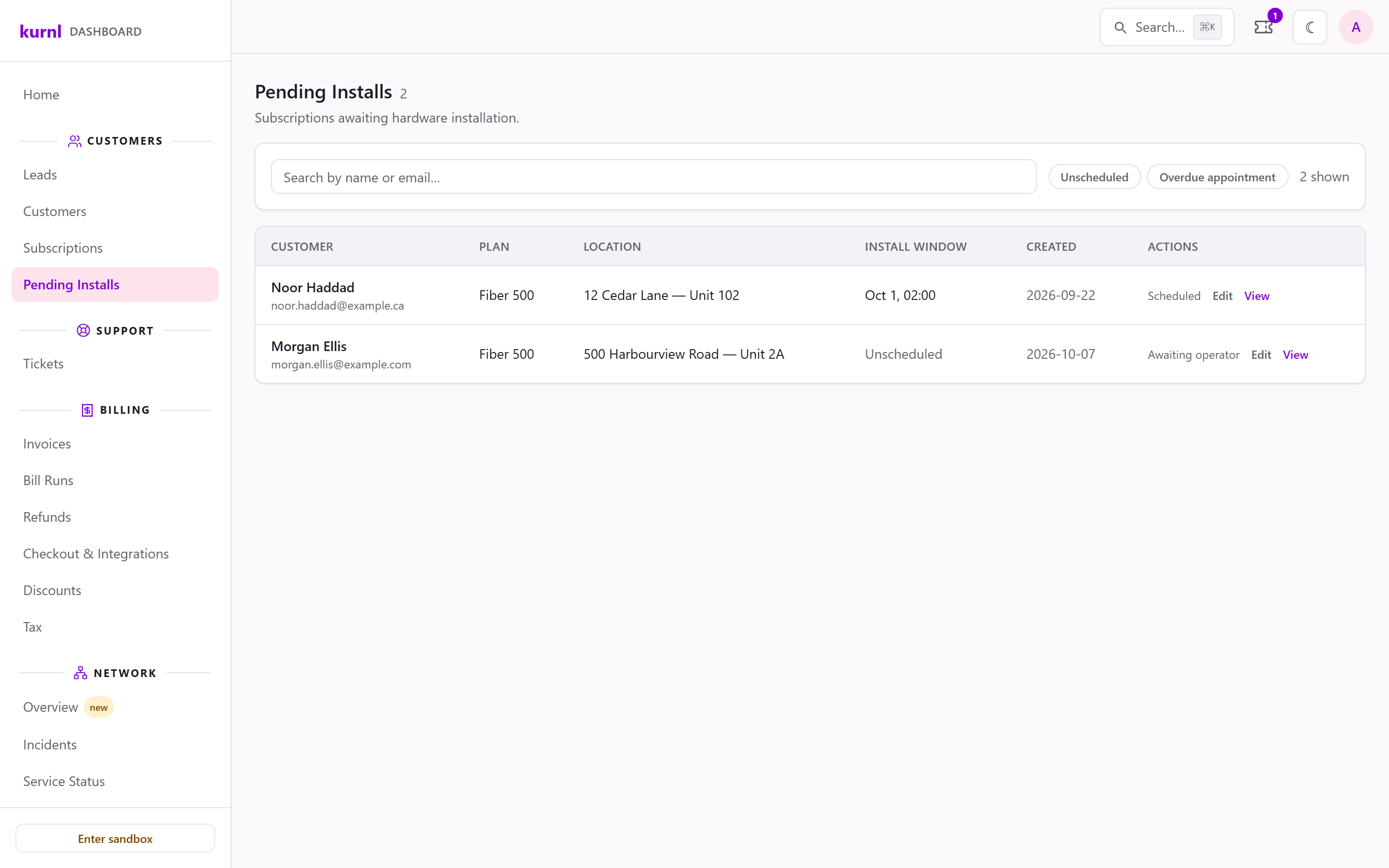
Customers → Pending Installs lists every line that is ordered but not live
yet: the customer, the plan, the building and unit, the install window and when
it was created.
Unscheduled and Overdue appointment filter the list; search finds a
customer by name or e-mail.
The install window shows the booked date and time, or Unscheduled. Where
the customer books the technician visit (see Technician visit below), the
action column offers Book a visit (or Move and Cancel visit once one
is booked) and Send booking link again — also for an anonymous line. For
every other line it reads Scheduled or Awaiting operator: kurnl
schedules those visits.
Edit updates the customer’s contact details, invoice address and Install
notes — gate codes, parking, pets — for the technician. The notes belong to
the install: the technician reads them on the job sheet, and they show in the
customer’s Support tab. They can be added once the order has its install
job, up to 1,000 characters.
The customer receives an e-mail, Book your installation visit, with a
link to a booking page on your customer portal. They pick a morning or
afternoon window on a weekday, tell the technician who to contact and add
any instructions, and can change or cancel the visit later (not at short
notice). After booking they get a confirmation e-mail. The link works until
the install is done.If the customer moves in months from now, the link is sent a few weeks
before the move-in date.The wording of both e-mails is yours to change under Configurations →
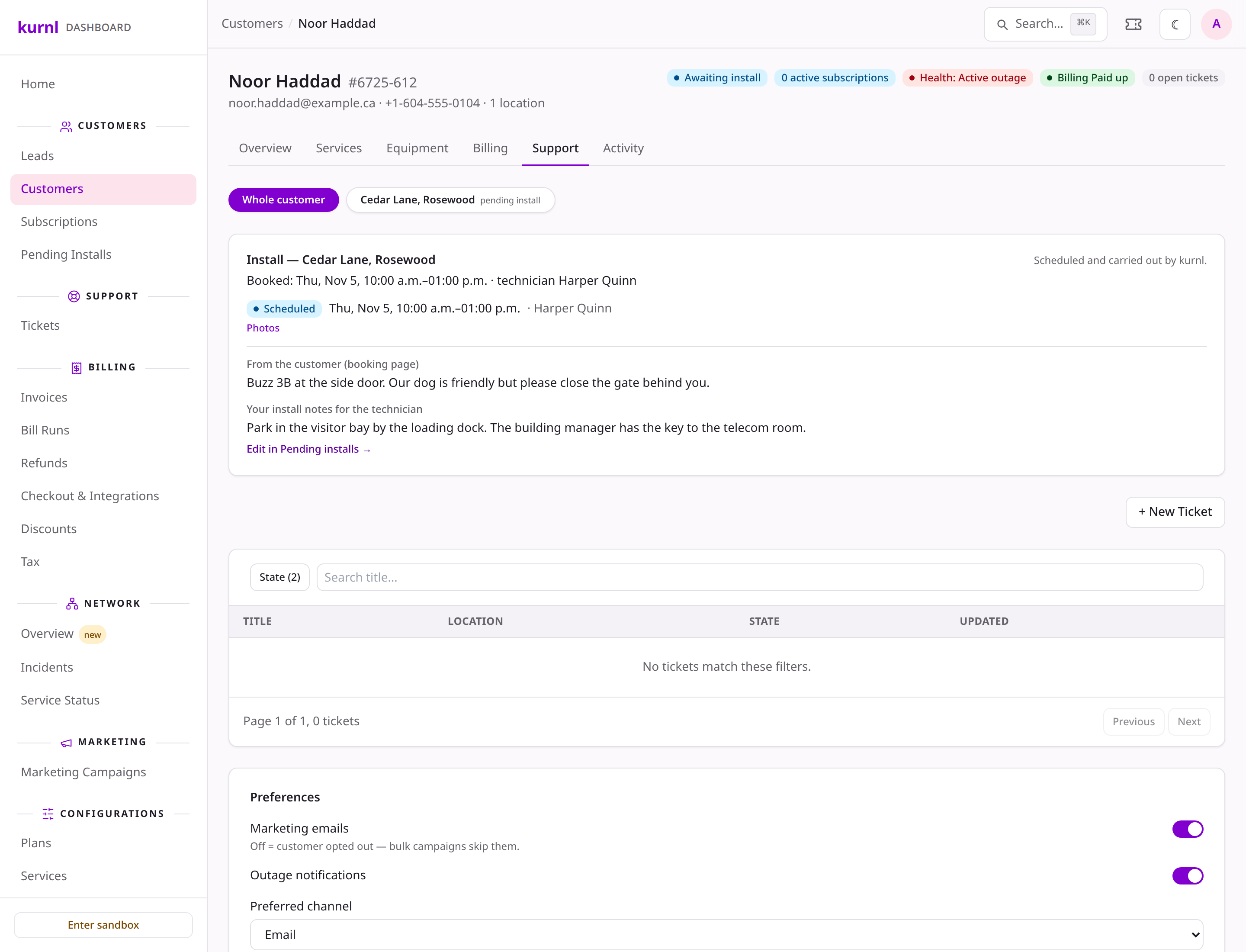
Message Templates (Technician visit — booking link and Technician visit booked).kurnl runs the visit and assigns the technician. The customer’s Support tab
shows it per service location, above the tickets: the booked window and the
technician, or No appointment yet with the day the booking link went out
(or the day it will), then each visit — how far it is (on site, done) and the
photos the technician took of the installed router and the patched rack —
and the notes for the technician: what the customer wrote on the booking page, and your install notes.
That is what you need to answer the customer.When the customer calls, you can act for them, in the Support tab’s install
box or on Pending Installs:
Book a visit or Move shows the windows the customer’s booking page
shows, by day in the building’s time zone, and books the one you pick. The
customer gets the same confirmation e-mail as when they book themselves.
Cancel visit frees the window and sends the customer the booking link
again, so they can pick a new one.
Send booking link again sends the link to the address you confirm. A
new address becomes the one the booking mails go to; the link the
customer already has keeps working.
The booking page’s rules apply: no window before the move-in date, and no
booking, move or cancellation inside the notice period before the visit.
Nothing can be booked while the order is on hold or after the install is
done. To move or cancel a visit at short notice, or when something went
wrong on site, open a ticket and use Escalate to kurnl.
A booked visit and the notes for the technician on the Support tab
kurnl ships a router to the customer and e-mails them that it is on its way,
with a tracking link. The line goes live once the router is plugged in and
connects — the first charge follows then, not before. The customer’s
Equipment tab shows Ready to ship or Shipped, the router’s serial
number and the tracking link.
kurnl schedules the install visit; it cannot be booked from the dashboard.
The line shows in Pending Installs until it is live — Awaiting operator
until kurnl has booked the visit.
Each order with an install has an install ticket in your support queue from the start. While kurnl still has work
to do, it shows Waiting on kurnl with the step (connection confirmation, port mapping, equipment shipping), and
kurnl’s progress arrives as internal notes. You answer the customer on it. When the line goes live, kurnl adds an
internal note and marks the ticket resolved; it closes on its own three days later unless you reopen it or the
customer replies on the portal.
kurnl needs a way to reach the customer about the visit. If a booking link
had no address to go to, or the customer did not get it, use Send booking
link again in the customer’s Support tab or on Pending Installs and enter
the address there. Edit changes only the customer record and sends
nothing.
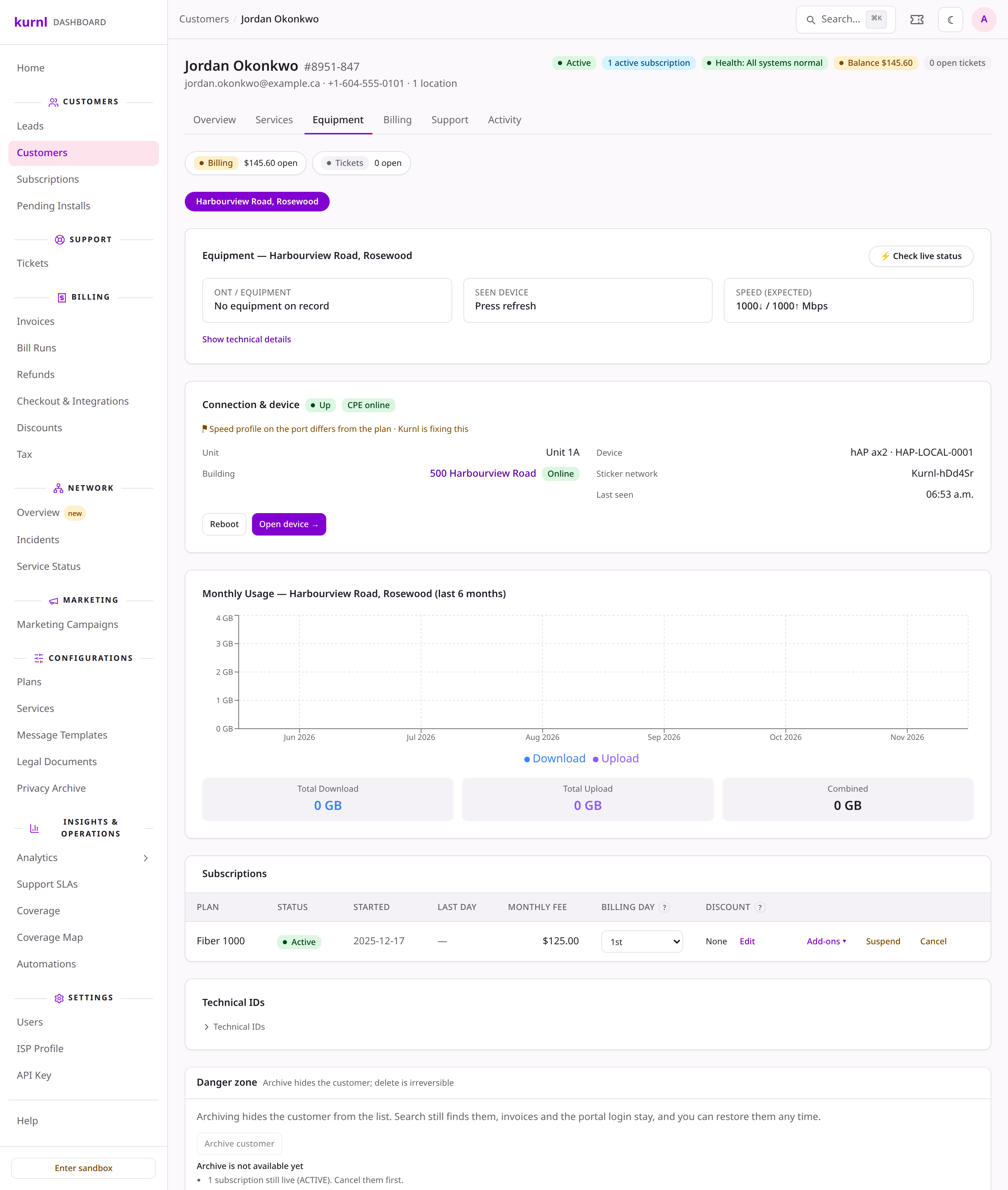
The customer’s Equipment tab shows everything about their connection.
Install — while the line is not live yet: the appointment or the
shipment, and its progress.
Connection & device — one section for the line and the router: the line
state (Up, Down, Not live), whether the customer’s router is online, the
Unit and Building, the Speed provisioned for the line (for example
1000↓ / 1000↑ Mbps), the Device, the Resident network (the customer’s
own Wi-Fi name, or Not set) and when the router was last seen. The
Connection path button, for roles that can read the network, opens the
customer’s Connection path page: how the line reaches the internet (the
customer’s name, then Unit ONT → Building switch → Building → Kurnl network →
Internet), without device names, ports or ids. Open device
shows the router’s traffic, Wi-Fi, connected devices and history; Reboot
restarts the router there (the connection drops for a minute or two). The
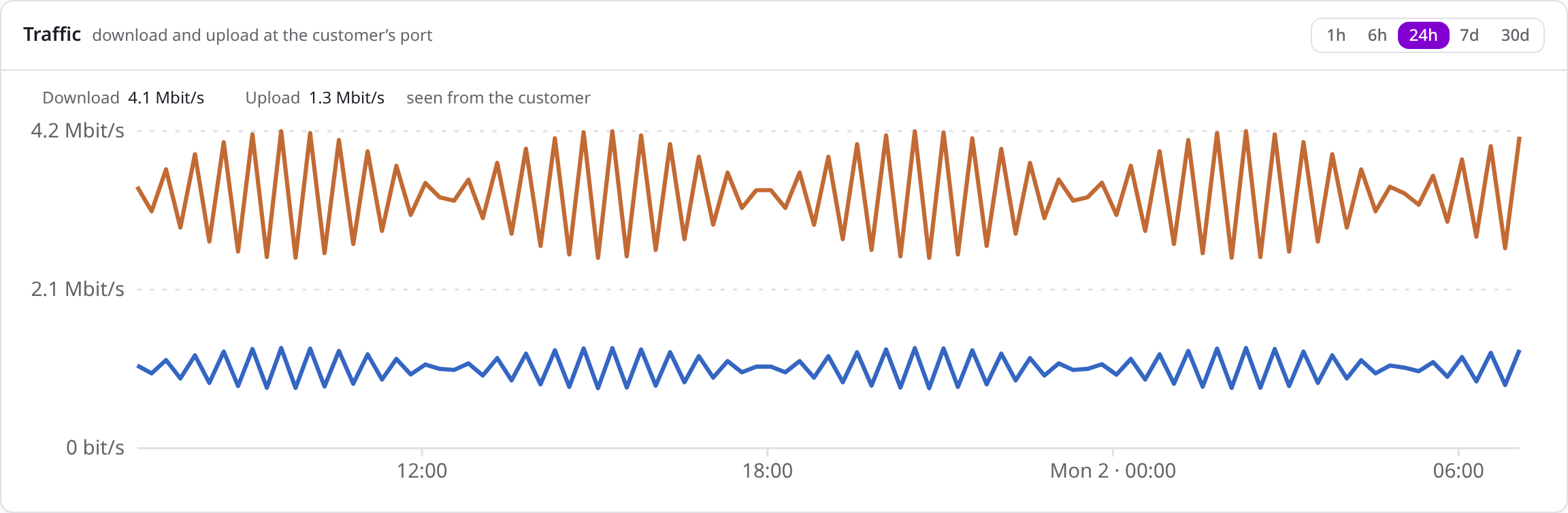
Traffic card draws the download and upload at the customer’s port
over 1 hour to 30 days, with the date and time under the pointer. On the device
page, Set Wi-Fi sets the customer’s own network name and password —
Generate makes a password, and after you save it is shown once; the
customer sees the new network on their Plan & Service page. Clear resident
Wi-Fi removes that network; the printed sticker network stays. Platform
administrators do not see these buttons. The device page’s breadcrumb leads
back to the Equipment tab.
Monthly usage — the customer’s data use.
If the customer’s building has an outage, a banner says so and links to the
incident — see Network status, incidents & service notices.
The banner never appears for a single line or router. The Health badge reads
Building outage, Line down or Device offline when one applies, and Line
down and Device offline clear by themselves once the line is back. While the
line is down or the router is offline, the section re-reads itself every 45
seconds.
A customer's line and router
The Traffic card on the device page
Want to act when an install completes — send a welcome e-mail, open a
follow-up task? Use the Installation completed event in
Automations.