
Only your admin account can change coverage. Support and sales staff see
the same page read-only, with the note “Coverage is managed by your
provider’s admin.”
How coverage works
The page shows the kurnl network as a tree: country → province → division, with the buildings filed under each division.- Tick a province or a division to cover every building in it — including buildings kurnl adds there later.
- Tick a single building to add just that building.
- Opt a building out of a ticked division if you do not want to sell there.
- Contract buildings — buildings kurnl has assigned to you — are always covered and cannot be opted out.
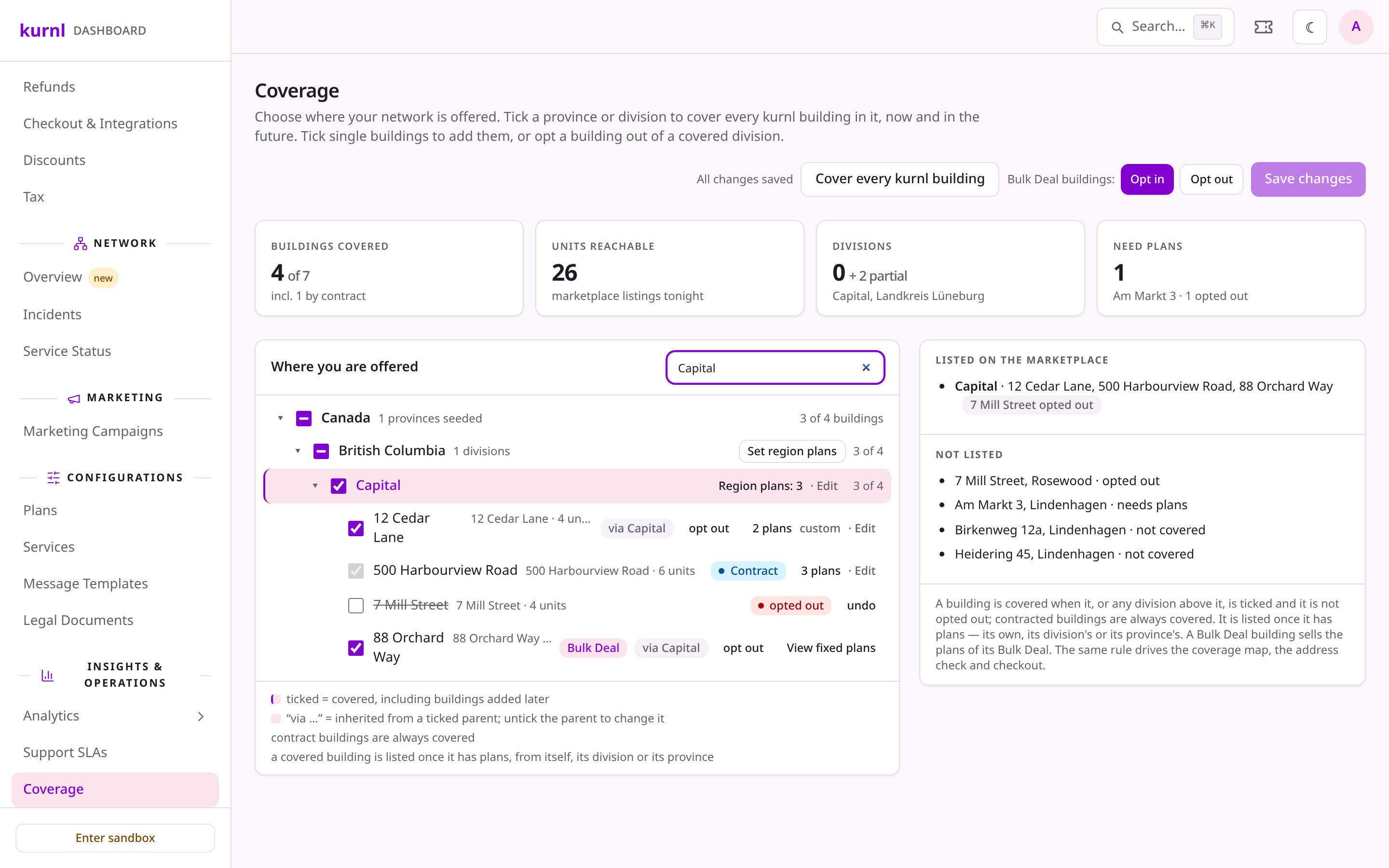
A ticked division, one building opted out and one contract building
Change your coverage
1
Find the area
Expand a province with ▸, or type into Find a division or building.
Each row shows how many of its buildings you cover, for example 3 of 5.
2
Tick what you want to offer
Tick a province or division to cover all of it. Buildings below a ticked
row show via Division name — to change them, untick the row above.
To add one building outside your ticked areas, tick that building; it
shows picked.
3
Opt out single buildings
In a ticked division, use opt out on a building (or untick it). It is
struck through and marked opted out; undo brings it back.
4
Save
Nothing is offered until you press Save changes. The header says
Unsaved changes until then. To throw your edits away, reload the page.
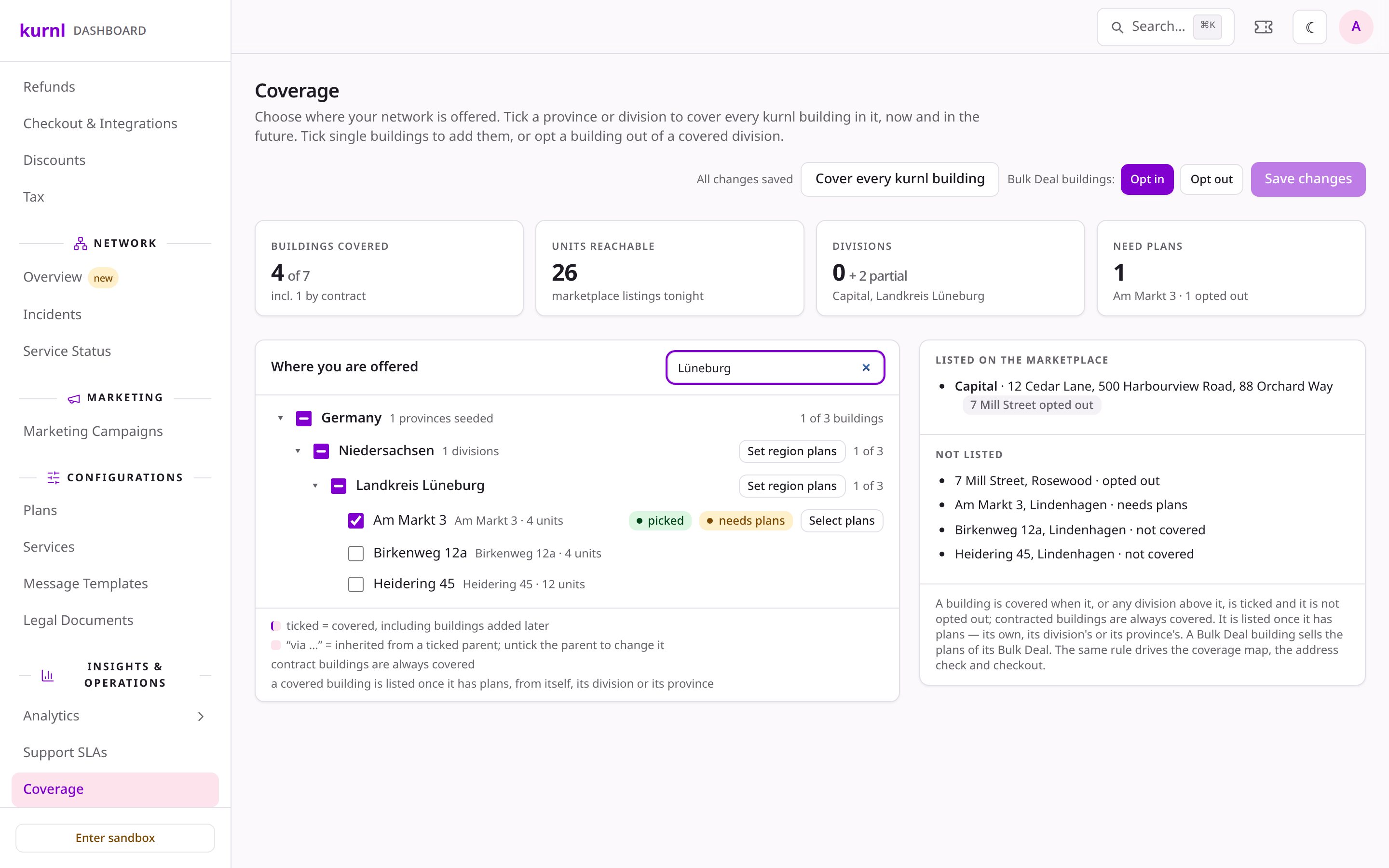
A single picked building in a division that is not ticked
Choose plans per region and building
Covering a building does not list it by itself: it needs at least one plan. You choose the plans per province or division, and a single building can have its own selection. External plans are not chosen per region: they are offered wherever you cover.- On a ticked province or division, press Set region plans, tick the plans and press Apply. Every covered building in that region offers those plans unless it has a selection of its own. A region that has a selection shows Region plans: 3 · Edit; press it to change the selection. Clear removes it.
- A building takes the nearest selection above it: its own, else its division’s, else its province’s. In a building’s dialog, the line under the title says where its plans come from (Custom selection, Uses Capital’s plans).
- To give one building different plans, press its plans button, tick what that building offers and press Apply. Use <division or province> defaults (named after the region the building inherits from) drops the building’s own selection and it follows the region again.
- A building you cover that has no plans anywhere above it shows needs plans, with a Select plans button. It is not listed on the marketplace and cannot be ordered until it has one.
- A plan stays unticked and greyed out, with “This building delivers up to 1 Gbps”, when the building’s speed tier is below the plan’s speed. A plan already ticked stays untickable, so you can remove it.
- Nothing is offered until you press Save changes; Apply only keeps the change on the page. Only your admin can set plans; support and sales see the selections and can open them to view.
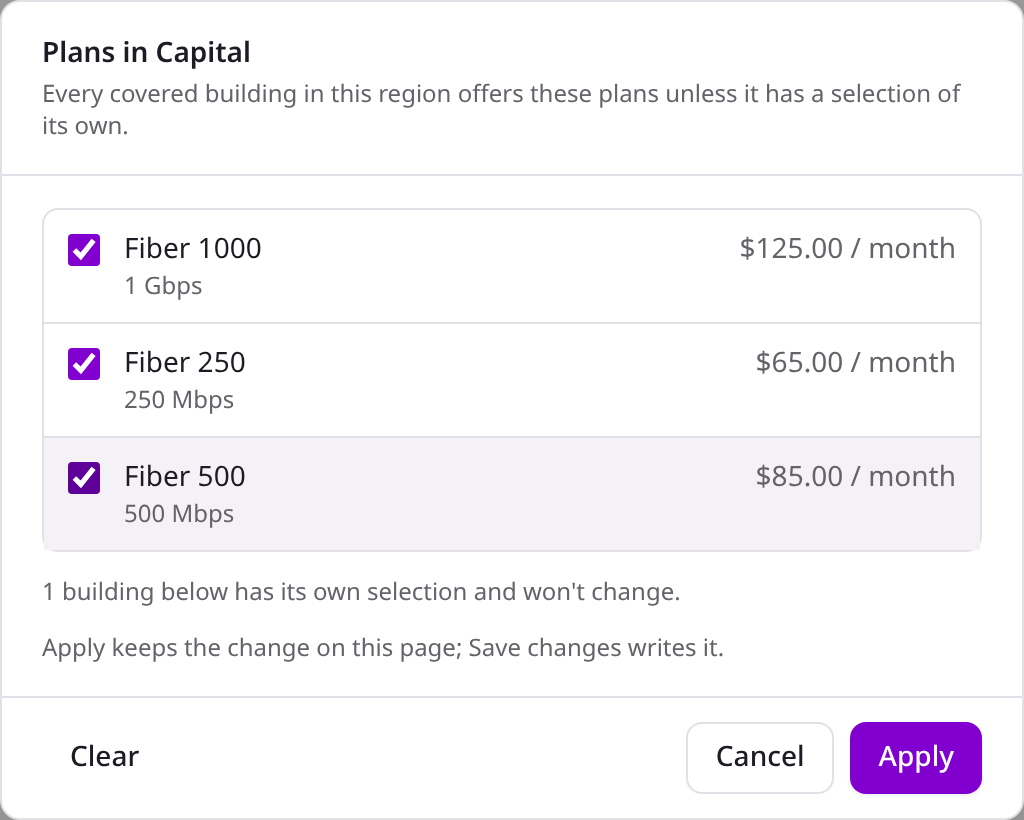
Region plans on a ticked division
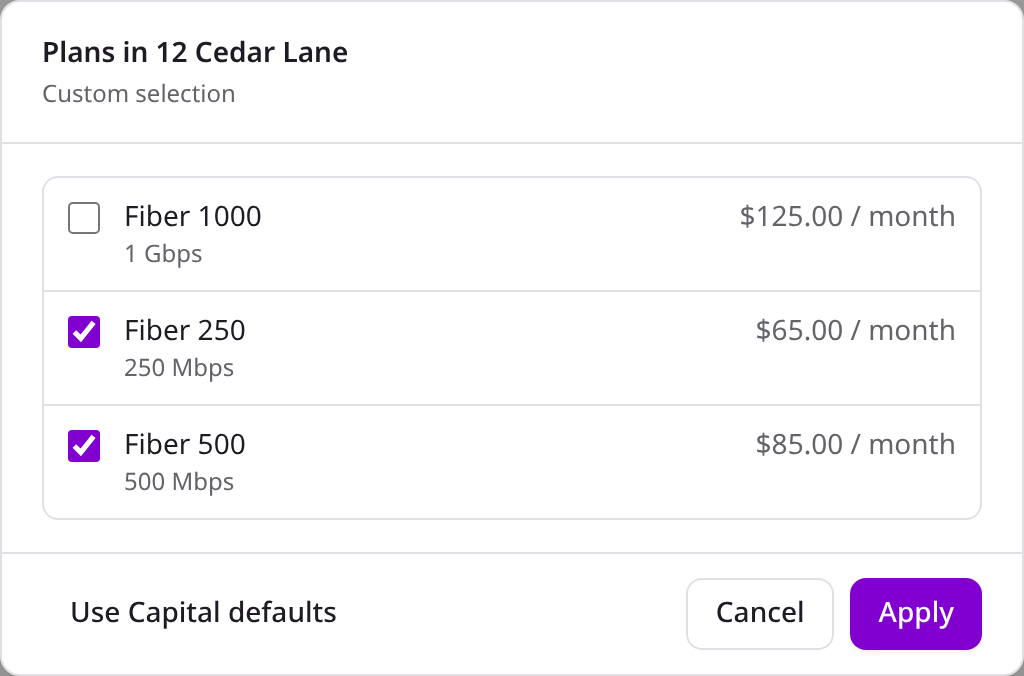
One building with its own plan selection
Bulk Deal buildings
Buildings where kurnl includes internet in the rent carry a Bulk Deal badge. They are different from other buildings in three ways.- Their plans are fixed. A Bulk Deal building sells the plans of its Bulk Deal, not a selection from your plans. Press View fixed plans to see them; they cannot be changed on this page, and the building never shows needs plans.
- The margin is shown to admins only. For each fixed plan, an admin sees the Margin: what you keep per unit and month (the Bulk Deal rate minus the wholesale rate, for example $5.00 / unit / month). The rates themselves are not shown. Support and sales see the plans without the margin.
- You choose whether they are covered by default. Bulk Deal buildings: Opt in / Opt out sets what a ticked province or division does with them. Opt in covers them like any other building; Opt out leaves them out unless you tick the building yourself. Changing it asks for confirmation (“This changes 2 Bulk Deal buildings without their own choice…”). It also applies to Bulk Deal buildings kurnl adds later, and Save changes writes it.
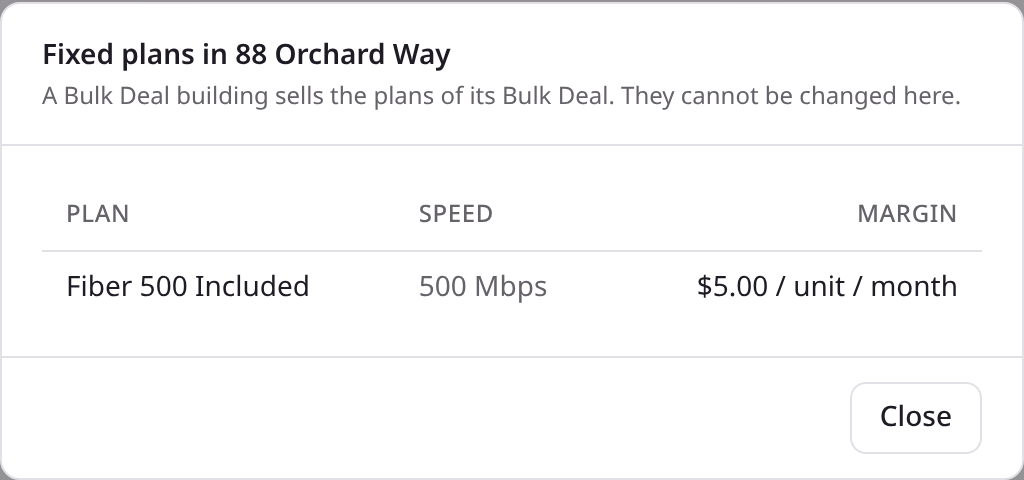
The fixed plans of a Bulk Deal building
Offer everything
Cover every kurnl building ticks the whole country, so every kurnl building — today’s and future ones — is covered. It removes your opt-outs and single picks; if you have opt-outs, you are asked first (“This clears 1 opt-out. Continue?”). Bulk Deal buildings follow your preference: with Opt out, they stay out, and the buildings you opted in one by one stay covered. Buildings still need plans to be listed. Press Save changes afterwards.Check the result
- The tiles at the top count your buildings covered (contract buildings included), the units reachable, the divisions you cover fully or partly, the buildings you opted out, and the covered buildings that need plans.
- Listed on the marketplace and Not listed show, per division and building, what customers can and cannot order — and why a building is not listed (needs plans, opted out or not covered).
- Coverage Map (in the same menu) shows the buildings you cover on a map: per building your own customers, your pending installs and the free units.
Good to know
- A division appears once kurnl has opened its region. If the page says no divisions exist yet, there is nothing to tick — contract buildings are covered anyway.
- A building you cover with no plans is not listed, and an order for a plan it does not offer is refused. Customers who already have a line are not affected.
- A building you picked that kurnl has not filed under a division yet stays in your selection, but it is offered only once it is filed. The page tells you when that is the case.
- If someone else changed your coverage, or a contract was signed while you were editing, saving is refused and the page reloads the current state. Make your changes again.