
Plans and versions
A plan is the offer — its name, code and description. What the customer pays, and for which speeds, is set on its versions. A new version lets you change a price from a date on, without touching the plan. On the Plans page, Network plans are lines on the kurnl network; the External plans tab holds off-net plans — see External subscriptions.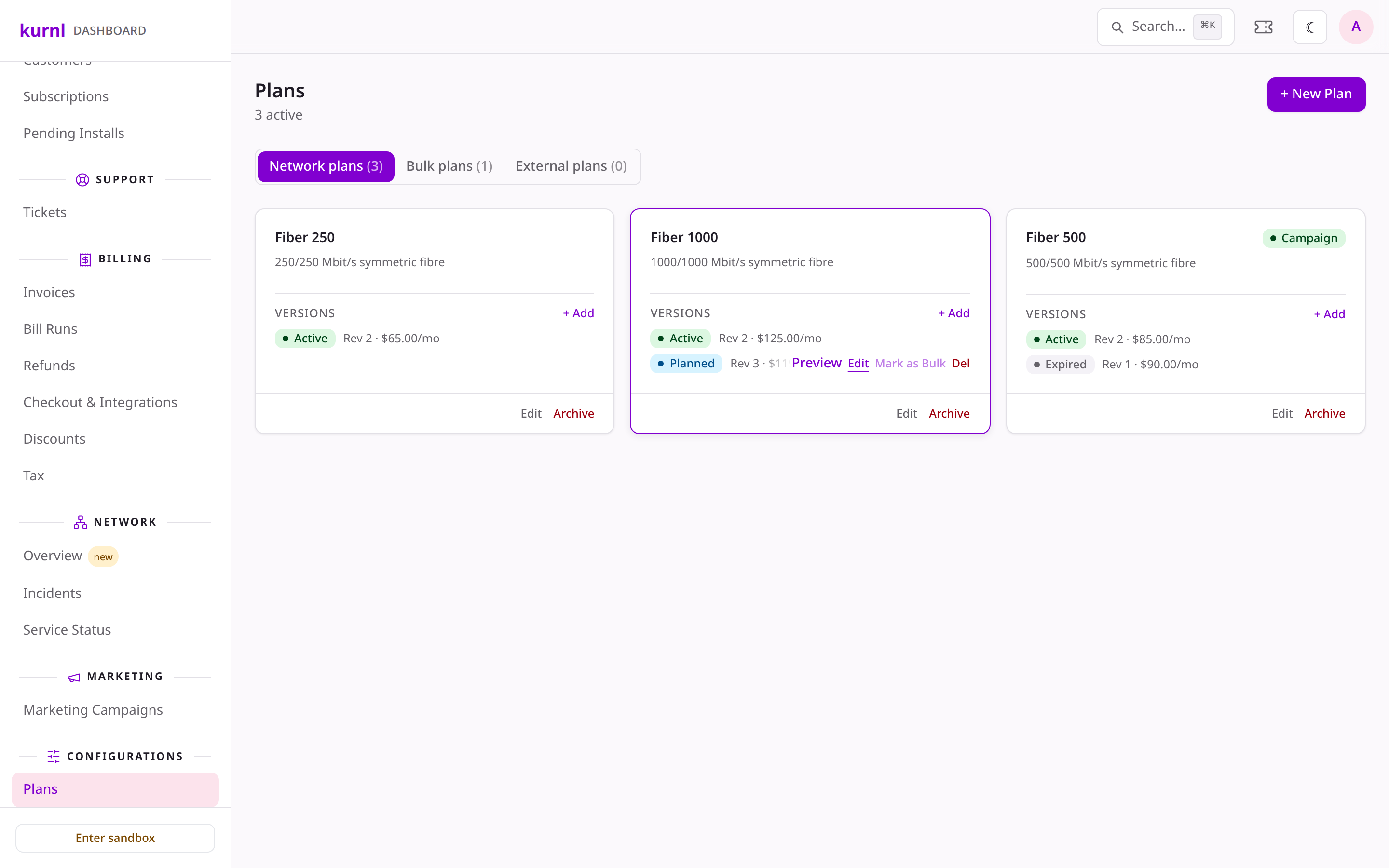
A plan with an active and a planned version
1
Create the plan
Press + New Plan and enter a Name (and optionally a Code and a
Description). Create Plan opens the first version right away —
complete it: a plan without a version is not listed. The code is the
product key on your customers’ invoices: once a customer has the plan it
cannot change. The name can, and a new name shows on their next invoice and
in every document from then on.
2
Pick the wholesale product
In the version, choose the Wholesale Product. It fills in the speeds,
the technology and the wholesale price, which is why those fields are
read-only. Every version of a plan uses the same wholesale product — for a
different one, create a new plan. If the list is empty, ask kurnl to set up
a wholesale product for you.
3
Set the price and the dates
Enter the Retail Price/mo and, if you charge one, the Setup Fee.
Effective From is the day the version goes on sale; it defaults to
today. Effective To is optional.
4
Add services, a campaign and badges
Under Included services, add what the plan price covers; under
Add-on services, the extras a customer can add at checkout — leave an
add-on’s price blank to use the service’s own price. Campaign override
puts a campaign on just this version. Badges are the highlights shown on
the plan card. Audience says who can take this version — Both (the
default), New customers only (sold on the storefront and by you to new
customers, never offered as a plan change) or Existing customers only
(offered when a customer changes plan, never on the storefront). Press
Add Version.
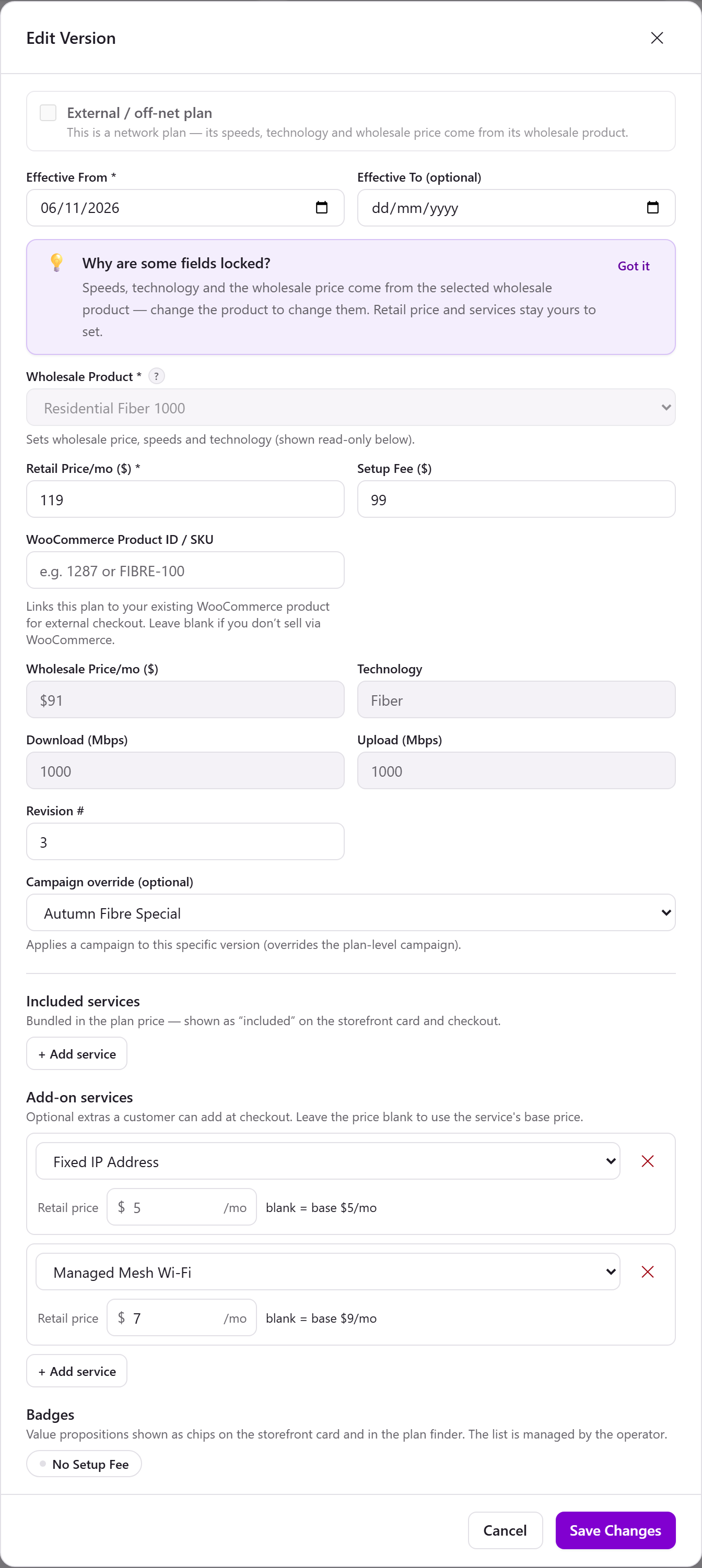
A plan version: wholesale product, price, dates and services
Offer the plan where you sell
When you save the first version of a new plan, kurnl asks “Offer <plan> in all your covered regions?”. Offer everywhere adds the plan to every region and building you cover, next to the plans they already offer. Not yet — I’ll pick regions leaves the choice for the Coverage page. Only your admin sees the question; other roles are told to ask their admin. An external plan is not chosen per region, so its first version asks nothing. A plan that no region or building offers is not listed on the marketplace, and the Plans page marks its card Not offered anywhere (press the badge to open Coverage). See Choose plans per region and building.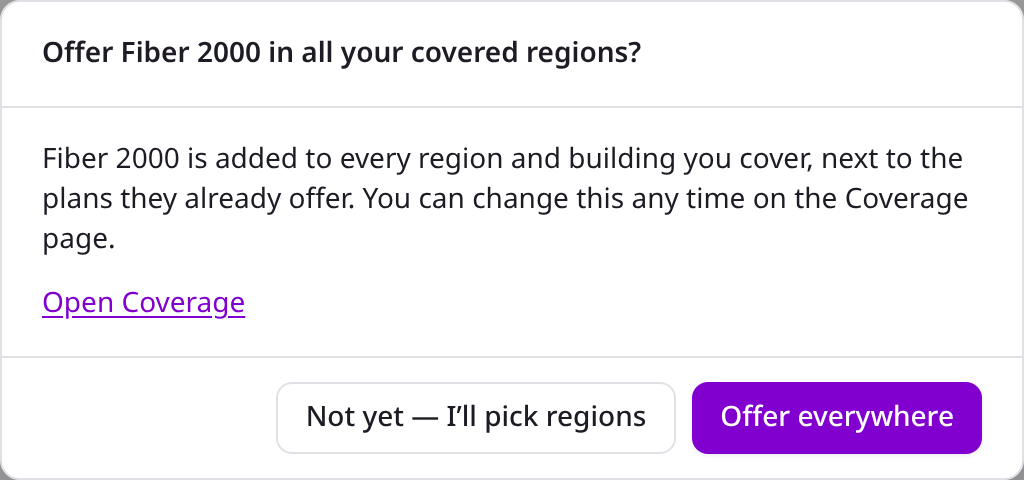
A new plan asks whether to offer it in all your covered regions
When a version is on sale
There is no publish button — the dates decide:
The Audience shows as a badge on the version row — New customers or
Existing customers; Both shows nothing. An existing customer is one with a
running line with you; a customer who cancelled counts as new again. A plan set
to New customers only cannot be reached through Change Plan, and one set to
Existing customers only is not on the storefront.
- Change a price: add a new version with the new price and the date it applies from, and give the old one an Effective To.
- Stop selling: hover the version and press Expire — it is off sale at once. A plan whose versions are all expired drops off the list.
- Preview / Edit / Expire / Del appear when you hover a version row. Del is refused while subscriptions use the version.
Mark as Bulk
A building where kurnl includes the internet in the rent offers only bulk plans. Mark as Bulk on a version copies it into a new plan on the same wholesale product at 0 bulk version.Services
Services are the extras — a static IP, managed Wi-Fi — that a plan includes or a customer can add. Your services are your own: other providers neither see nor change them, and a plan version can only use services from your list.1
Add a service
On Configurations → Services, press + Add Service and enter a
Name, optionally a Code and a Description (customers see it on
the storefront and at checkout), and the Retail Price / mo. If kurnl
charges you for the service, pick the matching Wholesale service. As
with a plan, the code cannot change once a customer has the service; the
name can.
2
Use it in a plan
Add it to a plan version as an included or an add-on service (see above).
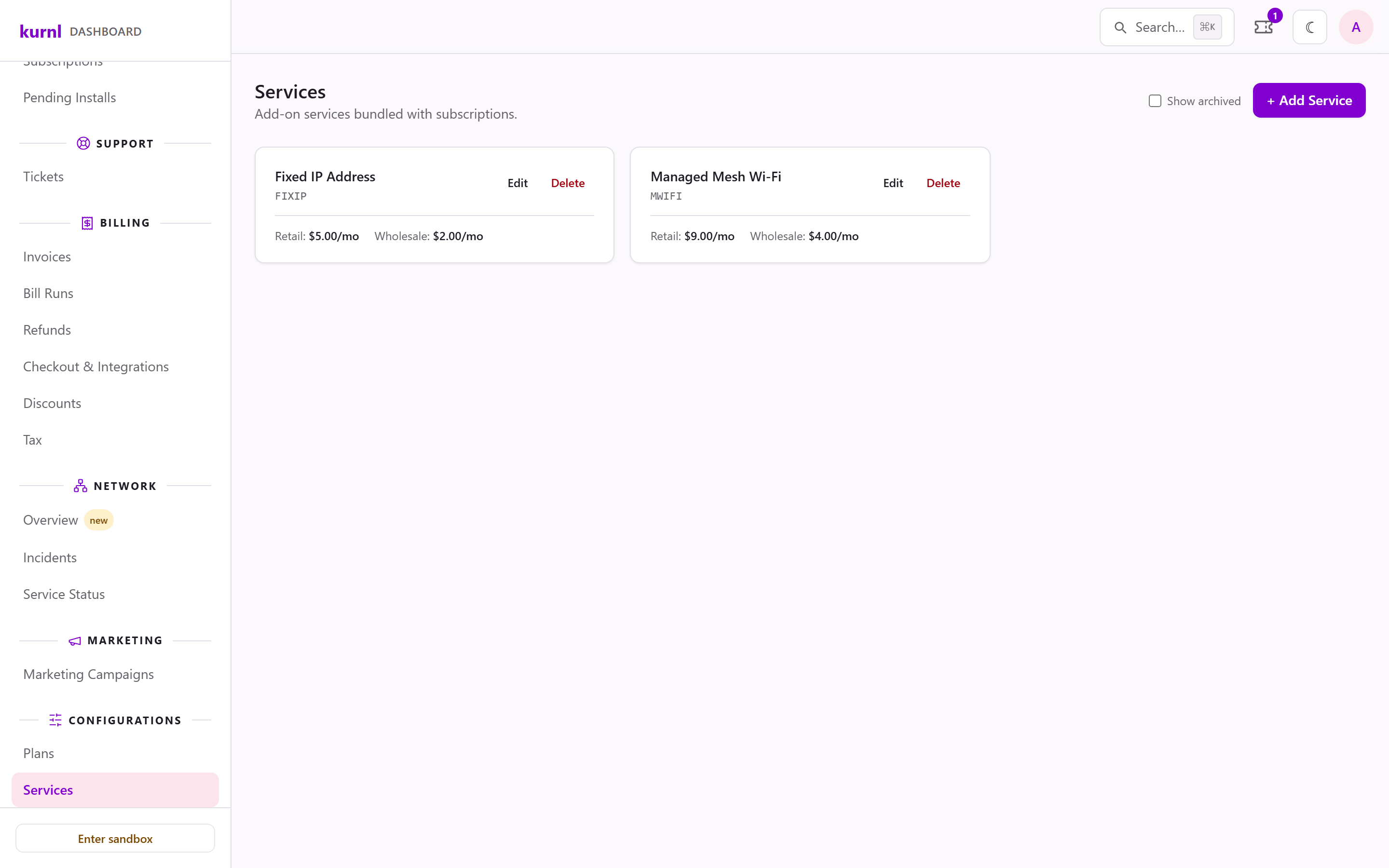
Services
Delete removes a service that nothing uses. A service in use by one of your
plans or subscriptions is archived instead — hidden, while existing plans keep
working, and no new plan version can add it.
Show archived and Restore bring it back.
Discounts and campaigns
A discount is the price cut; a campaign puts it on sale for a period. Both live on Billing → Discounts (page Campaigns & Discounts).1
Create the discount
On the Discounts tab, press New Discount: a Name, the Type —
Percentage (off the plan’s price), Fixed amount off (per month) or
Fixed monthly price — its Value, and the Duration (months) (blank
= for as long as the customer stays). Optionally a Setup Fee Override.
2
Create the campaign
On the Campaigns tab, press New Campaign: a Name, an optional
Description, the Start Date and End Date, and the Discount.
Active is ticked by default.
3
Attach it to a plan
A campaign does not choose plans — the plan points at it. Use Edit on a
plan and pick the Campaign for all its versions, or set a Campaign
override on one version.
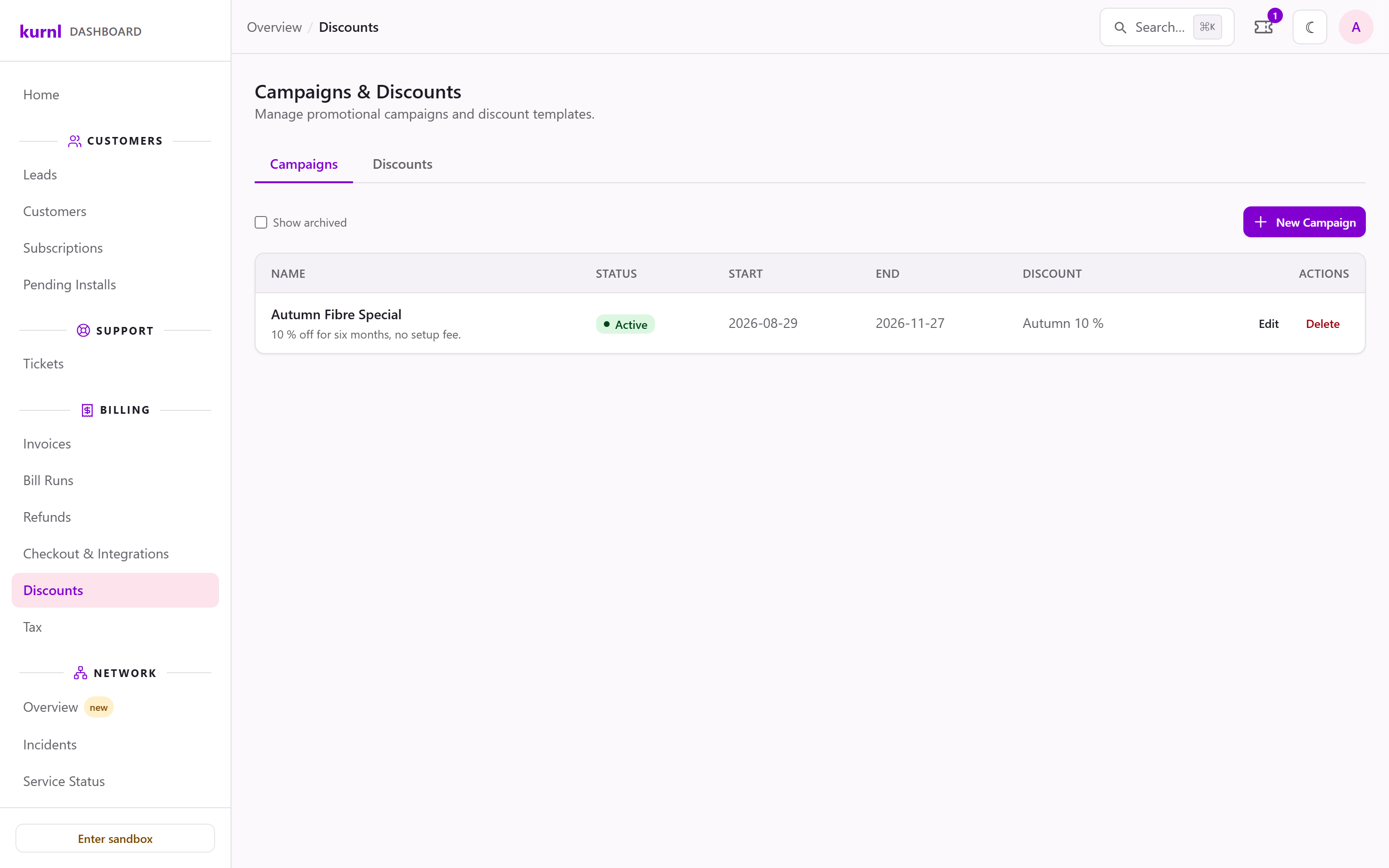
A discount and the campaign that uses it
Operator discounts
The third tab, Operator discounts, holds the participation switch and a list. The list shows the live or upcoming discounts kurnl runs on the buildings you cover: name, code, type, value, duration and the buildings with their dates. You cannot create or edit them. The switch Participate in operator discounts is on by default. While it is on, a shopper in one of those buildings can use the code on your plans and kurnl lowers the price. Kurnl pays: your wholesale invoice drops by the same amount the customer saves, so your margin does not change. Turn the switch off and the code is refused on your plans; customers who already have a discount keep it.sp_admin and sales logins can change it.
The better offer wins, compared on the monthly promo price only. If your plan’s
own campaign is cheaper than the code, the campaign stays and the shopper is told;
a tie keeps the campaign, and months and setup fee are not compared. A code of your own still replaces the
campaign. Operator discounts never apply to bulk plans. On a plan change the
discount moves to the new plan with its remaining months; your own campaign still
ends. See Operator discounts.
A campaign or discount that a plan still uses is archived instead of deleted,
and can be restored. Campaigns and discounts are yours alone — other
providers never see them. Kurnl’s own operator discounts (tab Operator
discounts) are the one thing you see that you did not create.