Serve a provider’s customer portal and its sign-in page on the provider’s own
hostname, in its branding.
1
Enter the hostname
In the Portal Domain card, enter the Portal hostname (for example
my.acme-fibre.ca). Clear the field to remove it.
2
Fill the legal links
Enter Imprint URL, Terms URL and Privacy URL. Without them the
portal footer falls back to kurnl’s pages, which is wrong on a provider’s
own domain.
3
Do the two manual steps
The certificate for the hostname is issued by hand, and the reverse proxy
needs a proxy host forwarding it to the customer portal. Setting the field
alone does nothing until both are in place.
The certificate does not renew itself. Note its expiry when you issue it.
The provider sees the domain read-only on its ISP Profile, with a link to
preview the sign-in page.
A provider that connects its own SendGrid account sends from that account (see
Email sending). Without one,
customer e-mails go out from kurnl’s domain under the provider’s name — or,
with this card, from the provider’s own domain.
1
Add the domain
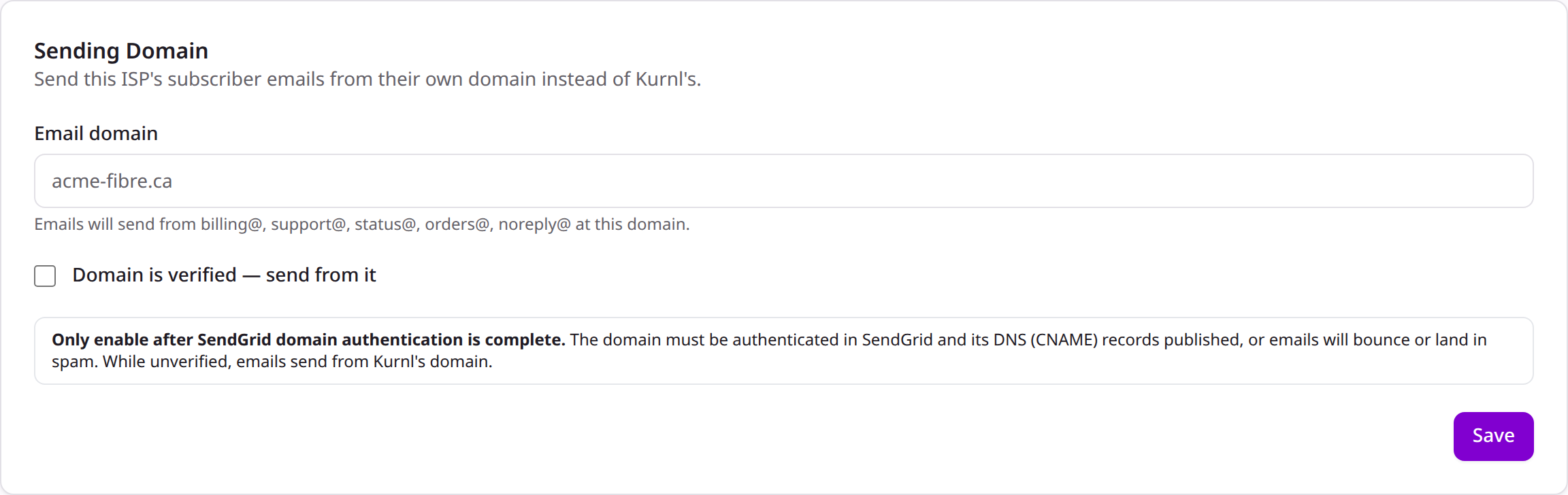
In the Sending Domain card, enter the Email domain. E-mails then
send from billing@, support@, status@, orders@ and noreply@ at that domain.
Per-provider sending domain
2
Verify, then enable
First complete SendGrid domain authentication for that domain and publish
the DNS records SendGrid gives you. Only then tick Domain is verified —
send from it. Until then, e-mails send from kurnl’s domain.
Don’t tick “verified” before the DNS records are live, or e-mails from that
domain will bounce or land in spam.