Practise on a copy of your catalog with sample customers — fast-forward the clock, bounce payments, take a line down — without touching real customers, billing or the network.
The sandbox is a practice copy of your dashboard: your plans, campaigns and
discounts, plus a handful of sample customers. Everything you do there stays
in the sandbox — no real customer is billed, no real line is switched, and the
notifications it would send land in a simulated outbox.
Only your admin account can use the sandbox. All your admins share the
same sandbox, and it stays as you left it between visits. Developers testing
the API: see API sandbox.
Press Enter sandbox at the bottom of the sidebar. You land on Home,
and a yellow Sandbox mode banner shows the simulated date (Sim clock).
Enter sandbox, at the bottom of the sidebar
2
Work as usual
Every page now shows sandbox data — Customers, Subscriptions, Invoices, Plans
and the rest. The sidebar button reads Sandbox active — open panel.
3
Leave
Press Exit sandbox in the banner. You are back on your real data.
Signing out leaves the sandbox too: the next sign-in on this browser starts
on real data.
Your catalog, copied: plan versions with their add-ons, included services
and badges, plus your campaigns and discounts, as they were when the sandbox
was created or last reset. The services are copies too: editing one in the
sandbox never changes your real one. Later changes to your real catalog arrive with the
next Reset sandbox. Your live plans’ names and descriptions can’t be
changed in the sandbox — add versions to them, or create a new plan, which
stays in the sandbox. A live plan keeps its own campaign; the sandbox’s copies
of your campaigns and discounts can be edited there and linked to new versions
and sandbox plans. Kurnl’s operator discounts are not mirrored into the
sandbox.
Sample customers: up to four (Ava Sample, Ben Demo, Chloe Test,
Dan Sandbox), each with an active service on one of your plans and a line
on a simulated switch, plus one pending install.
Simulated buildings and switches. No real hardware is ever touched.
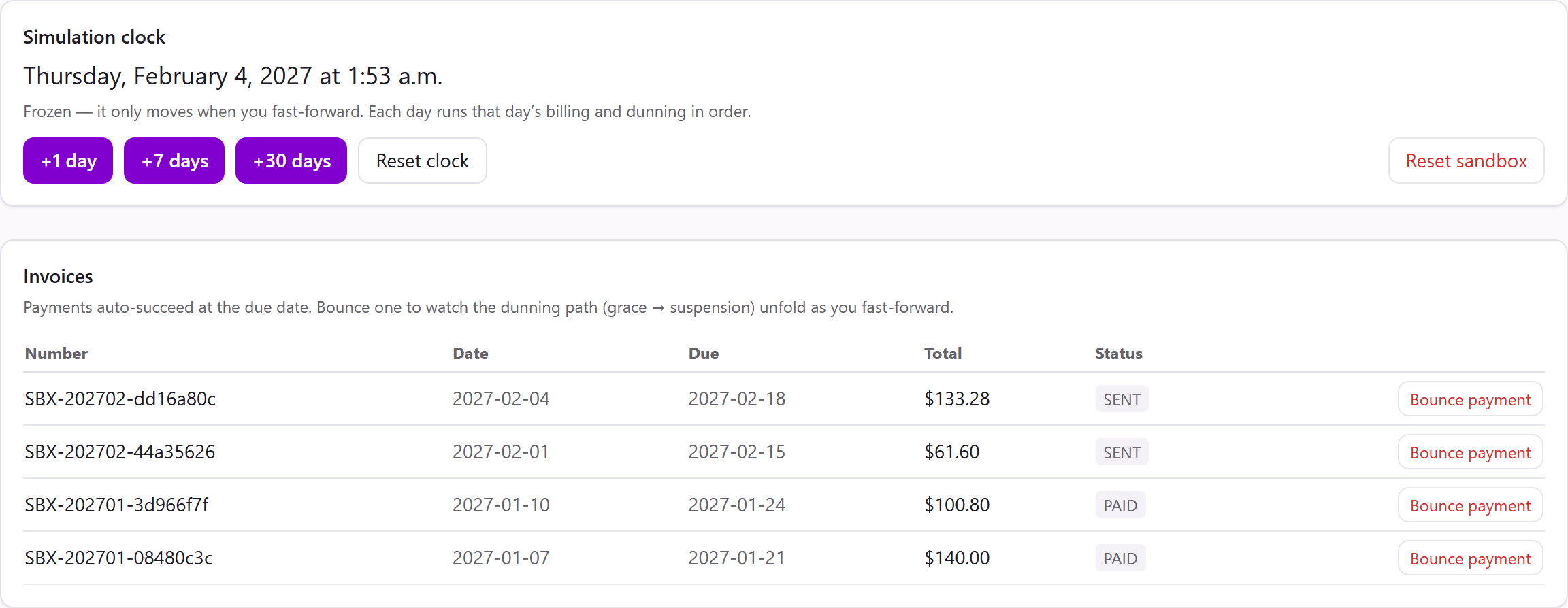
The sandbox’s date is frozen — it only moves when you press +1 day,
+7 days or +30 days. Each simulated day runs that day’s billing and
payment collection in order. Sample customers are billed on days 1 to 10 of a
month, so invoices appear once the clock has passed those days.
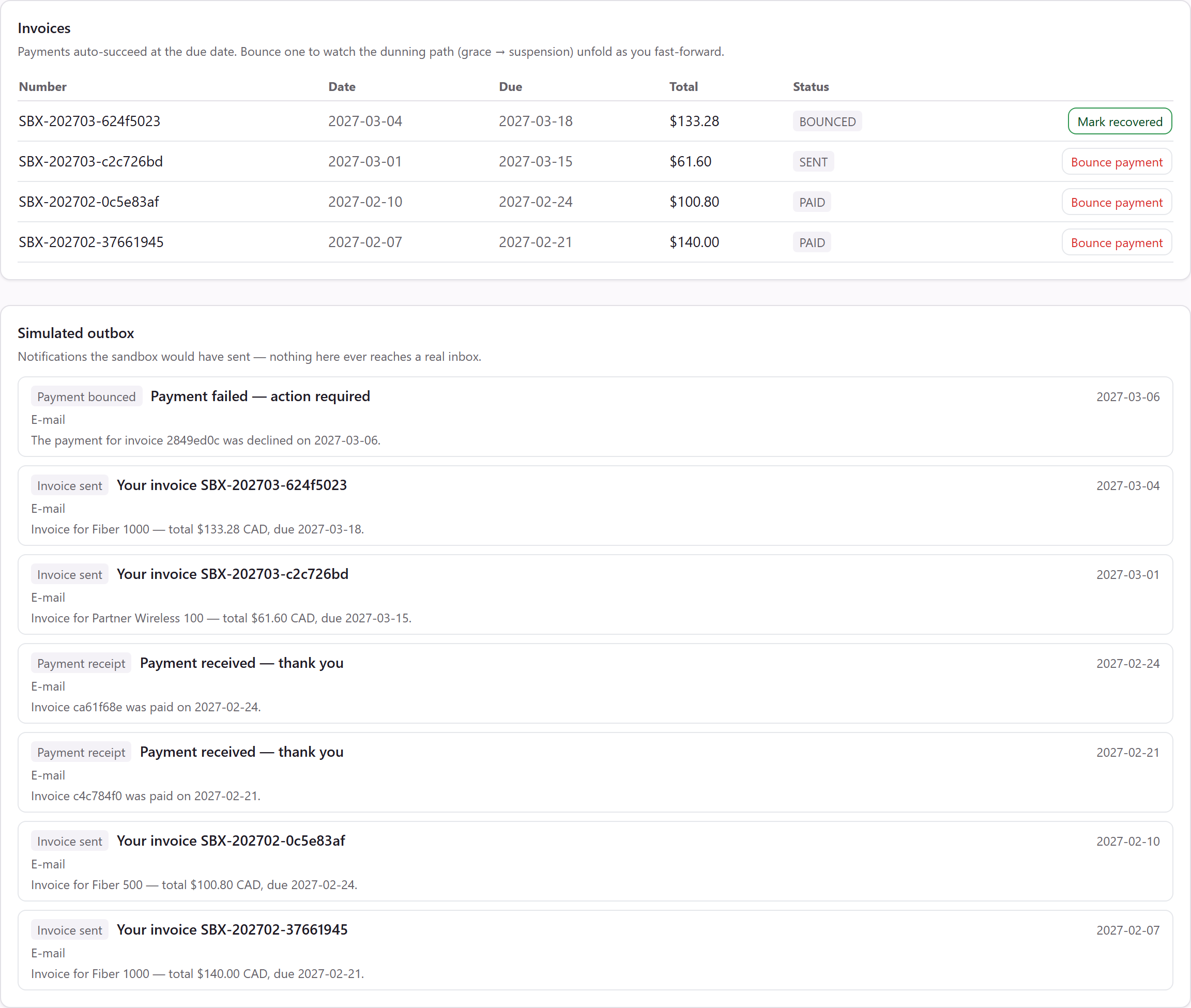
Payments succeed automatically on the due date. To see what happens when one
fails, press Bounce payment on an invoice, then fast-forward: after your
grace period the service is suspended, and the invoice turns overdue.
Mark recovered pays it and restores the service.
The simulated lines of the sample customers. Take down a line to see the
outage alert — it also appears under Alerts and in Home’s
needs-attention list — and Bring up to restore it.
Every message the sandbox would have sent. That is the simulated invoices,
receipts, failed payments, suspension notices and outage alerts, and every
e-mail and text to a sandbox customer: automation messages, ticket replies,
portal invitations, sign-in codes and campaigns. Each row says how it would
have gone out and to whom. Nothing here reaches a real inbox or phone, not
even an address or number you typed in yourself.
A bounced payment and the notifications it produced
Reset clock sets the clock back to today. Invoices and notifications you
already generated stay.
Reset sandbox wipes all simulated invoices, notifications and sample
customers, copies your current catalog again, creates fresh sample customers
and sets the clock back to today. Plans and versions you created in the
sandbox stay. Confirm with Reset.
A good first run: enter the sandbox, open the panel, press +30 days, bounce
one payment and press +30 days again — you see the whole path from invoice
to suspension. To practise the everyday flows, see
Add a customer & subscription and
Build your catalog.