

Where leads come from
- Add lead — someone calls, writes or meets you.
- Your own website — if your developer sends sign-ups to kurnl’s lead API (see Leads), they arrive in the stage Waitlist with the source Partner.
- Abandoned checkouts — people who entered their e-mail in your checkout and left. They are listed below the board for 30 days, with whether kurnl’s one recovery e-mail went out. Contact them, or add them as a lead. Admin, support and sales accounts see the list.
The board
Leads are shown as a Board or a List. The columns are your stages: New inquiry, Qualified, Considering, Won, Lost and Waitlist. Search by name, e-mail, phone or address, and filter by source (Website, Phone, Chat, Email, Referral, Partner, Event / In-person, Other). The list also shows whether the address is Serviceable or Not covered.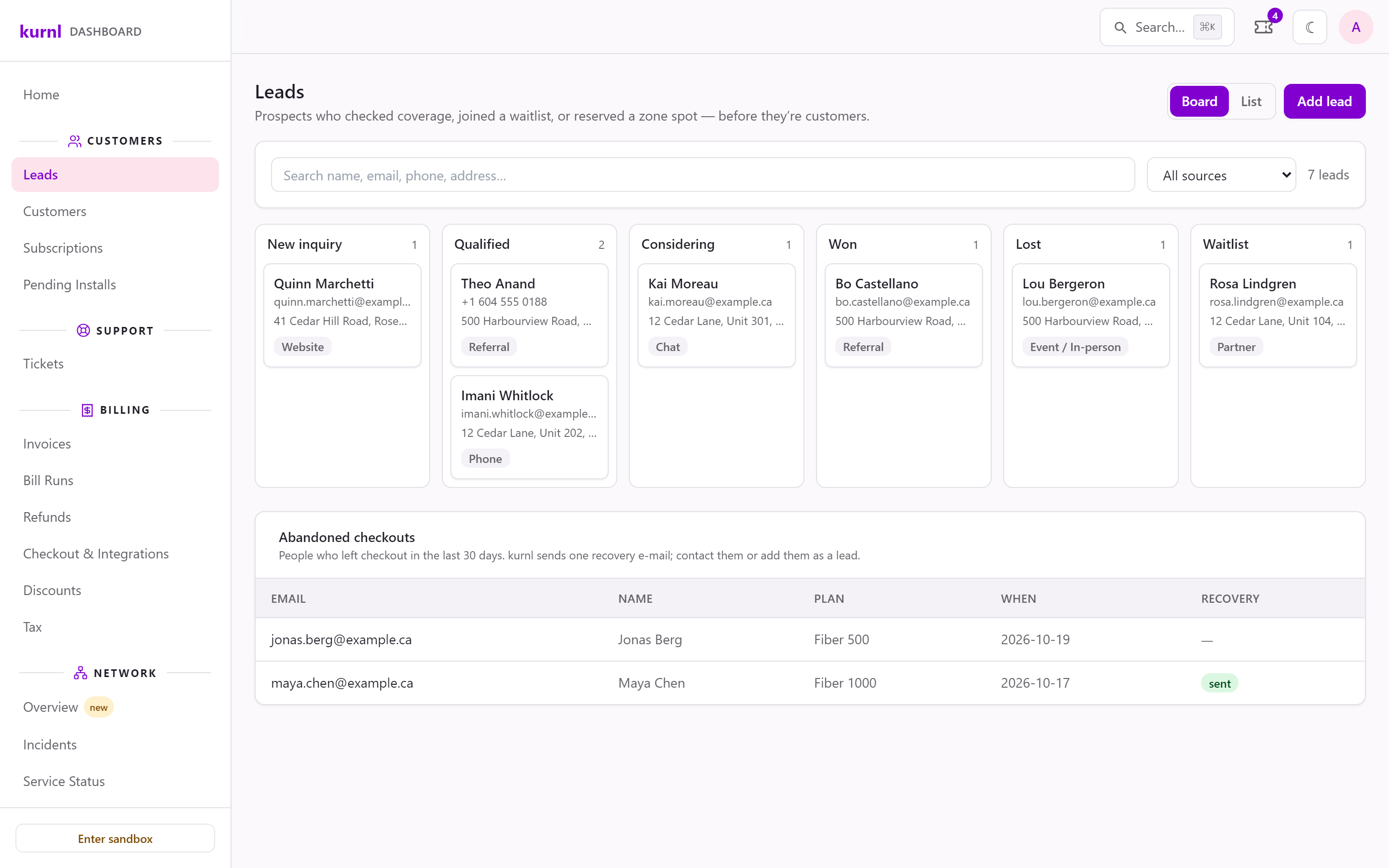
The leads board, with the abandoned checkouts below
Add a lead
Press Add lead and fill in First name, Last name, Email or Phone (one of the two is required), Service address, Source and any Notes. Tick Marketing consent given only if the person agreed to hear from you. Only leads with consent receive marketing campaigns, and every campaign lets them unsubscribe; an unsubscribe sets the lead to Denied. A new lead starts in New inquiry.Work a lead
Click a lead to open it. Next to its details and its Activity history you can:- Edit details,
- Move to stage — New inquiry, Qualified, Considering or Waitlist,
- Convert to customer — creates the customer and their subscription in one step and marks the lead Won: confirm the contact e-mail, choose the plan and the unit (plans faster than the unit’s building delivers are greyed out),
- Mark lost — with a reason: Not serviceable, No longer interested, Price, Timing / not ready, Unable to contact or Other.
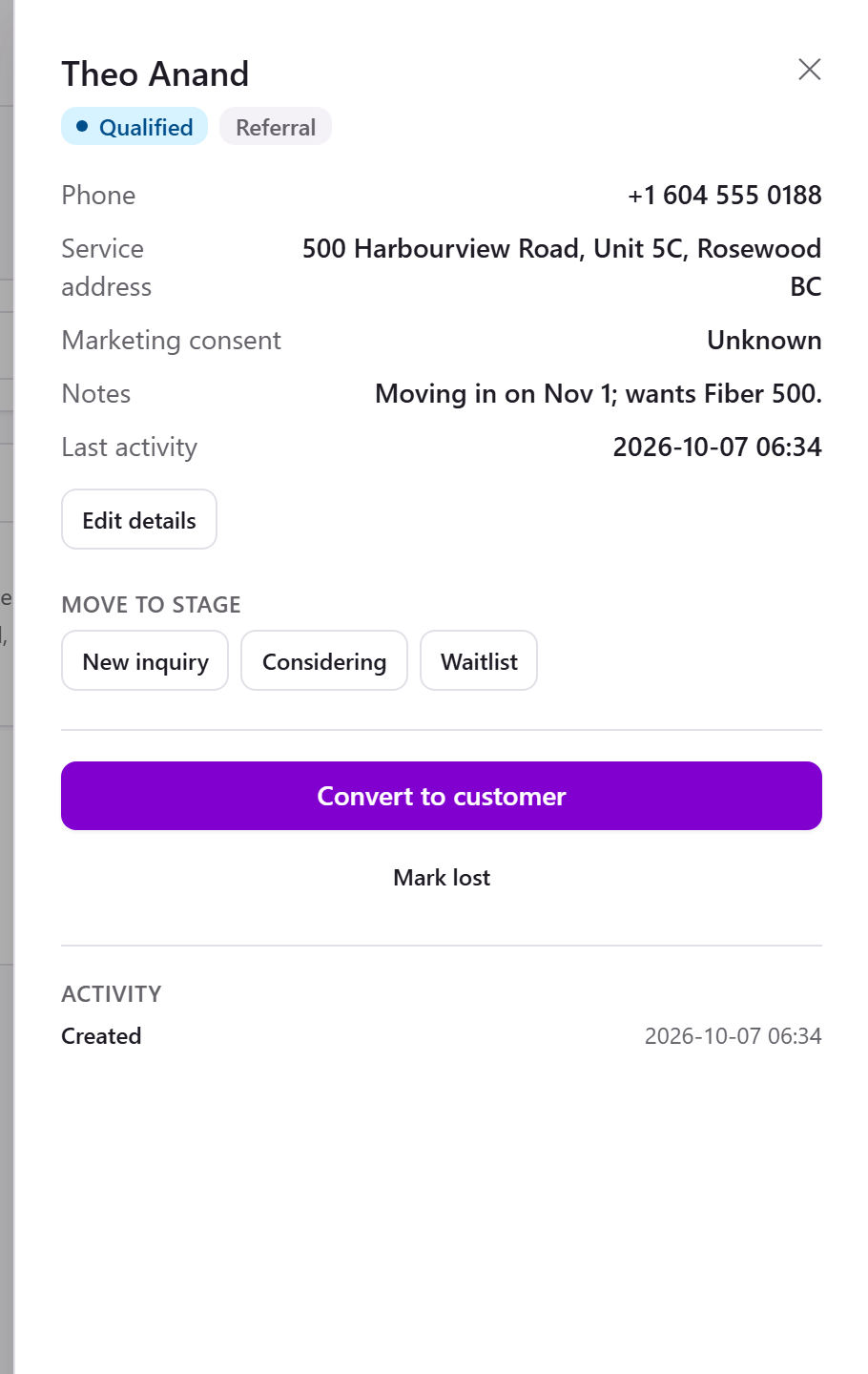
A lead, ready to convert
Your admin and support staff can add and work leads. Sales staff can see the
board but not change it.