
Checkout type
- Kurnl marketplace — customers browse, check out and pay inside the kurnl storefront; kurnl bills and provisions. This needs your Stripe account connected first (see Payments (Stripe)); until then the option reads Kurnl marketplace — connect Stripe first.
- External checkout (your own store) — customers pick a plan in the kurnl storefront and are redirected to your own store (WooCommerce, Shopify or a custom one) to pay. Your store owns payment and billing; kurnl provisions the connection once your store confirms the order.
1
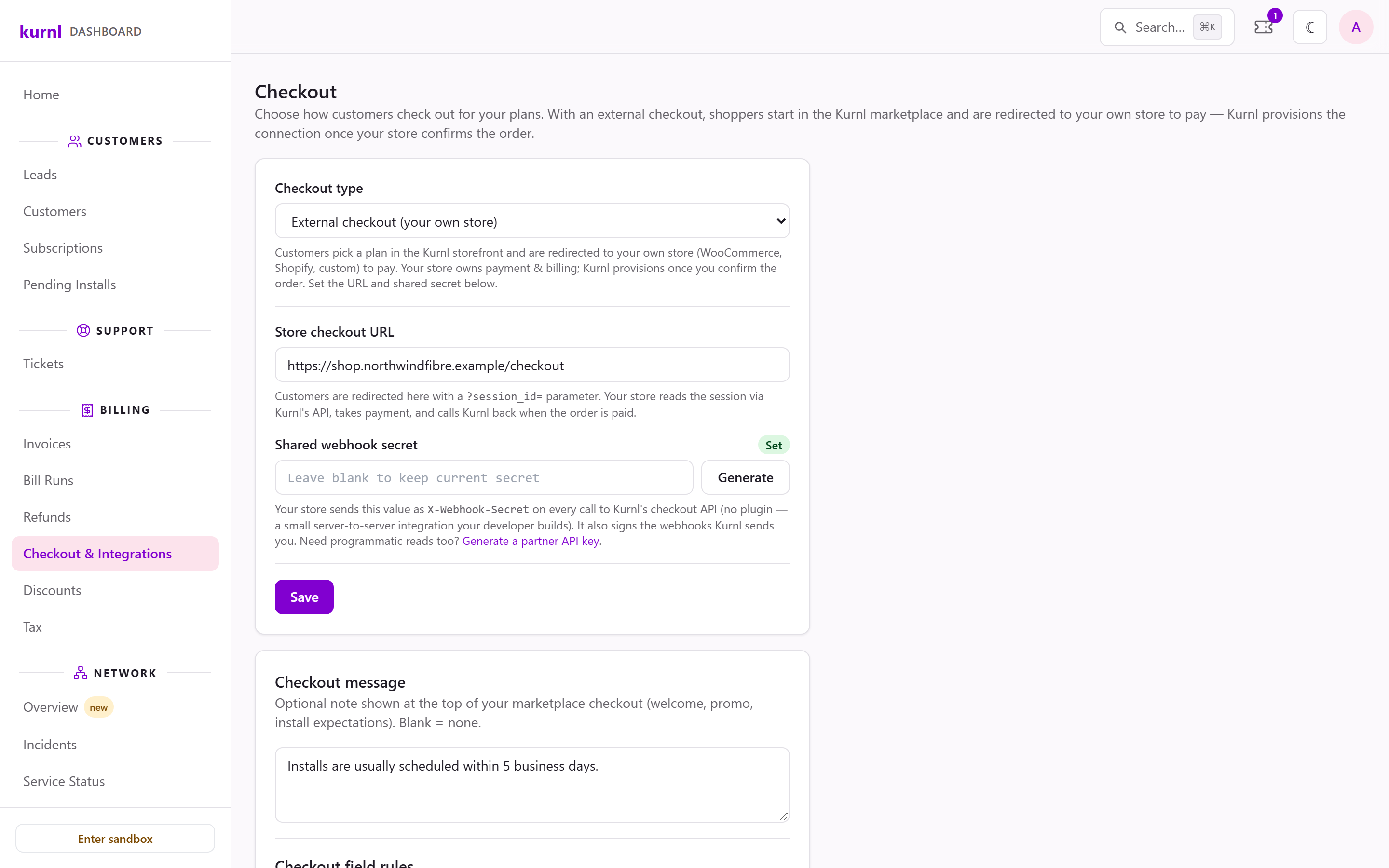
Choose External checkout
Under Checkout type, pick External checkout (your own store).
2
Enter your store's checkout URL
Store checkout URL is where customers are sent, with a
?session_id=
parameter your store uses to read the order from kurnl’s API.3
Set the shared secret
Paste a Shared webhook secret (at least 8 characters) or use
Generate. Your store sends it with every call to kurnl’s checkout API.
Once saved, the field shows Set and stays empty — leave it blank to
keep the current secret. Press Save.
Checkout with an external store
An external checkout needs no plugin: your developer connects your store to
kurnl’s API. See the Partner Integration Overview and the
API Reference. Selling through WooCommerce? See
Sell through WooCommerce.
The marketplace checkout
The second card shapes the checkout your customers fill in on the kurnl marketplace. It has its own Save.The message and the field rules apply to the Kurnl marketplace checkout
only. With an external store your customers never reach this form — your
store asks its own questions.
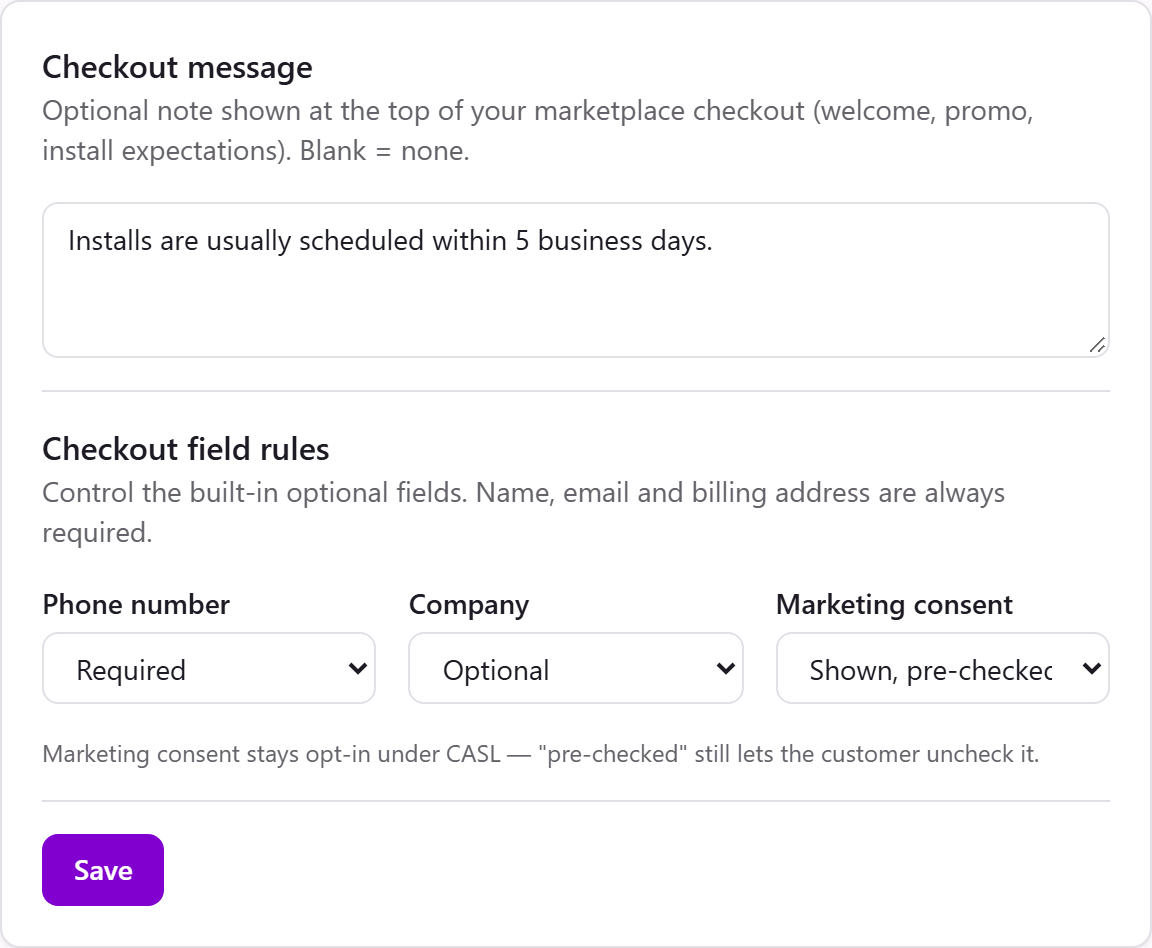
Checkout message
An optional note at the top of the checkout — a welcome, a promotion, what to expect after signing up. Leave it blank for none; it can be up to 2,000 characters long.Checkout field rules
Name, e-mail and invoice address are always required. On top of that:- Phone number — Optional, Required or Hidden.
- Marketing consent — Shown, unchecked, Shown, pre-checked, Required to proceed or Hidden.
Checkout message and field rules
See it as your customers do
Configurations → Plans, a version’s Preview, opens the plan in the marketplace, checkout included, without placing an order. The preview shows your checkout message; it does not apply your field rules.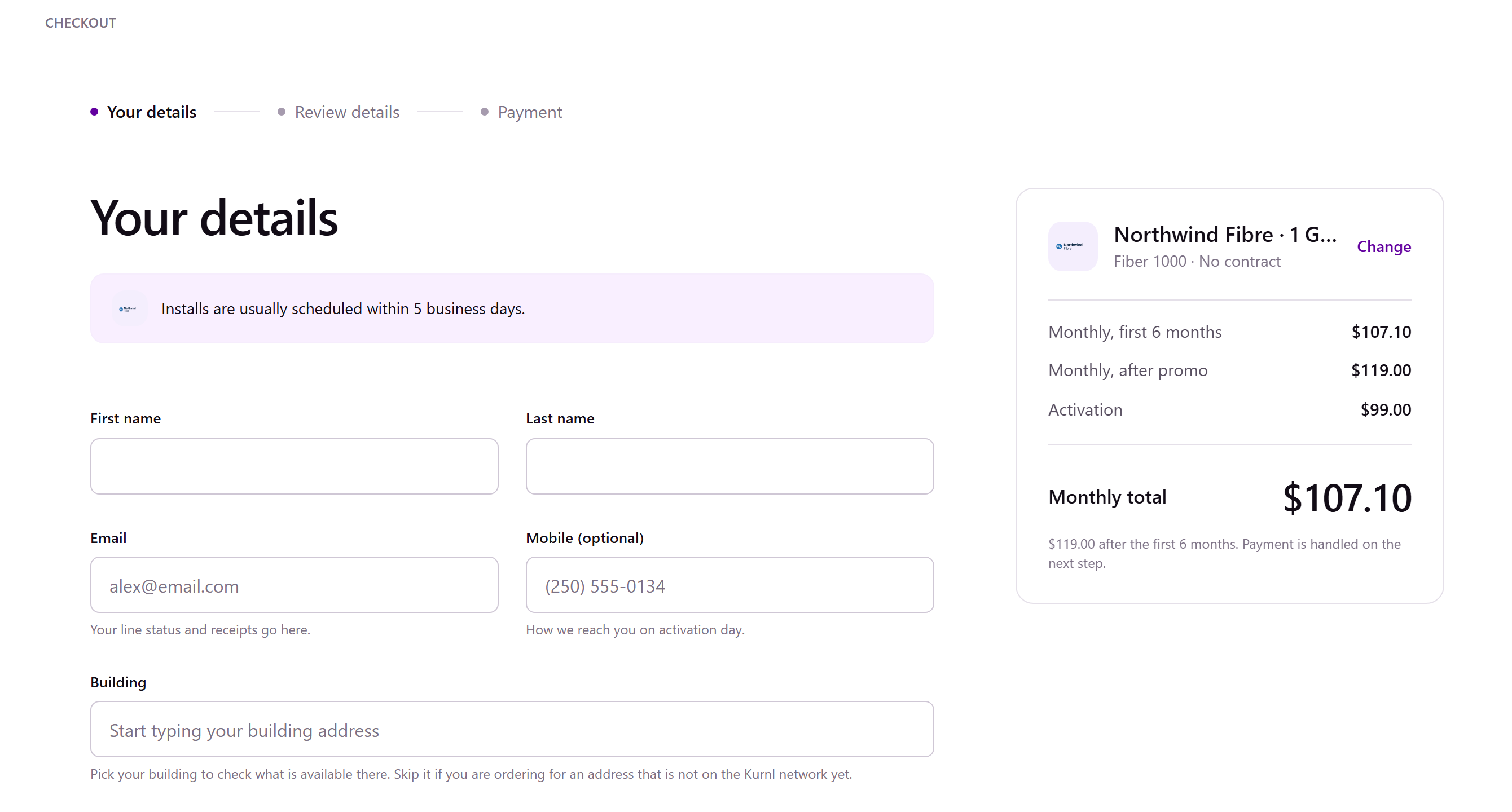
The marketplace checkout with your checkout message
The marketplace offers a plan at a building only if the building’s connection
can deliver its speed. At a building with a slower connection the plan is not
listed.