Build your catalog — plans, services, discounts & campaigns
Set up what you sell — plans (from wholesale products), add-on services, discounts, and promotional campaigns — from the dashboard.
Your catalog is what subscribers can buy. This guide covers the four pieces,
in the order you’ll usually build them: plans, services, discounts,
and campaigns.
You need the Plans permission for plans/services and the Campaigns
permission for discounts/campaigns (both included in sp_admin).
A plan is a customer-facing offer. Its speed, technology, and wholesale price are
derived from the wholesale product it’s built on — you set the retail price
and presentation.
1
Open Plans
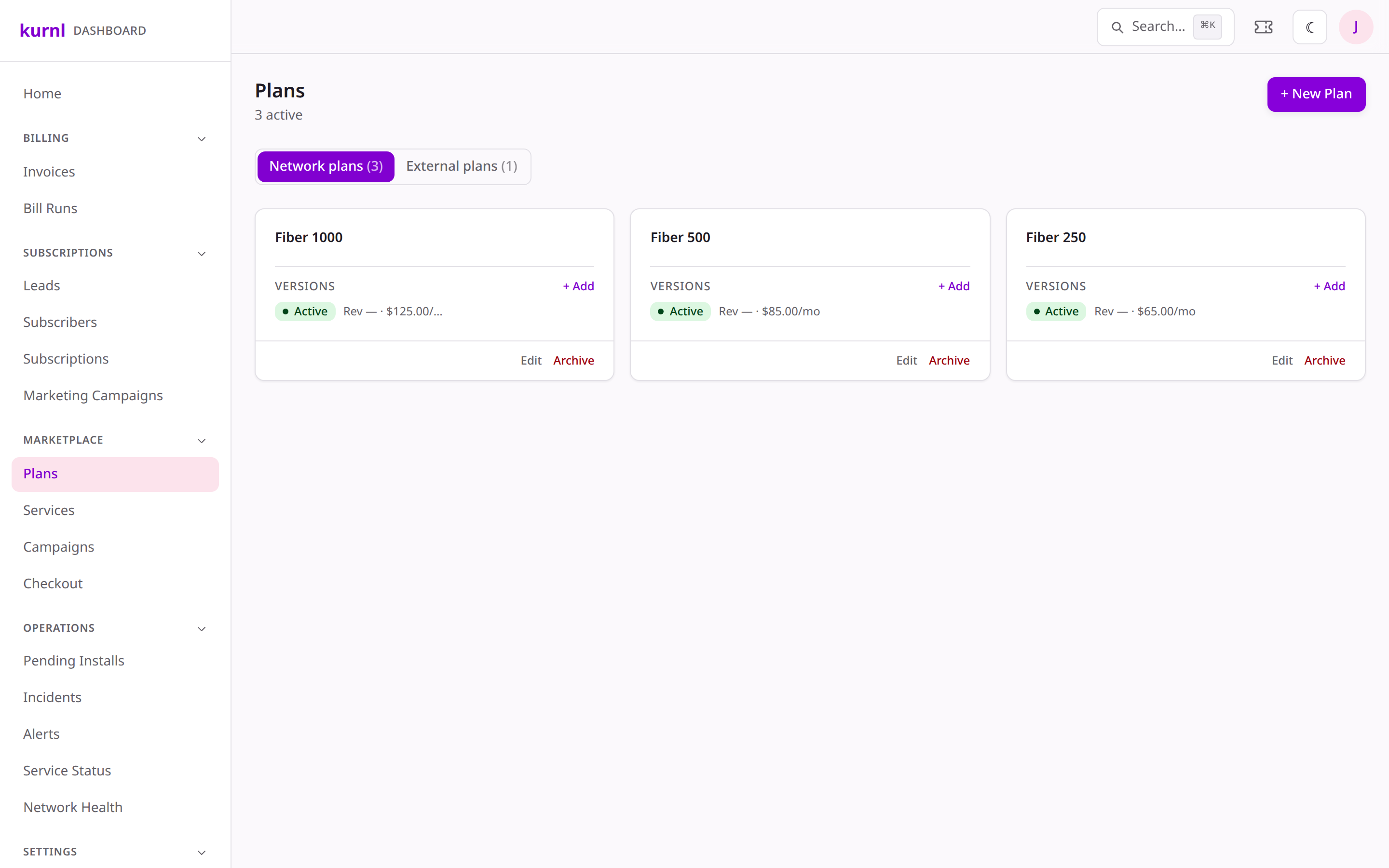
Go to Plans in the sidebar. Each plan can have multiple versions —
you publish a new version to change pricing without disturbing existing
subscribers.
The Plans page
2
Create a plan version
Add a plan, pick its wholesale product (this fills in speed + technology +
wholesale cost, read-only), set the retail monthly price, and optionally a
setup fee and minimum contract term.
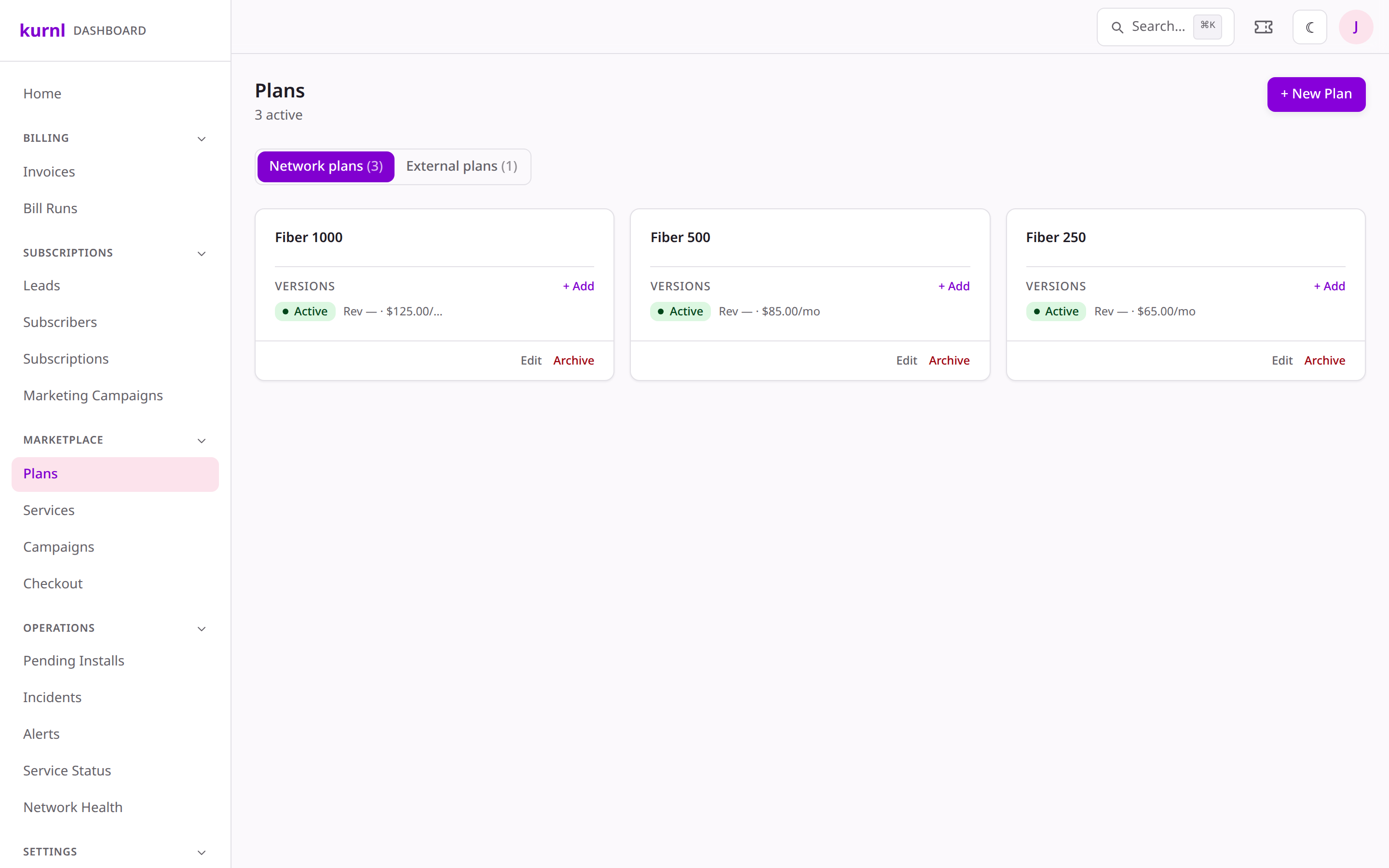
Editing a plan version
3
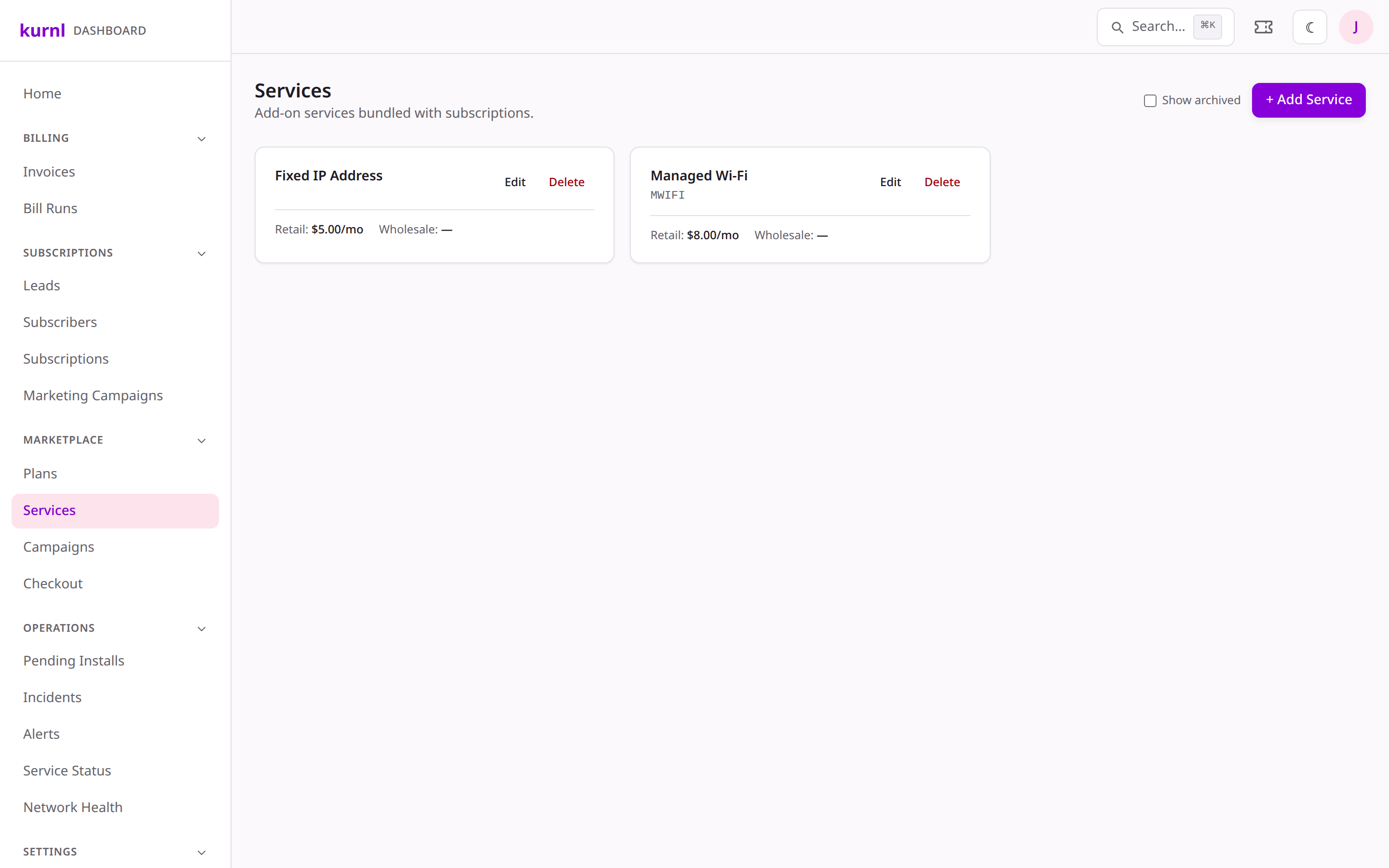
Compose included & add-on services
In the plan version you can attach services as included or as paid add-ons,
with per-plan price overrides (see the next section).
4
Publish
Publishing makes the version live in the marketplace. Draft versions are only
visible to you (and via the preview link).
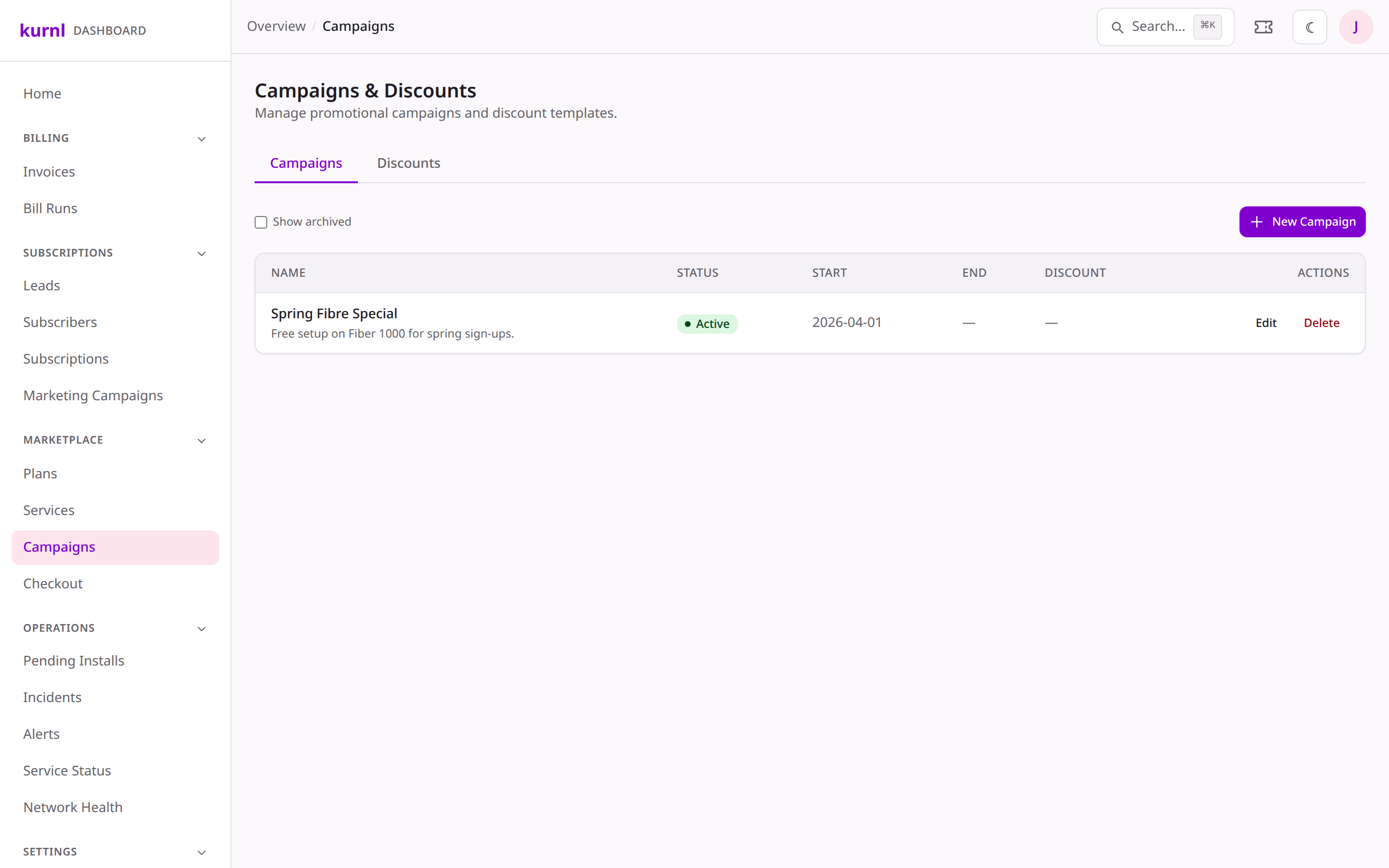
Discounts and promo campaigns live under Billing → Discounts. A campaign
bundles a discount (percentage or fixed amount) with a validity window and the
plans it applies to.
1
Open Billing → Discounts
Discounts & promo campaigns
2
Create a discount
Set the amount (e.g. 20% off, or $10 off the first 3 months), the date window,
and which plans it applies to. Campaigns are scoped to your provider, so they
only ever touch your own offers.
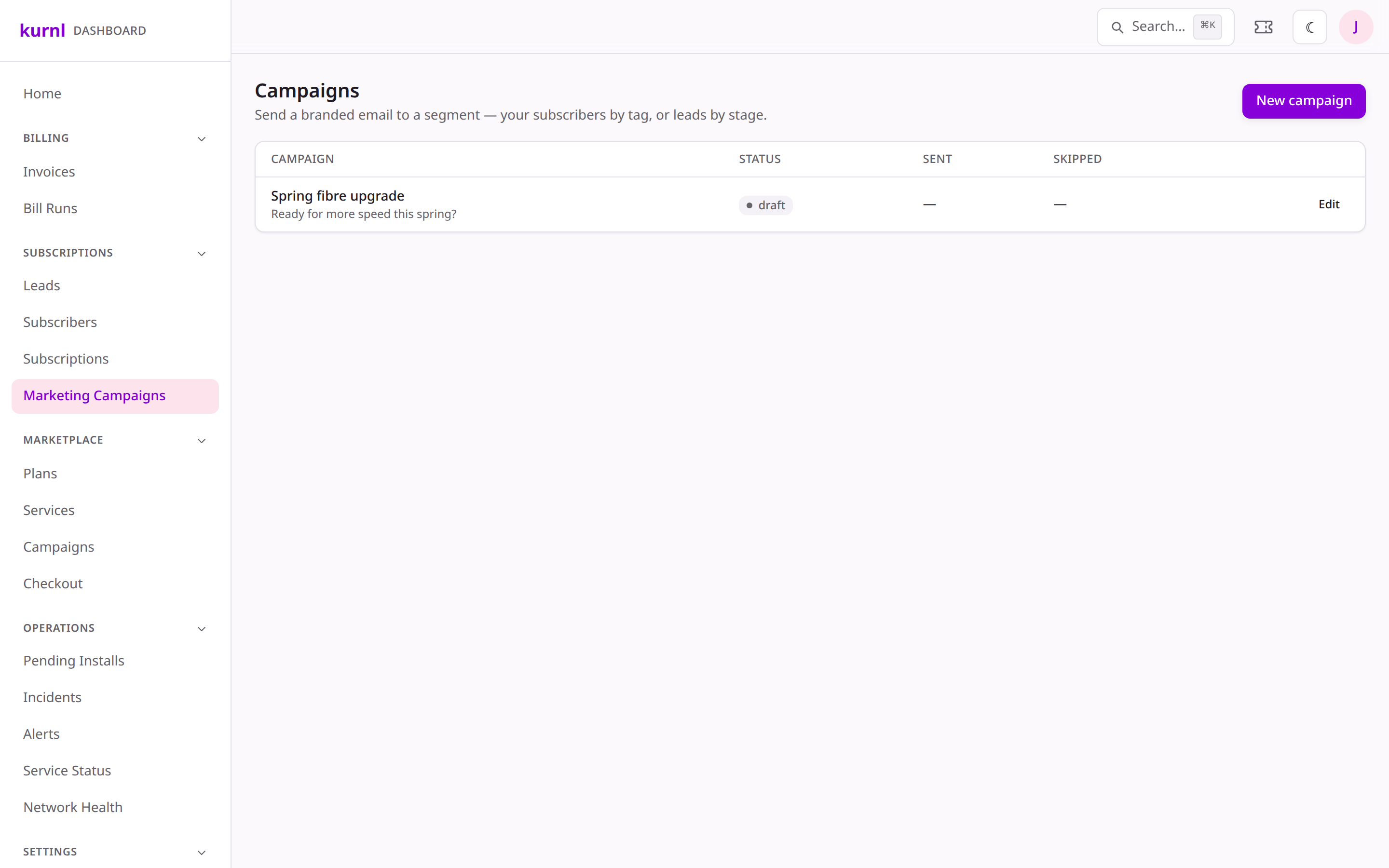
Separate from promotional discounts, Marketing → Marketing Campaigns is for
sending a branded email to a segment — your subscribers by tag, or leads by stage.
1
Open Campaigns
Pick an audience (a tag, a lead stage, or all subscribers), write the subject
and body (with {name} / {email} tokens), preview the audience size, then
send now or schedule it.
Email campaign composer
Bulk sends respect subscriber comms preferences and never email synthetic/test
addresses — but always double-check your audience count before sending.
Build and test your whole catalog safely in the
dashboard sandbox before publishing to real subscribers.